
Free plugin · Dox POS 0.42 or later
WordPress installs Dox POS in Spanish on its own for stores in Spain, Colombia, Mexico, Chile and Argentina. If your store is set to Spanish from another country, or your register shows up in English, download your country’s translation here and upload it with Loco Translate. It takes five minutes.
Why it sometimes shows up in English
Translations of WordPress.org plugins are made by volunteers at translate.wordpress.org, and each country is a separate project. WordPress only installs one once that country’s editors approve enough strings. Until then, a store set to “Español de Perú” sees Dox POS in English even though the translation exists.
Check which Spanish your site uses
- In WordPress, go to Settings › General.
- Look at Site Language: “Español de Perú”, “Español de México”, “Español”… That’s the country to look for in the table. Plain “Español” is Spain.
Download the translation
Each file already has the name WordPress looks for in that country, so there’s nothing to rename. They live in the translations folder of the Dox POS code on GitHub and are updated with every version.
| Country | Code | Download |
|---|---|---|
| Argentina | es_AR | Download es_AR |
| Chile | es_CL | Download es_CL |
| Colombia | es_CO | Download es_CO |
| Costa Rica | es_CR | Download es_CR |
| Ecuador | es_EC | Download es_EC |
| España | es_ES | Download es_ES |
| Guatemala | es_GT | Download es_GT |
| Honduras | es_HN | Download es_HN |
| México | es_MX | Download es_MX |
| Perú | es_PE | Download es_PE |
| Puerto Rico | es_PR | Download es_PR |
| República Dominicana | es_DO | Download es_DO |
| Uruguay | es_UY | Download es_UY |
| Venezuela | es_VE | Download es_VE |
Upload it with Loco Translate (recommended)
Loco Translate is a free plugin for managing translations from the WordPress dashboard. You don’t need to log in to your hosting, and what you upload isn’t lost: not when you update Dox POS, and not when your country’s official package arrives.
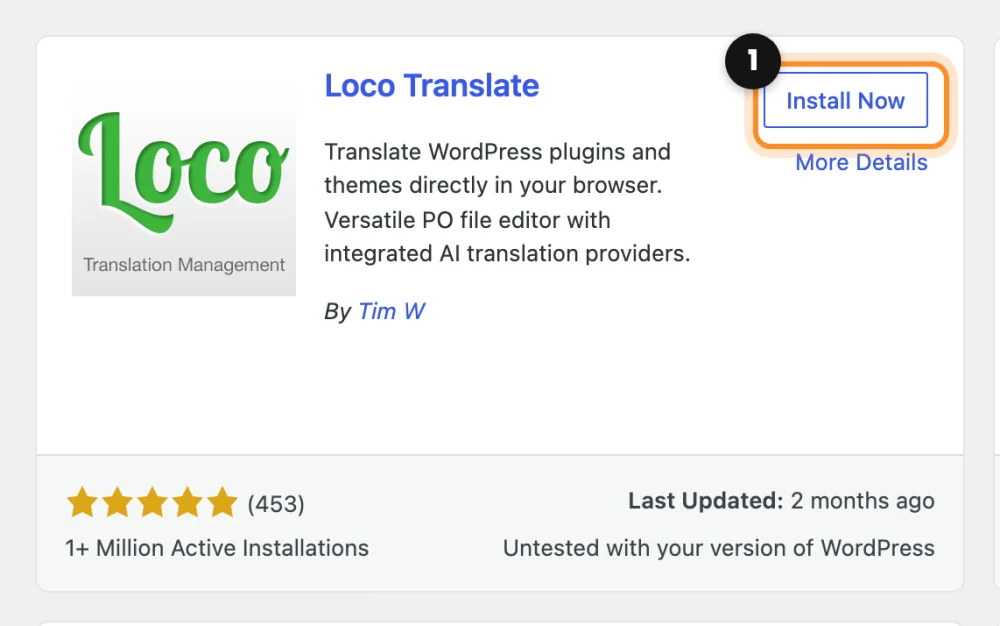
- In WordPress, go to Plugins › Add New Plugin, search for Loco Translate, install it and activate it.
- Unzip the file you downloaded on your computer. Inside is your country’s
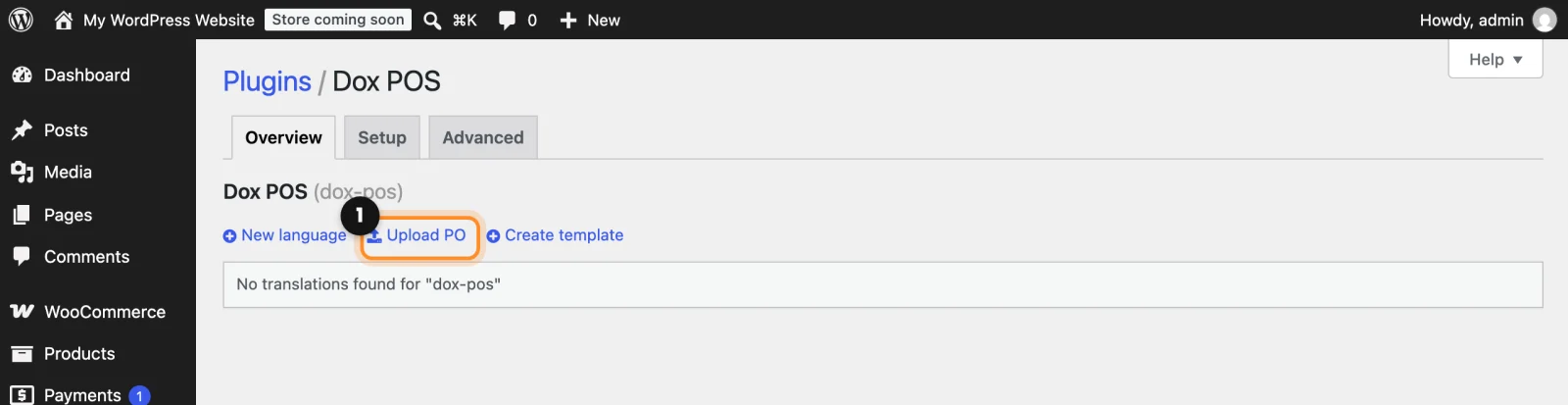
dox-pos-es_XX.pofile (for exampledox-pos-es_PE.po): it’s the only one you need here. - Go to Loco Translate › Plugins › Dox POS and click Upload PO.
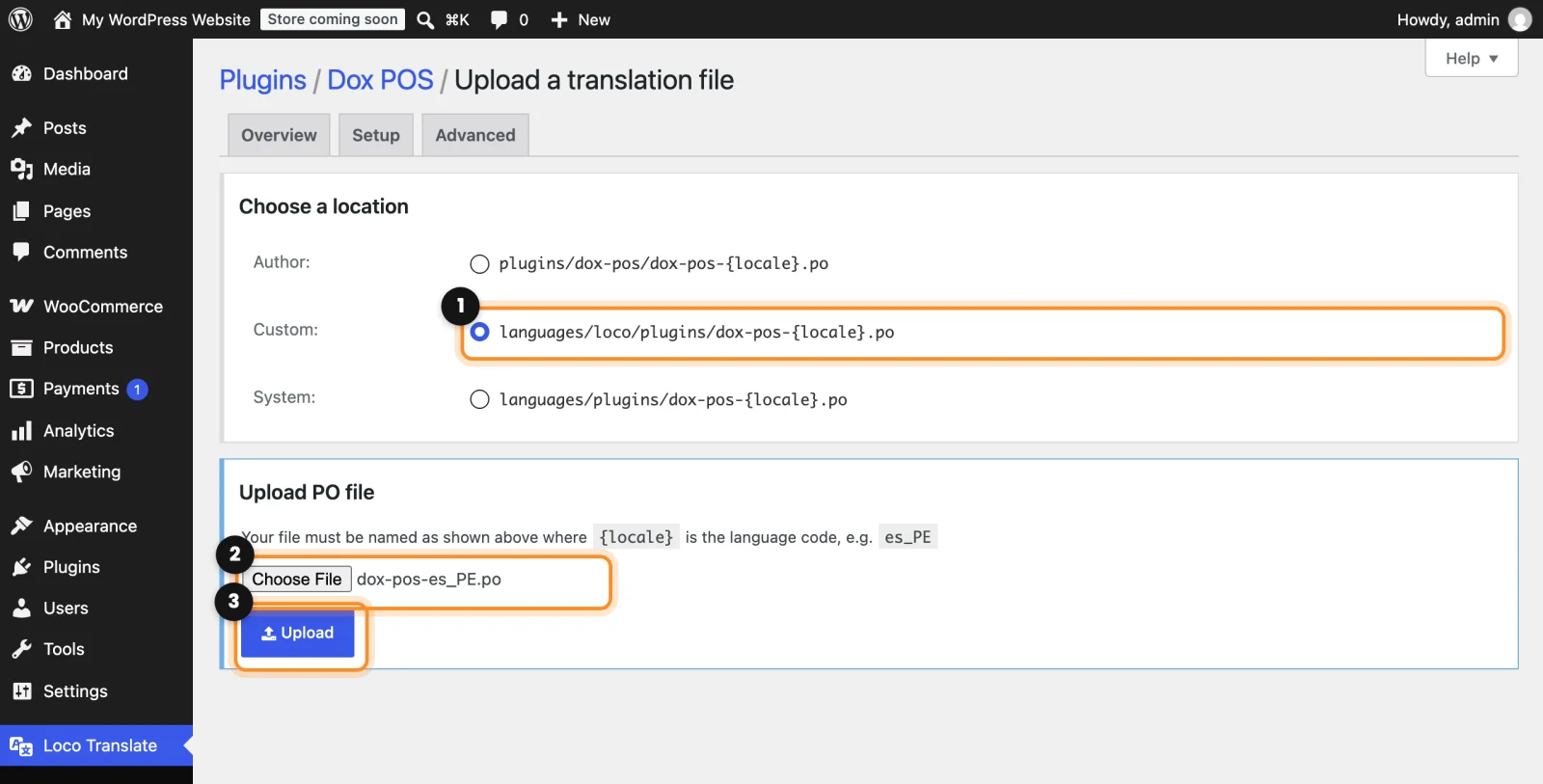
- Under Choose a location, select Custom, the one ending in
languages/loco/plugins. - Choose the
.pofile and click Upload. Loco saves it and builds what the register needs.
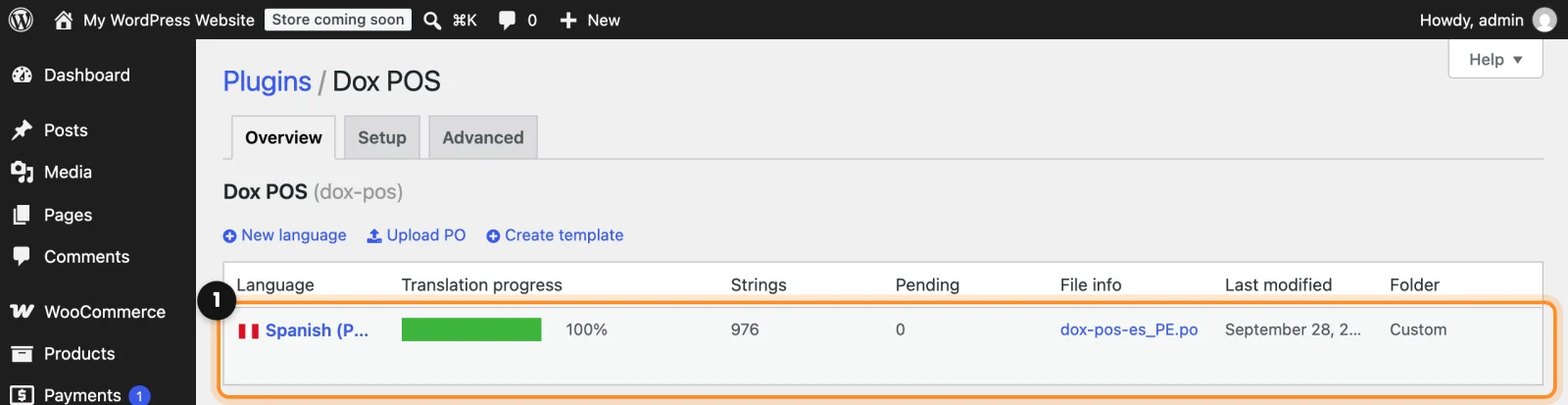
- Reload the register: it’s in Spanish now.
Why Custom: that folder belongs to Loco only. Updates don’t touch it, and if your country’s official package arrives one day, your translation still wins and anything missing is taken from the official one. When you update to a version with new text, upload the new .po the same way.
Or upload it without installing anything
- Open your hosting’s file manager (in cPanel, File Manager) or connect by FTP.
- Open your WordPress folder (usually
public_html) and go towp-content/languages/plugins. If there’s nopluginsfolder insidelanguages, create it. - Upload the zip there as it is and extract it (in cPanel: right-click the zip and choose Extract). You can delete the zip afterwards.
- Reload the register.
That’s the folder for official translations: Dox POS updates don’t touch it, but the day WordPress has your country’s package, it puts its own in place of this one.
Note: if nothing changes either way, clear your site’s cache (for example, LiteSpeed Cache › Purge All). Sites with an object cache keep the list of translations and take a while to see new files.
Help it arrive on its own
If you speak Spanish, you can suggest or review translations at translate.wordpress.org with a free WordPress.org account: pick your country and click any string. The more get approved, the sooner every store in your country gets Spanish without downloading anything.
Before this: Install Dox POS and open the register