
Free plugin · Dox POS 0.41 or newer
When an order goes out, mark it as shipped with the carrier and the tracking number. The customer gets an email with the tracking link, and the register leaves the text message ready for you to send.
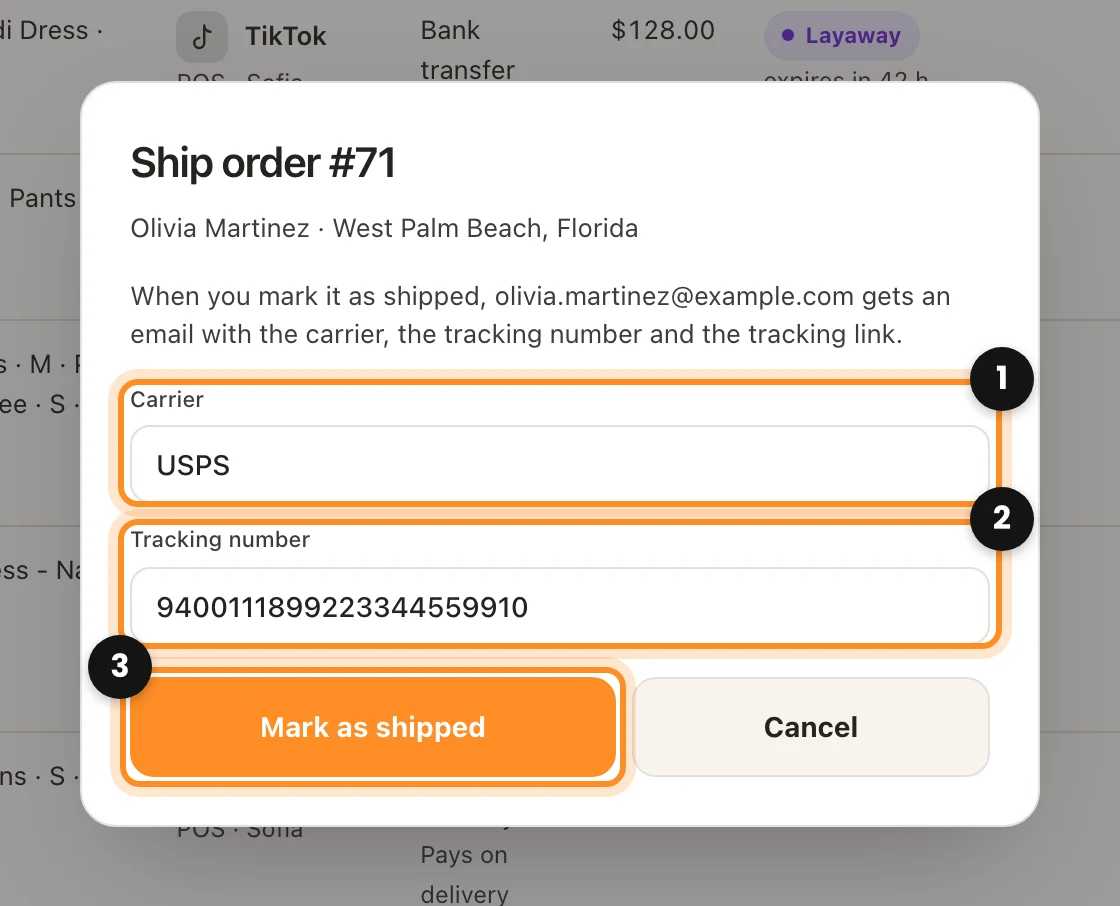
Mark the order
- In the register, open Orders and find the order. It has to be To ship, paid or cash on delivery.
- Tap Mark as shipped. The Ship order #1234 window says who it goes to and whether they will get an email.

- In Carrier (1), choose one of the suggested ones or type another name.
- Write the Tracking number (2). It says Optional, but without it the customer has nothing to follow.
- Tap Mark as shipped (3).
What the customer gets
- If the order has an email address, an email with the carrier and the tracking number, what is in the parcel and where it goes. When the carrier has a tracking link, the email has a Track the shipment button. It uses your store’s email design and sender.
- The Marked as shipped window tells you whether the email reached them. Text them opens the message with the tracking number already in it (in a store set to WhatsApp, Tell them on WhatsApp). Done closes the window.
- In the list, the order now says Shipped, with the carrier and the tracking number under it as a link to the tracking. In WooCommerce it has the Shipped status too.
When the parcel arrives, tap Mark as delivered and the order is closed as Delivered. For a cash on delivery order, that is when you collect.
Your carriers and the message
Both are in WooCommerce › Dox POS › Shipments, not in Sales.
- Carriers: the ones the register suggests. A US store starts with USPS, UPS, FedEx and DHL, each with its tracking link. Add a known one… adds another from your country, and Another carrier adds your own: its name and, if it has one, its tracking link with
{tracking}where the number goes. - Email the customer when marking as shipped: on by default. Turn it off if you only want to send the text message.
- Shipping message: the text that opens when you tap Text them, with the placeholders
{name},{order},{carrier},{tracking},{link},{items}and{store}. A line whose placeholder ends up empty, such as a missing tracking number, removes itself. Default message brings the original back.
Note: only an order in To ship can be marked as shipped. A layaway has to be paid first, and a website order waiting for its payment has to be confirmed with Paid.
Next: Set your shipping costs