
Free plugin · Dox POS 0.41 or newer
You set what shipping costs from the register itself, without opening wp-admin. The costs are saved as WooCommerce shipping zones, so the register and your website checkout charge the same.
Open Shipping costs
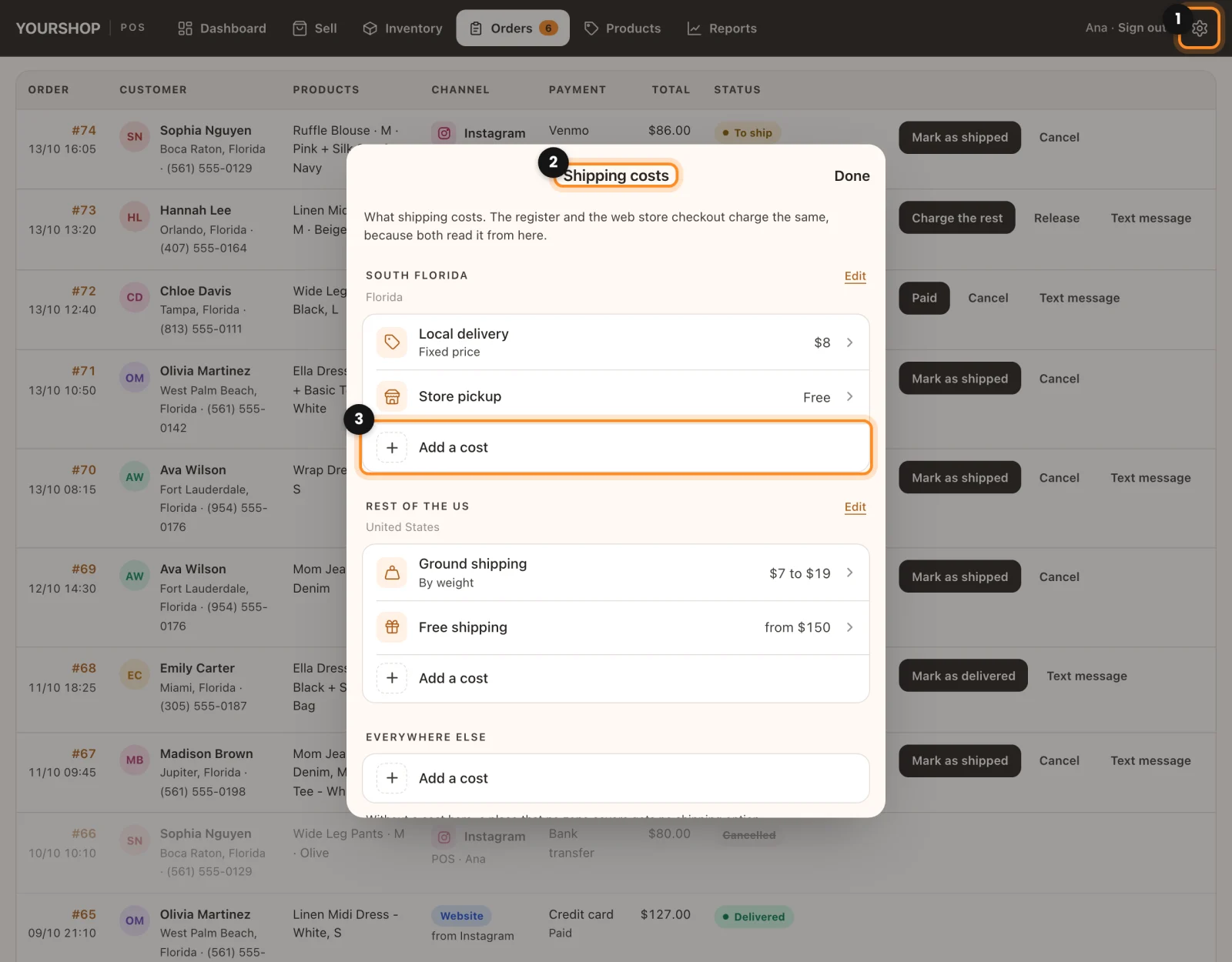
- In the register, tap the gear at the right end of the top bar (1). Only administrators and shop managers see it.
- Choose Shipping costs (2). The same list opens from the Shipping costs button next to Shipping while you record a sale.
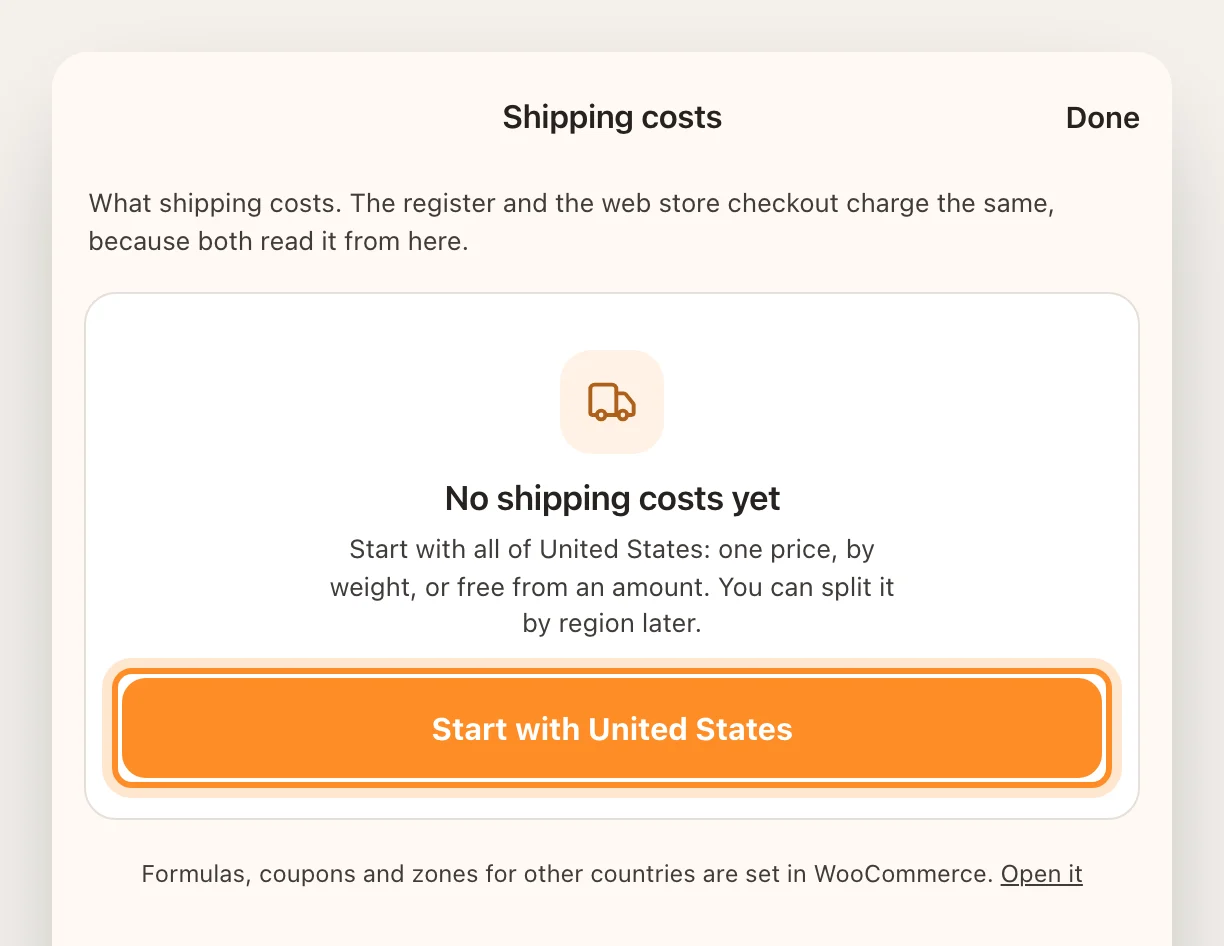
- The first time, the list says No shipping costs yet. Tap Start with United States: it creates one zone for the whole country and asks how shipping is charged there.
Add a cost to a zone
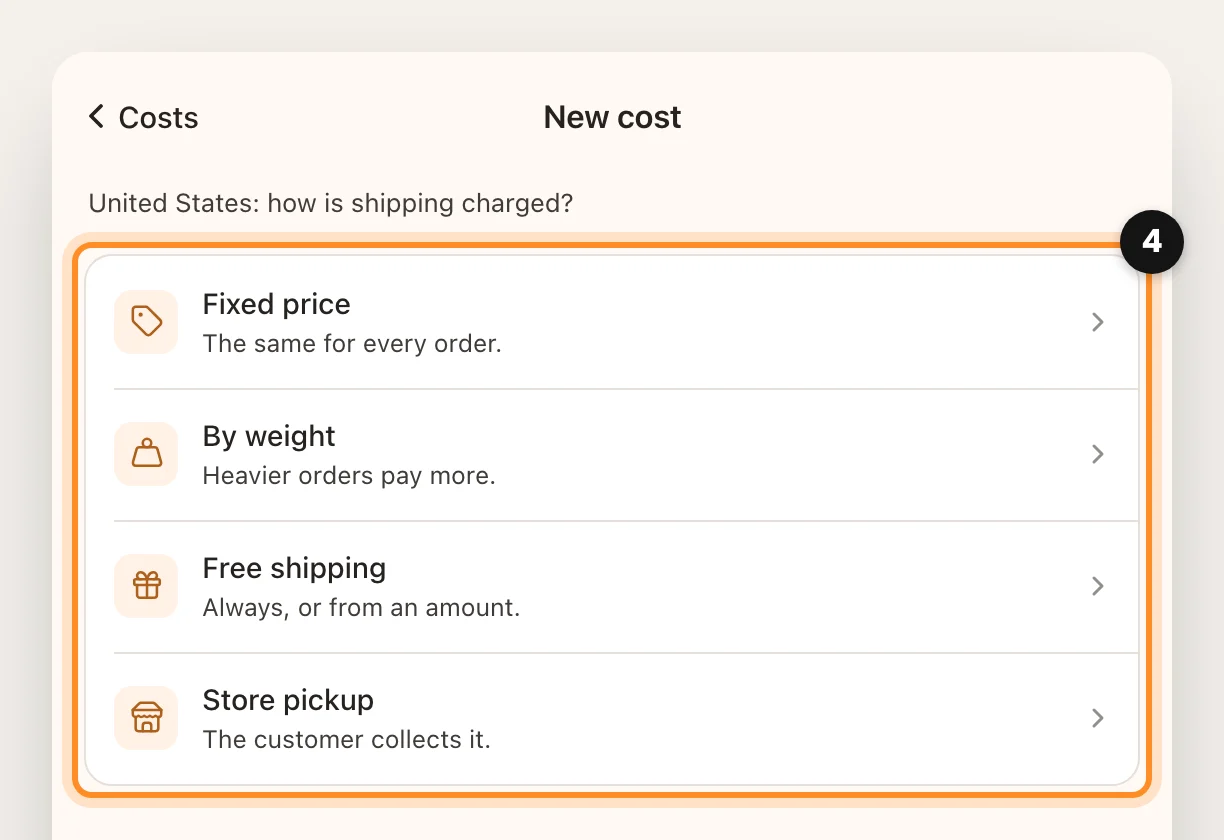
- Under the zone, tap Add a cost (3).
- Choose how it is charged (4): Fixed price (the same for every order), By weight (heavier orders pay more), Free shipping (always, or from an amount) or Store pickup (the customer collects it).
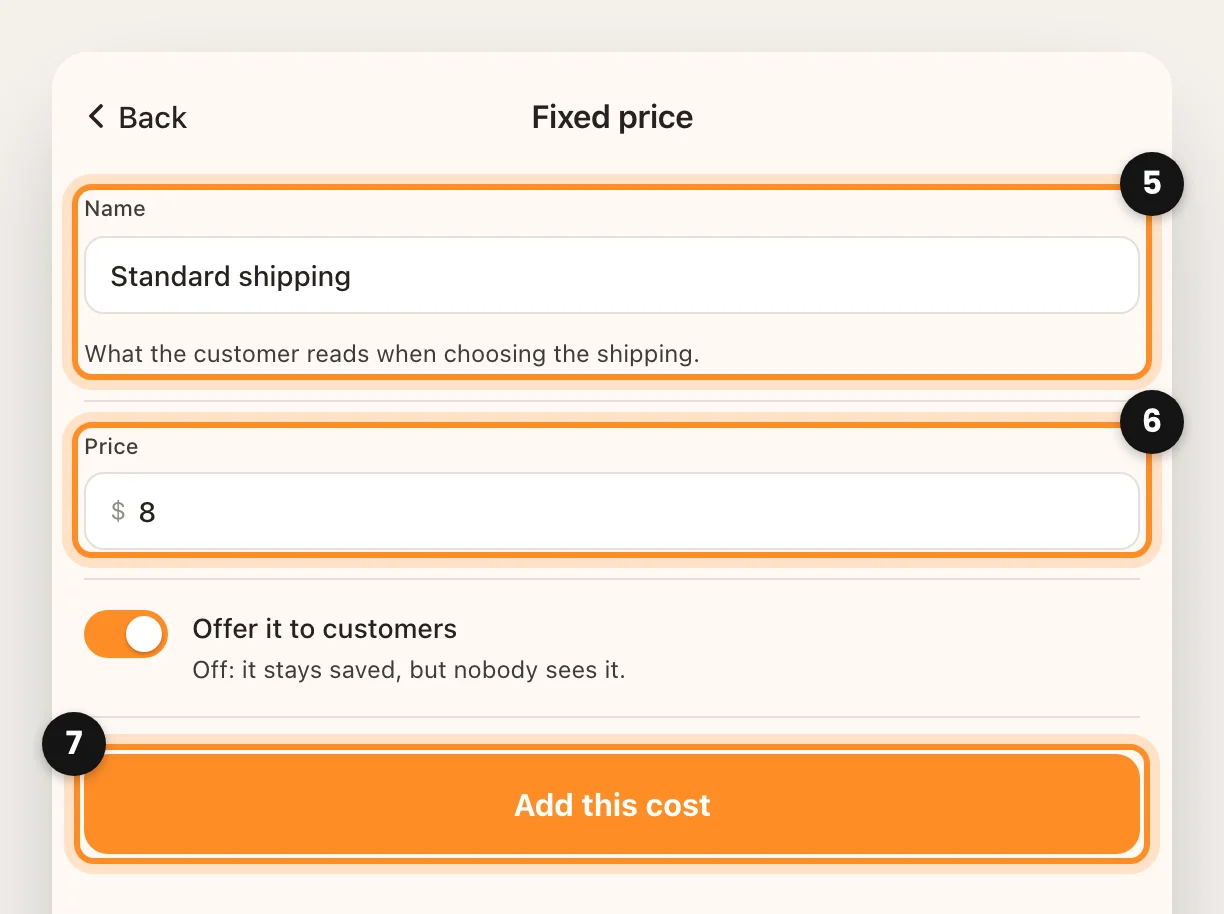
- Check the Name (5): it is what the customer reads when choosing the shipping.
- Write the Price (6). For free shipping, write the amount in Free from, or leave it empty so shipping is always free.
- Tap Add this cost (7).
A zone can carry several costs, for example a fixed price of $8 and free shipping from $150. The checkout offers all the ones that apply, and the register shows them as options when you record the sale.
Charge by weight
Choose By weight in step 2. The register adds up the weight of each product in the order, times its units, in the unit of your store (lb).
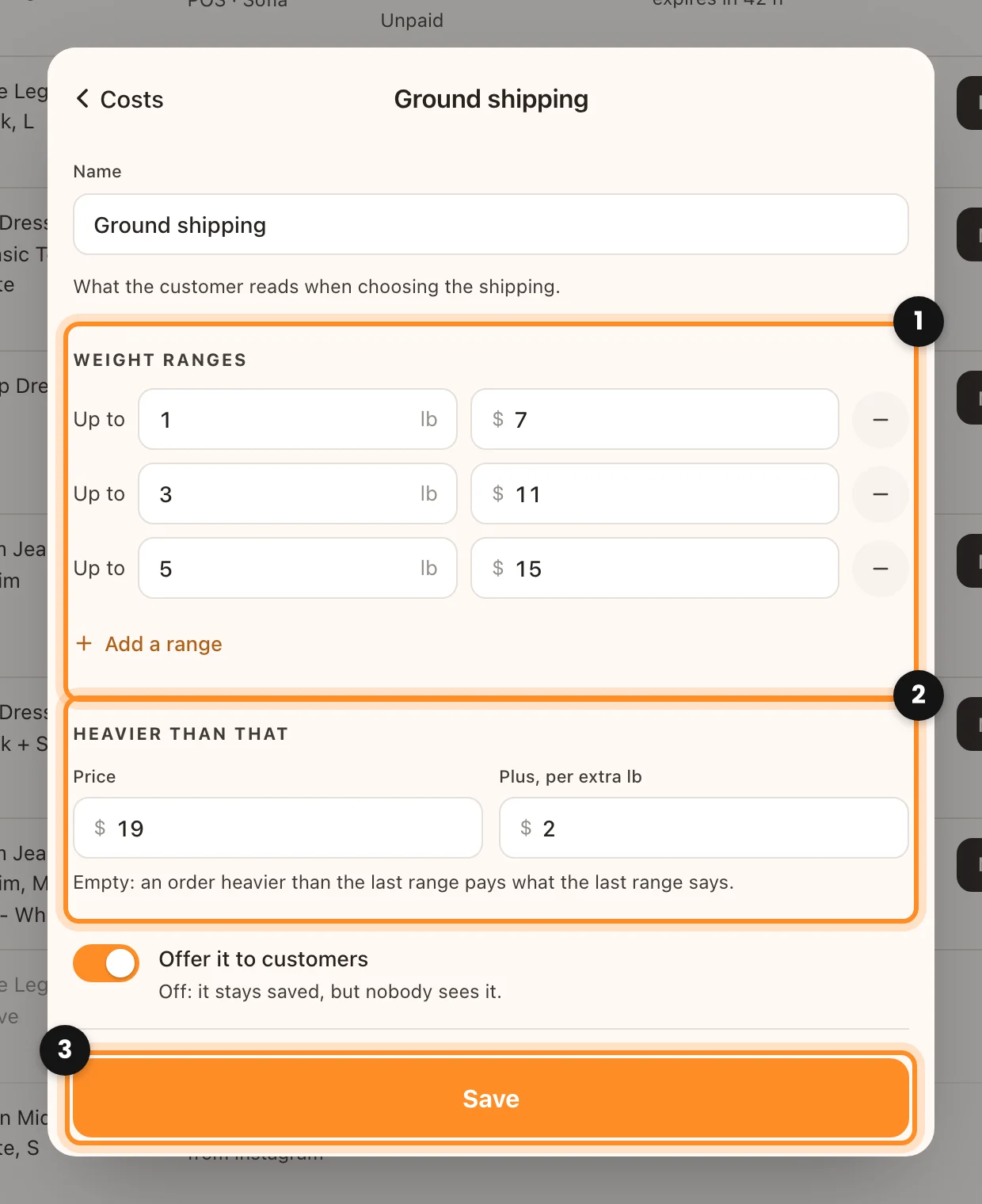
- In Weight ranges (1), each row is Up to a weight and its price. The first two rows come with 1 and 5 lb: write, say, $6 and $10. Add a range adds another row.
- In Heavier than that (2), write the Price of an order heavier than the last range and, if you want, Plus, per extra lb. Empty: that order pays what the last range says.
- Leave Offer it to customers on and tap Add this cost (3).
With those numbers, a 3 lb order pays $10. With $14 for heavier orders and $1 per extra lb, a 7 lb order pays $16: $14 plus 2 lb over the last range.
Note: a product with no weight counts as zero. Give each product its weight in Weight and size when you create it in the register, and the review before creating warns you if one is missing.
A different cost for some states
- Tap Add a zone, choose Only part of United States, tick the states (Florida, for instance) and tap Create the zone. It goes before the zone of the whole country, so those places pay what this one says.
- A zone with no cost turned on leaves its places with no shipping option: the store does not fall back to another zone.
- Everywhere else covers the places no other zone covers.
- To change a cost, tap it and Save, or Delete this cost. A zone has its own Edit button, with Delete this zone. Whatever you delete, the website stops offering it too.
Note: formulas, coupons and zones for other countries are set in WooCommerce (Open it, at the bottom of the list). A cost like that shows up here as it is, and you can only turn it on or off.
Next: Create and edit products