
Free plugin · Dox POS 0.41 or newer
You create a product with its photos, sizes, colors and units from the phone, without opening wp-admin. It is a regular WooCommerce product, and it is in your store as soon as you create it.
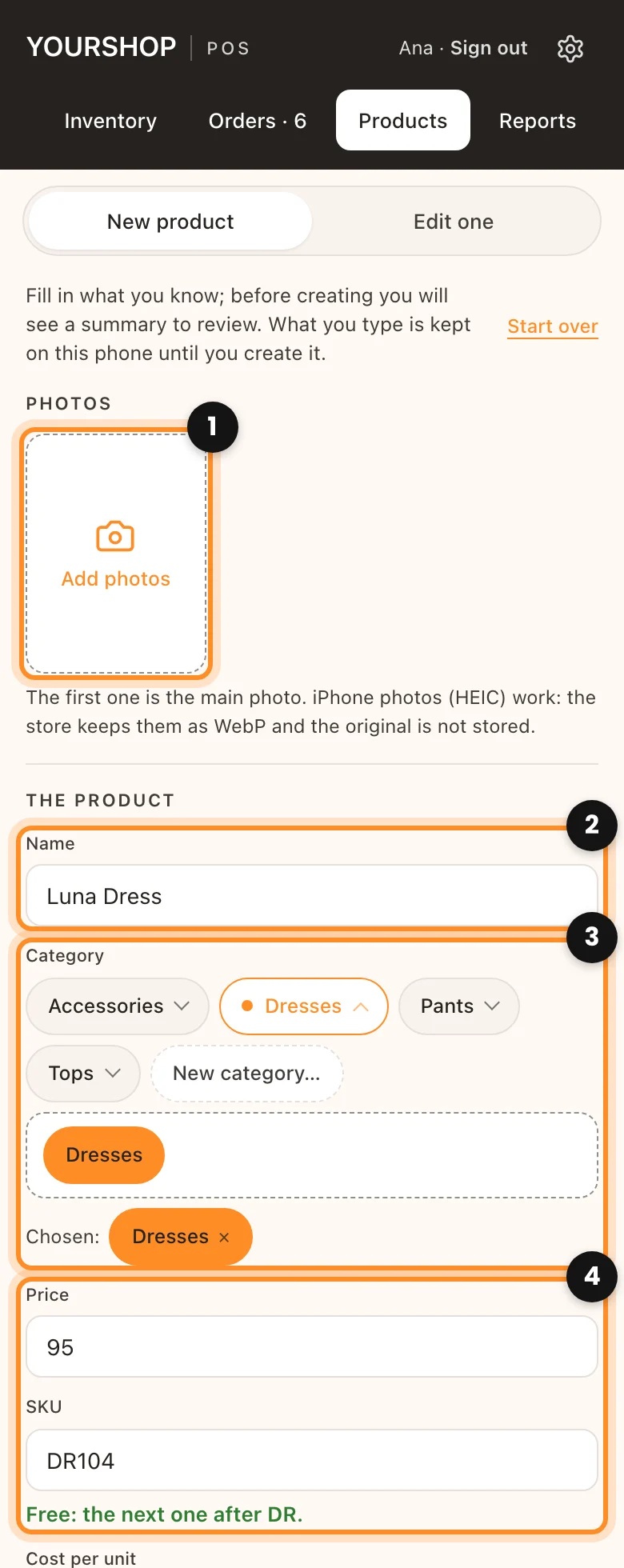
Fill in the product
- Open the Products tab. It starts on New product.
- Tap Add photos (1) and take or choose them. The first one is the main photo. iPhone photos (HEIC) work: the store keeps them as WebP. If the product has colors, you can say which color each photo is for.
- Write the Name (2). If a product with that name already exists, the form says so.
- In Category (3), tap a group and choose the category. You can pick more than one, and New category… creates one on the spot.
- Write the Price (4). The SKU next to it fills in by itself with the next free one for that category (if the last dress is VE82, it suggests VE83). You can type another: the form checks that it is free.
- In Colors, tap the ones the product comes in, or Another color… to add one with its name and shade.
- In Sizes, the category marks its sizes. If the product does not come in all of them, tap the extra ones to remove them.
- In Units, there is one card per color: write how many of each size you have.
- Tap Review and create. The Check before creating window shows everything, with warnings if something is off (no photo, no units, a price far from the usual ones, a cost higher than the price). Tap Create product.
Several sizes from the same units? If you keep, say, 6 units of a dress for S and M together, choose Shares on each of those sizes and write how many there are in Shared units. Selling any of them lowers that one number.
Weight, cost and publishing
- Weight and size (optional): the product already packed, in the units of your store (lb and in). It is what the shipping by weight and the carriers’ labels use. The packages your store uses the most show up as buttons, so you set them with one tap.
- Cost per unit: with costs turned on, it sits next to the price and shows the profit of each unit. See Costs and profit.
- Publish in the store now: off, the product is saved but hidden, and you publish it later from Edit one.
After creating it
The register offers View in the store, Fix something or Create another. To change a product later, open Products › Edit one and search for it by name or SKU: you can change the name, the category, the price, the photos, the description, the units and whether it is published, and add sizes or colors. Removing a size or a color, or changing the SKU, is done in WooCommerce.
Note: the Products tab is for administrators and shop managers. Someone with only the Cashier role sells and records stock, but does not touch products. What you type stays on the phone until you create the product, so a call in the middle does not lose it.