
Free plugin · Dox POS 0.47 or newer · Needs WooCommerce 9.5
Give each product what it costs you, and the register shows what every sale leaves. Only administrators and shop managers see costs: the Cashier role sells and records stock without seeing any.
Turn costs on
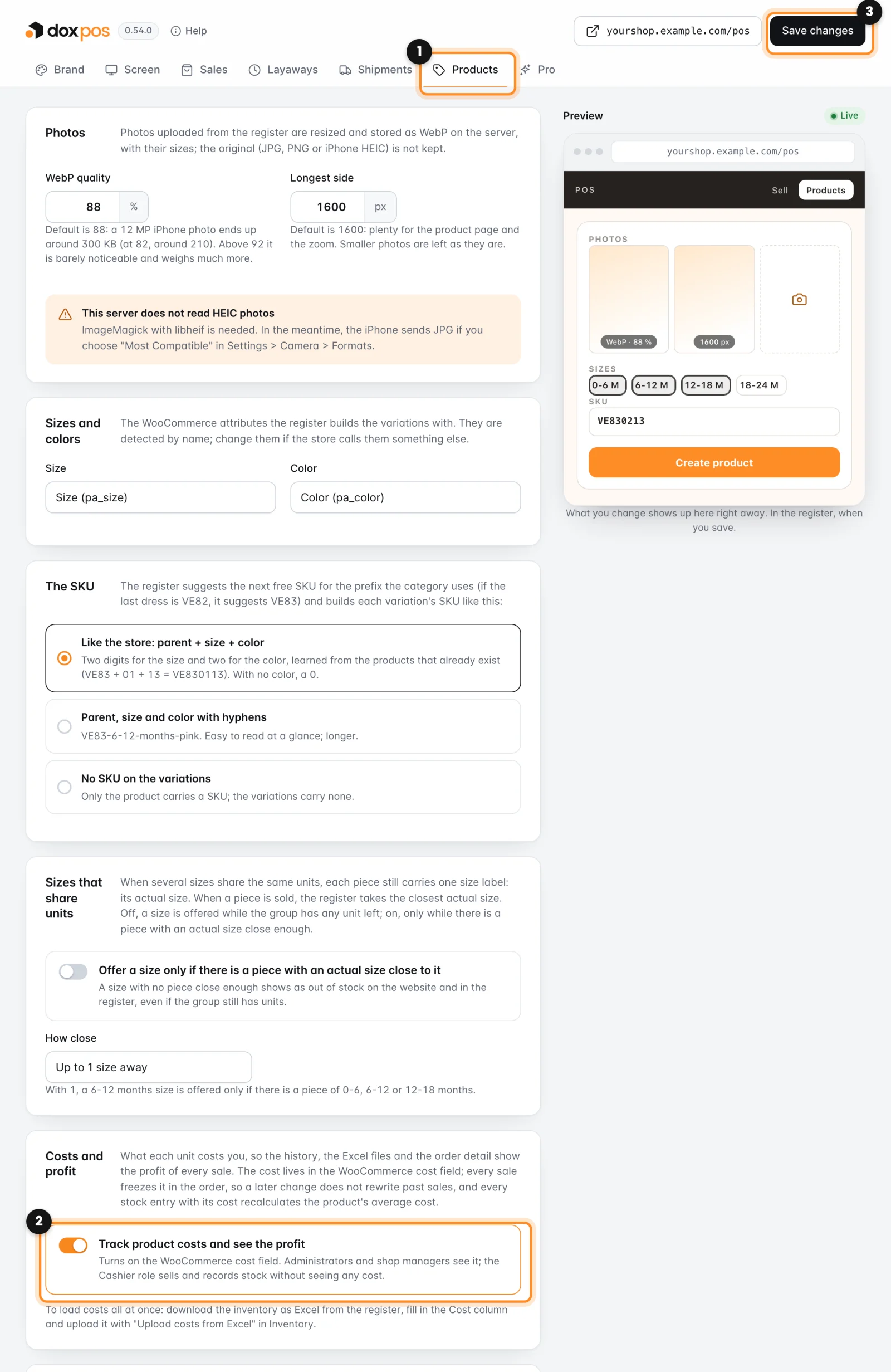
- In WordPress, go to WooCommerce › Dox POS and open the Products tab (1). If you use other Dox Studio plugins, it is under Dox Plugins › POS.
- In Costs and profit, check that Track product costs and see the profit is on (2). It comes on by default.
- Click Save changes (3). That turns on the WooCommerce cost field (WooCommerce › Settings › Advanced › Features › Cost of Goods Sold), which is where each product’s cost is stored. Until you save, the register does not ask for costs.
Give each product its cost
- When you create or edit it. Cost per unit sits next to the price, and Profit tells you what each unit leaves: a $30 dress that cost $12 reads “$18.00 per unit (60 %)”. Count what you paid for each unit, including the supplier’s shipping if there was any. A product with sizes carries one cost for all of them. If one size costs something different, give it its cost on that size’s row of the costs Excel file (below, All at once): from then on that size carries its own cost, and each stock entry recalculates it separately.
- When stock arrives. Each line of the entry carries its cost per unit, and the product’s cost (or the size’s, if it has its own) becomes the weighted average of what you had and what came in.
- All at once. In Inventory, Download as Excel, fill in the Cost column (on each size row, or on the product row to set it for all of them) and upload the file with Upload costs from Excel. On a phone, the two buttons are Download Excel and Upload costs, under the Inventory search. It only changes costs: it does not touch stock or prices.
See the profit
Open Reports in the register. In Sales, the figures at the top include the Profit of the period with its margin (1), and each order carries its own profit (2).
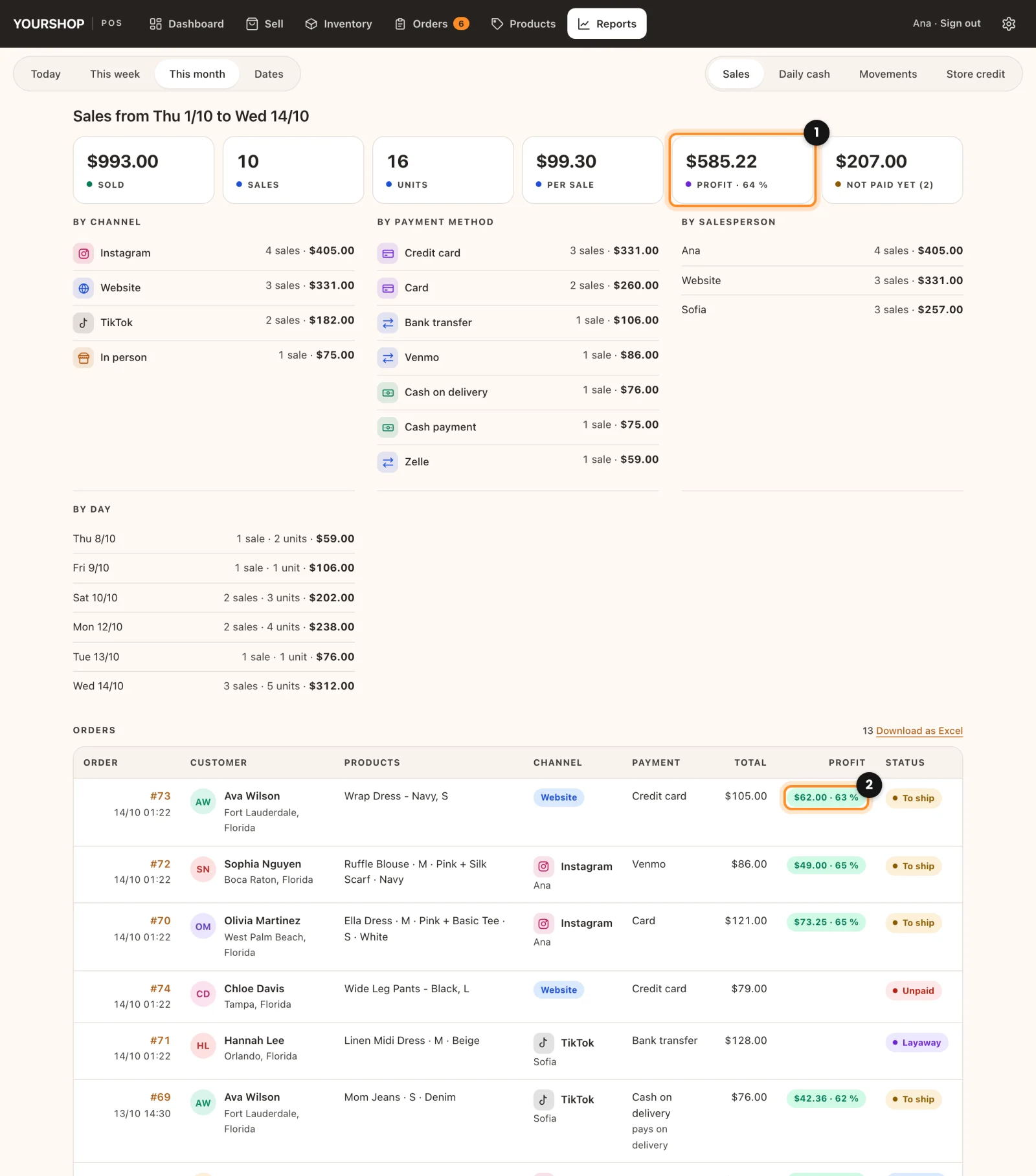
- The profit of an order is green from a 40 % margin, amber between 20 and 40 %, and red below 20 %.
- Daily cash adds the cost and the profit of each day, Movements shows the Unit cost of each change of stock, and the Excel files carry the same columns.
- A sale with no cost for some of its products does not count towards the profit, and the report says how many there are.
Note: every sale freezes the cost in its order. If a supplier raises the price and you change the cost, the sales you already made keep the profit they had.