
Dox Studio hosting · all plans
Gmail is removing Check mail from other accounts, the option that brought your business email into Gmail. Here is what changes and the three ways to keep reading and answering your email: Webmail in the browser, the Gmail app on your phone, or a forwarder with Send mail as.
What Google is changing
Google announced that Gmail no longer lets you add new accounts to Check mail from other accounts (the POP option) since the first quarter of 2026, and that the accounts already set up stop working in January 2027. Your old messages stay in Gmail. Source: Google’s notice.
If you use it today, choose one of the options below before January 2027. Nothing changes on our side: your mailbox keeps receiving everything.
Option 1: Webmail, in the browser
Your plan includes Webmail: you read and send your email from any browser, with nothing to install, on the computer or the phone. It’s the simplest option and your answers go out from your business address.
- Open
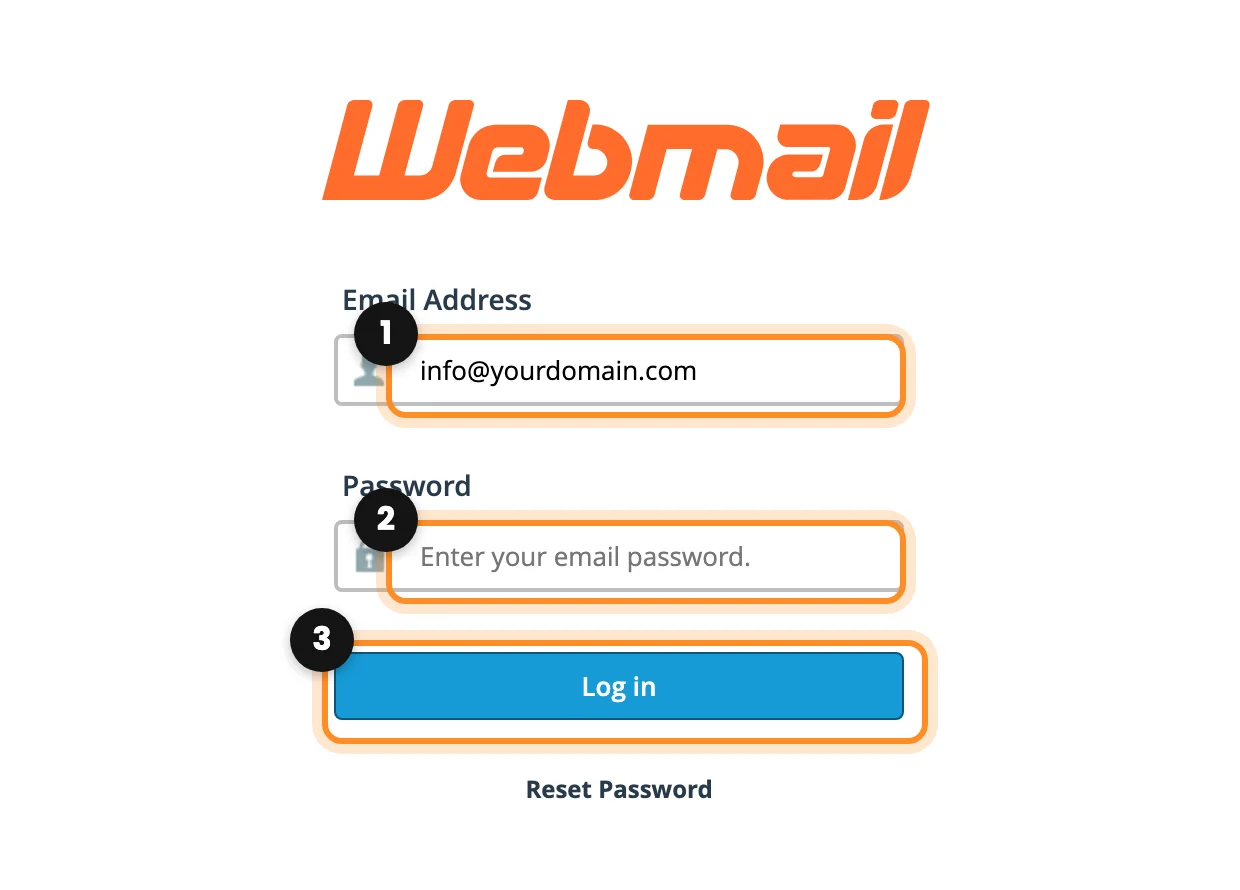
https://webmail.yourdomain.com(change yourdomain.com for your domain).https://yourdomain.com/webmailtakes you to the same place. - Write your full email address (1) and its password (2), the same one you use on your phone or in Outlook, and click Log in (3).
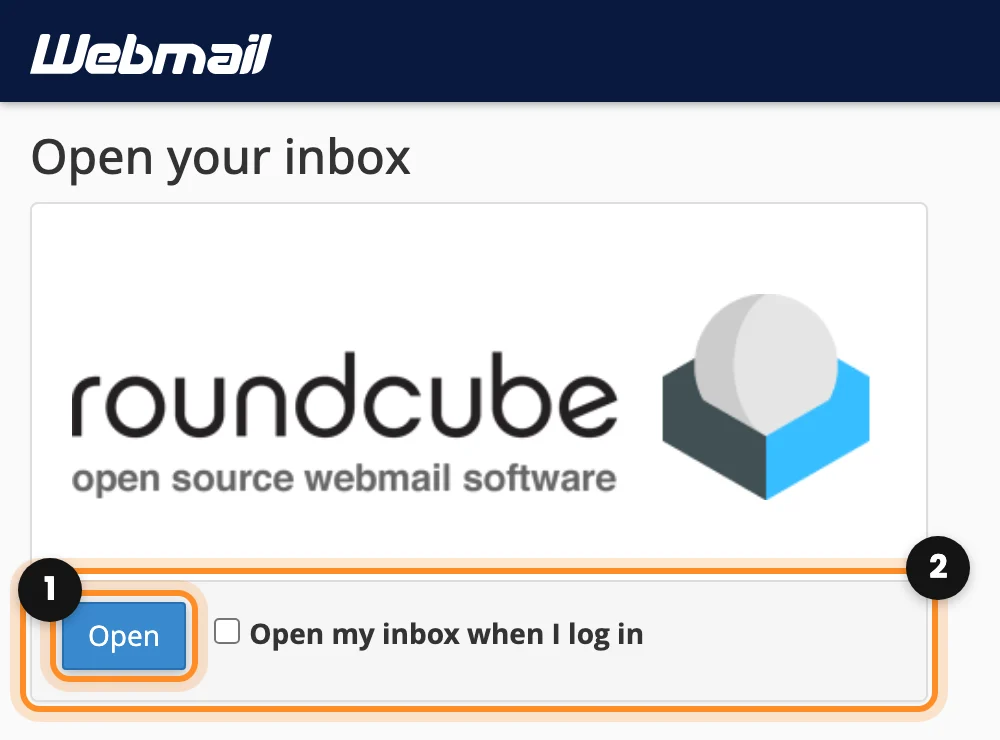
- The first time you see the Webmail home. Click Open (1) to go into your inbox. Tick Open my inbox when I log in (2) so next time it goes straight in.
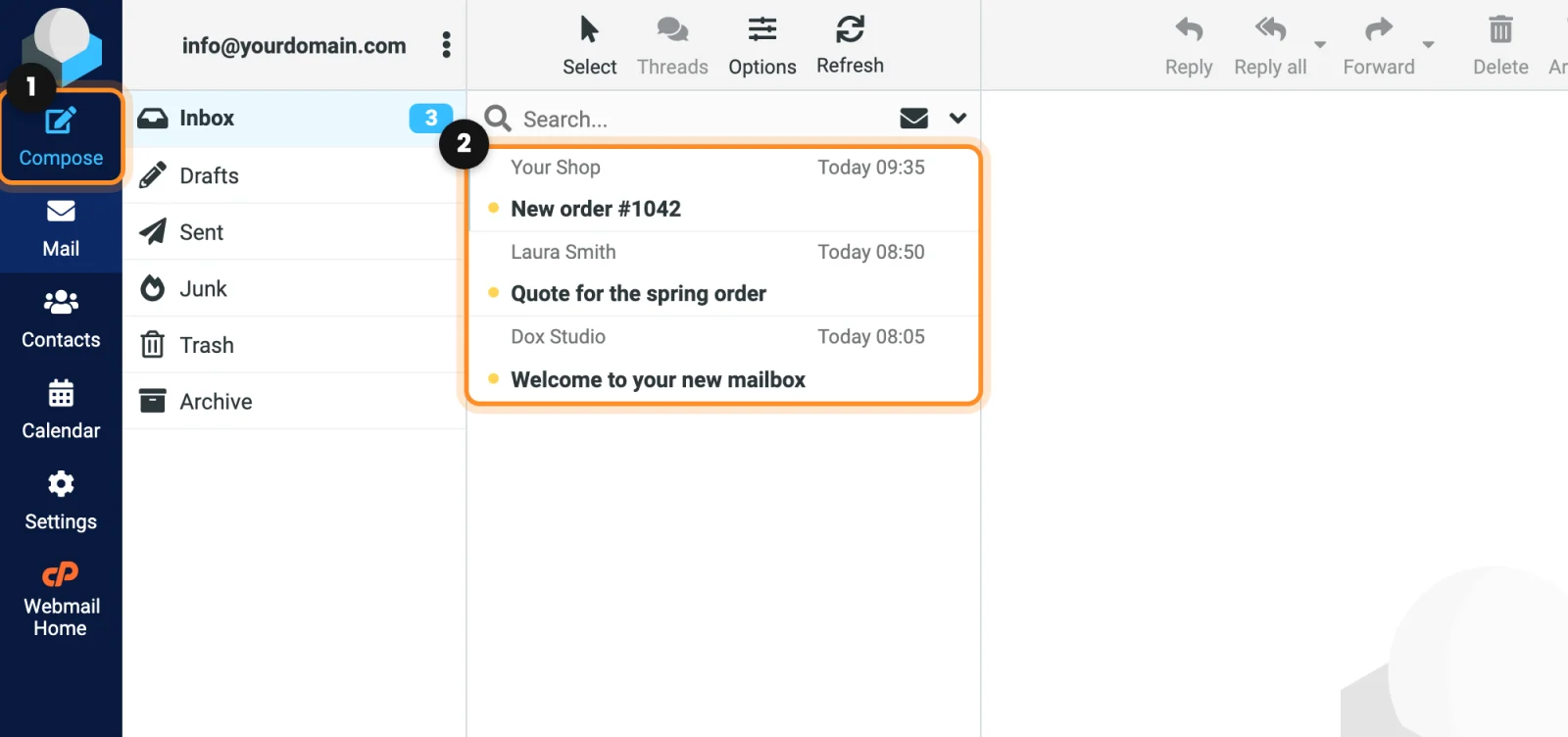
- Your inbox opens in Roundcube, the Webmail app. Click Compose (1) to write, or click a message in the list (2) to read it and answer.
Tip: save the address in your browser’s bookmarks. You can also open Webmail from your client area: Services › your plan › Log in to Webmail. If you forgot the password, set a new one in cPanel (Create an email account and change its password).
Option 2: the Gmail app on your phone
The Gmail app connects straight to your mailbox by IMAP, so it doesn’t depend on the option Google is removing.
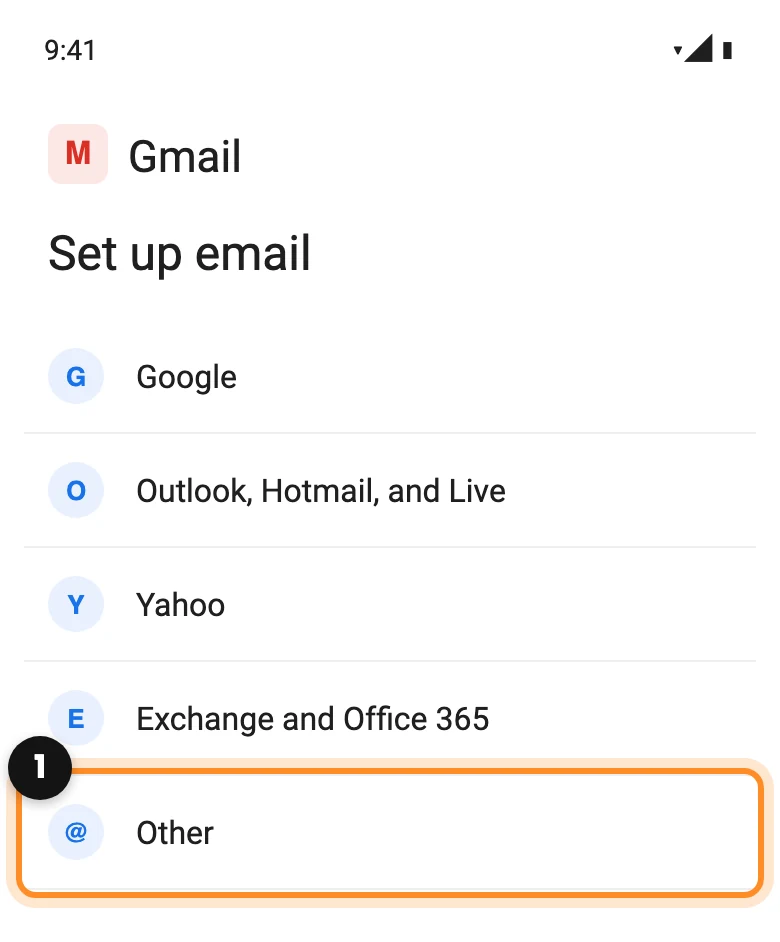
- In the Gmail app, tap your profile photo, then Add another account, and choose Other (1).
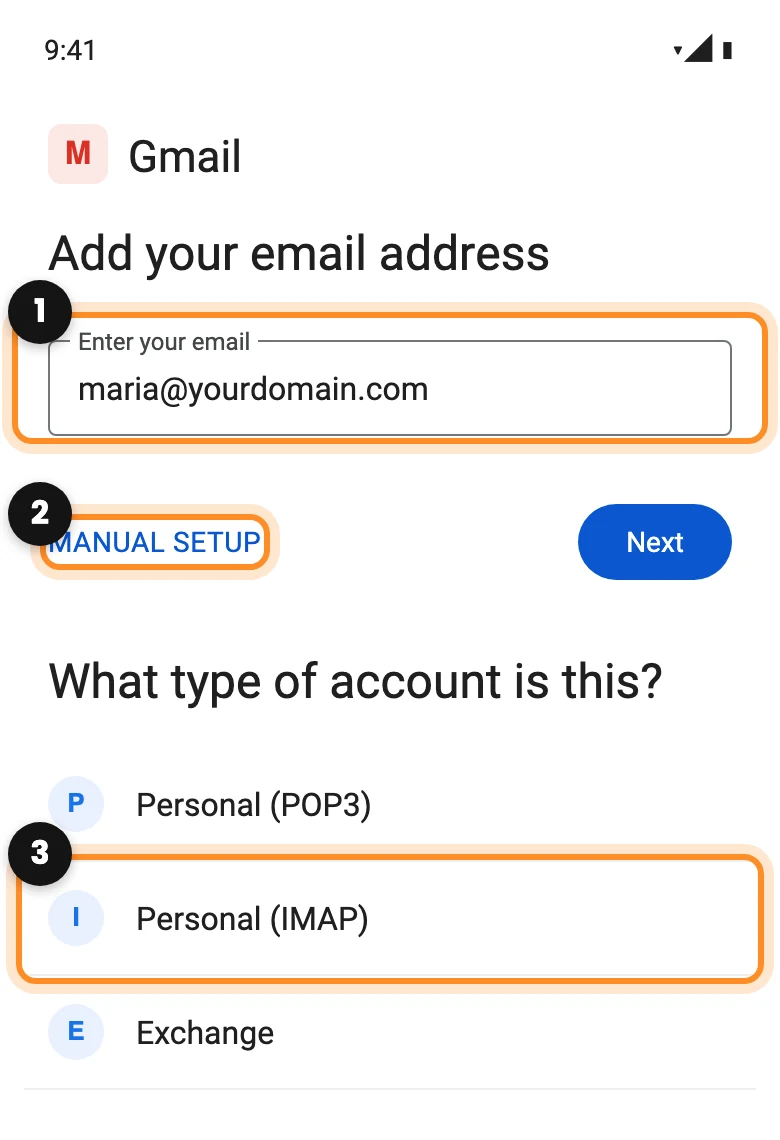
- Enter your business email (1), tap Manual setup (2), choose Personal (IMAP) (3) and enter the password.
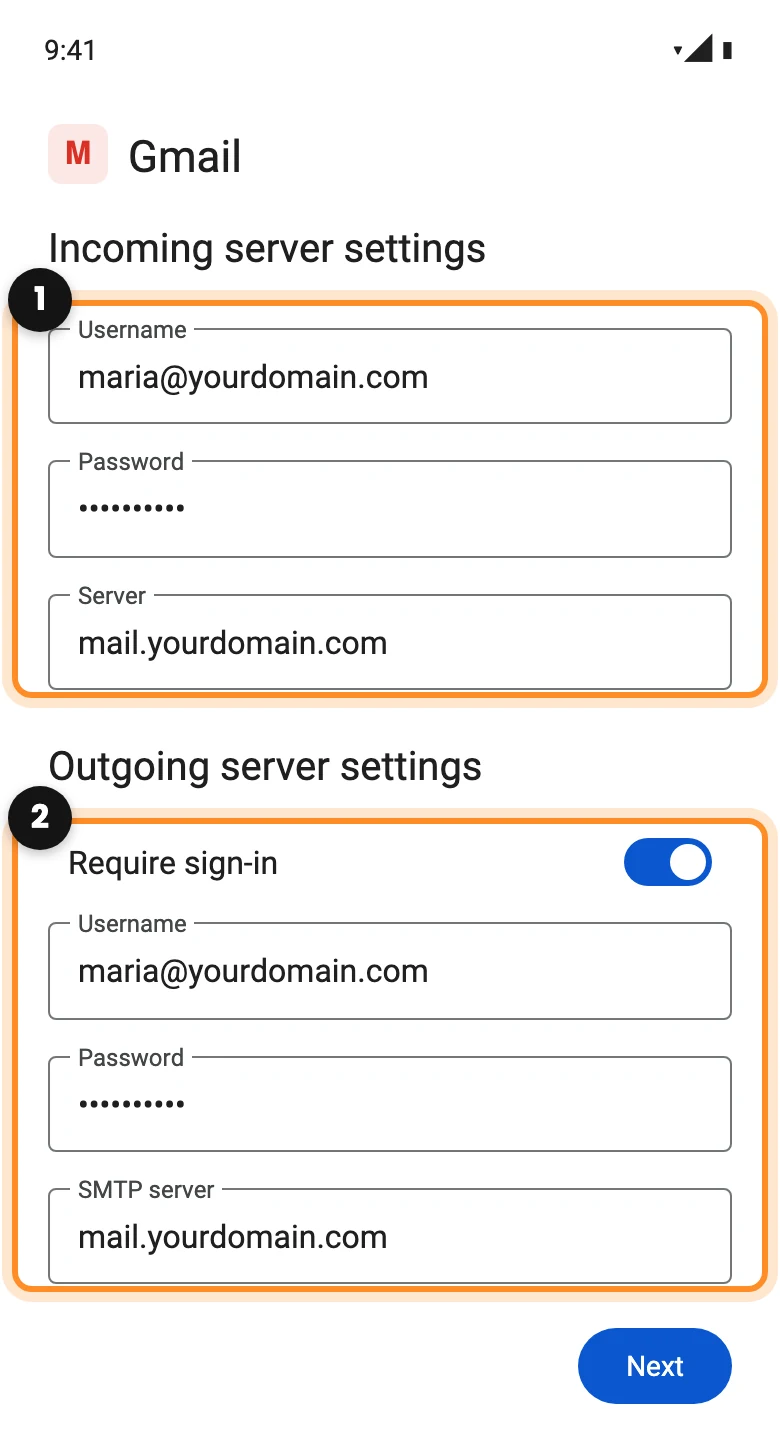
- For the incoming server (1) and the outgoing server (2), enter the full email address, its password and
mail.yourdomain.com, and tap Next until you are done. If the app asks for the port, use 993 for incoming and 465 for outgoing, both with SSL/TLS. All the details are in Set up your email.
Option 3: a forwarder and “Send mail as” (Gmail on the computer)
If you want everything in the Gmail of your computer, forward a copy of the email to Gmail with a forwarder in cPanel:
- In cPanel, open Forwarders and click Add Forwarder.
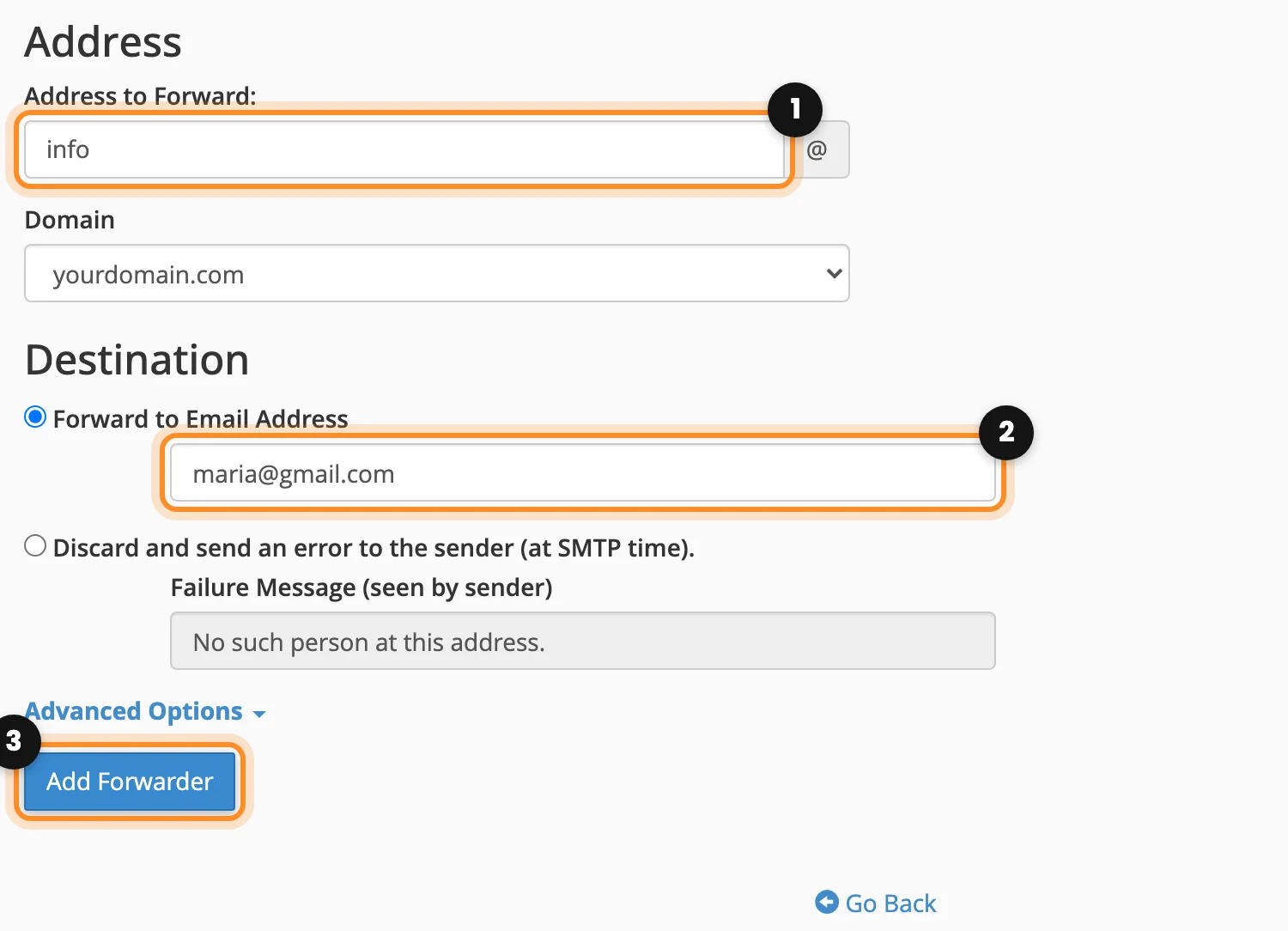
- In Address to Forward (1), write your business address, and in Forward to Email Address (2), your Gmail address.
- Click Add Forwarder (3). A copy of each new email goes to Gmail, and the original stays in your mailbox.
Then let Gmail send as your business address:
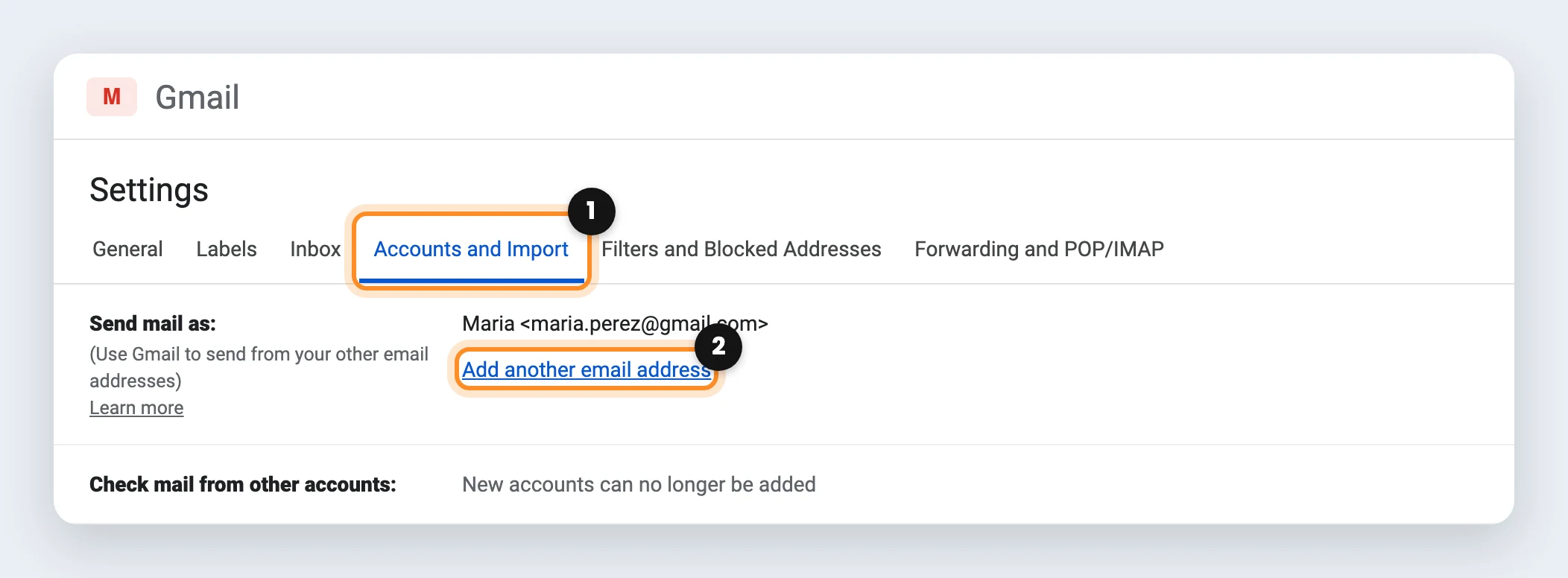
- In Gmail, open the gear and then See all settings. Go to Accounts and Import (1) and, under Send mail as, click Add another email address (2).
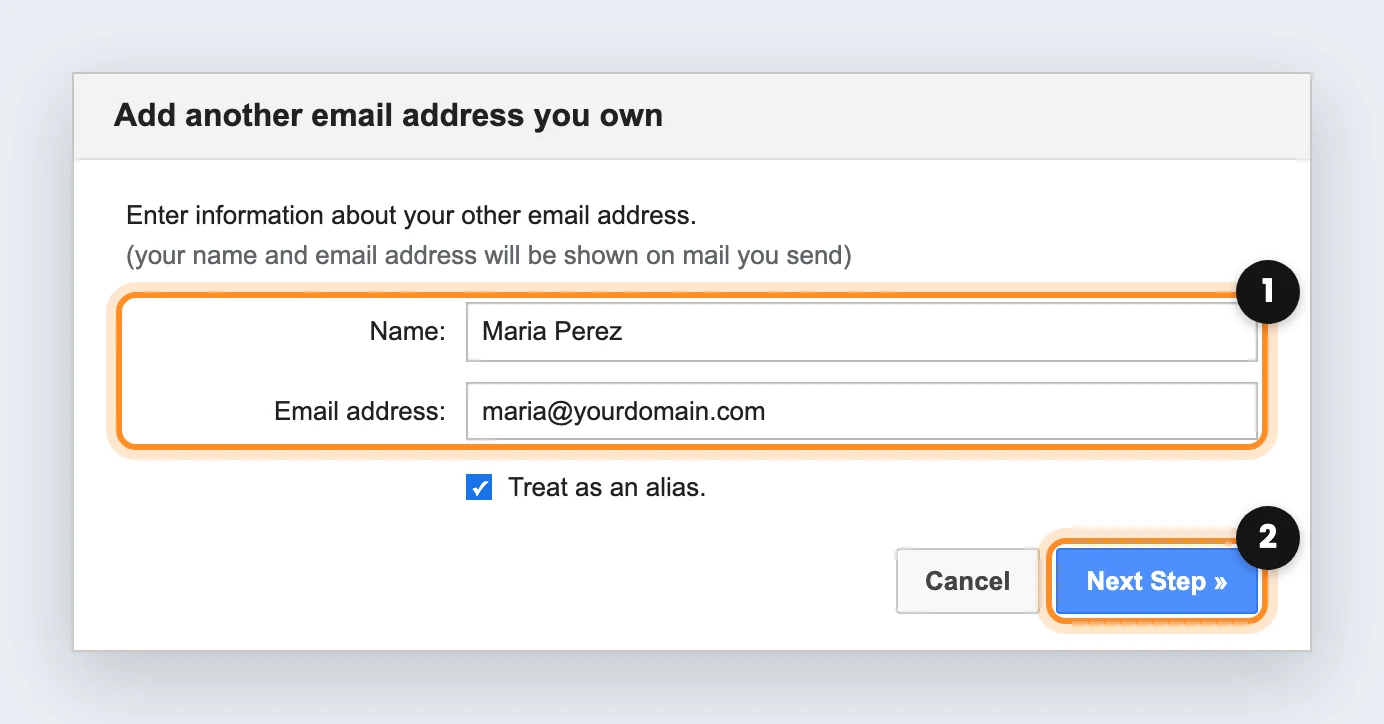
- Enter your name and your business address (1) and click Next Step (2).
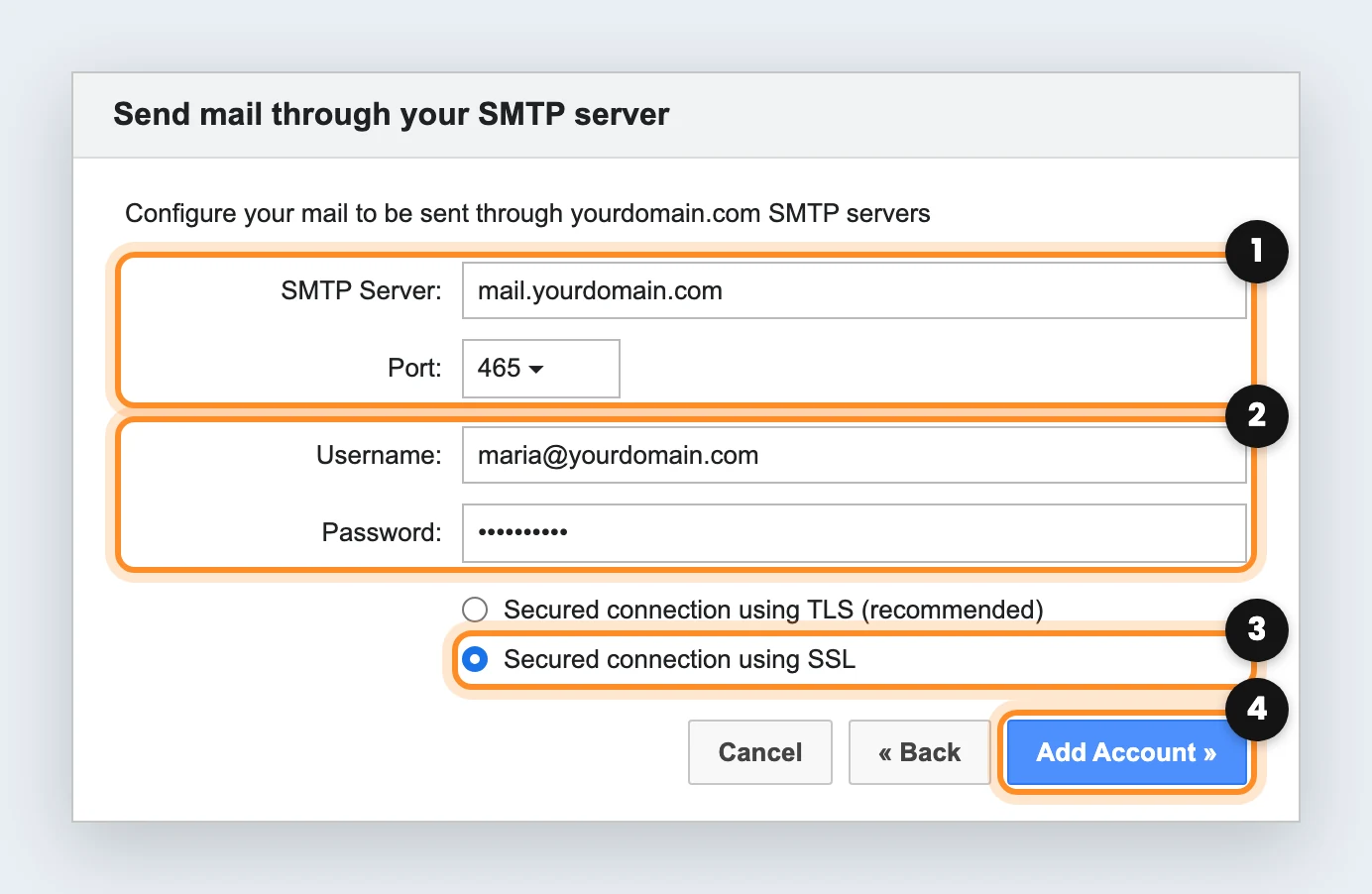
- For the SMTP server enter
mail.yourdomain.comwith port465(1), your full business email as the username and its password (2), choose Secured connection using SSL (3) and click Add Account (4).
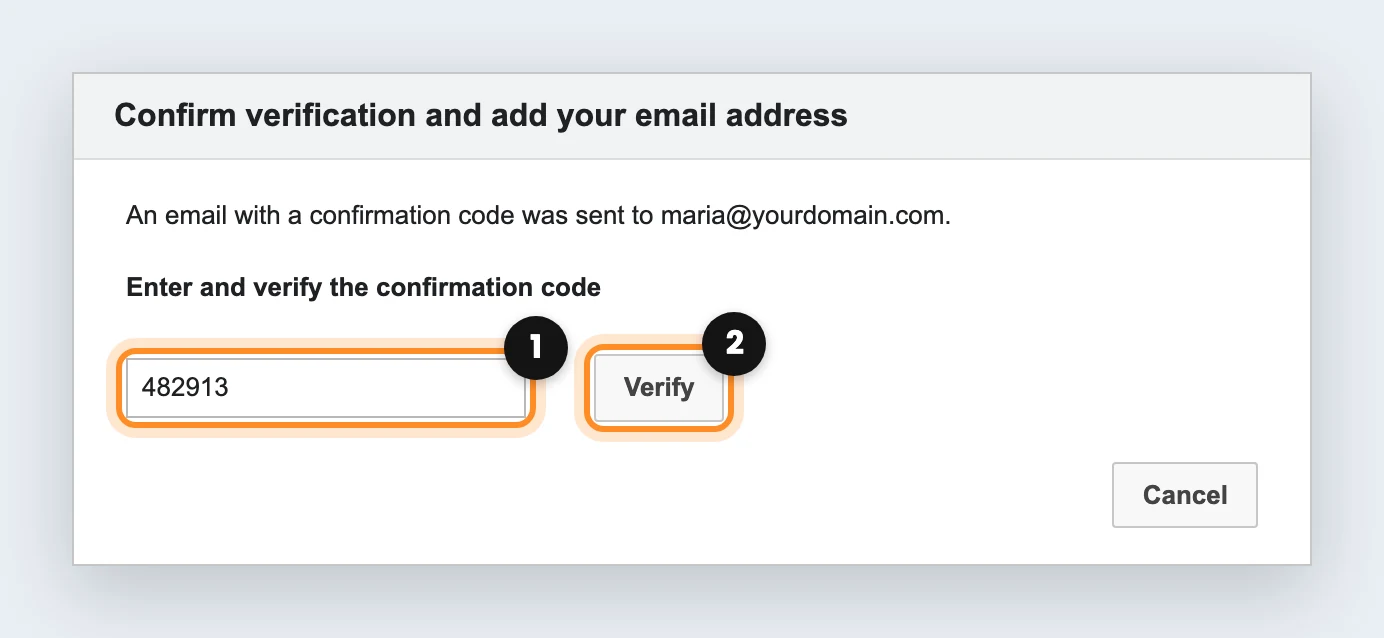
- Gmail sends a code to your business address. It reaches Gmail through the forwarder: enter it (1) and click Verify (2).
Gmail says there is an error? “Authentication failed” means the password is wrong: after changing it in cPanel, change it in Gmail too. “We were unable to locate the other domain” usually means port 110 with SSL turned on: use 995 with SSL.