
Dox POS Pro 0.42 · with Dox POS 0.60 or later and Price Based on Country
If your store sells in dollars on the website and in pesos in another country, the register can sell in pesos too: with the prices you set for that country, the order in its currency and reports that never add dollars to pesos.
What you need
- Dox POS Pro 0.42 or later, with Dox POS 0.60 or later.
- The free plugin Price Based on Country for WooCommerce, with at least one price zone: for example Colombia in COP. Each zone has its countries, its currency and an exchange rate.
- The store currency (the one in WooCommerce › Settings › General) stays the base: it is the currency of the regular price and of the cost of every product.
Dox POS also notices CURCY, WOOCS and Aelia Currency Switcher, but it does not sell in their currencies: today it only works with the zones of Price Based on Country.
Choose the register’s zone
- If you use the Counter, close the till first (all of them, if you have several). While any till is open the zone does not change, and the message says which ones are still open, so the cash in the drawer is never counted in two currencies.
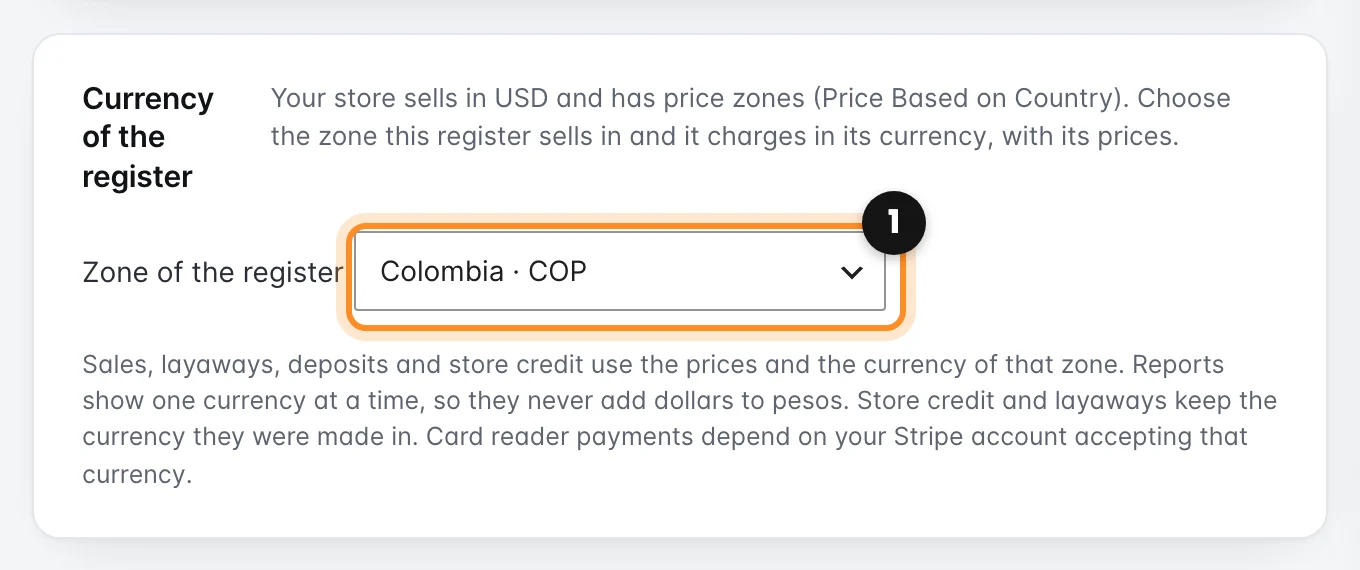
- In the Dox POS settings, Products tab, find the Currency of the register card. It only shows when Price Based on Country has at least one zone.
- In Zone of the register, choose the zone (for example Colombia · COP) and save.
The zone is for the whole store: every phone and every till sells in it. To go back to the store currency, choose No zone.
If you are updating: before Dox POS 0.60, Price Based on Country could give the register the currency and the prices of the country of whoever opened it. Now the register only follows the zone you choose here, and with no zone it always sells in the store currency. If your register was already selling in another currency, choose that zone right after updating, or it starts selling in the store currency.
What changes when you sell
- Products show and are charged at the zone’s price: the one you set by hand, or the one worked out by the exchange rate. The order is saved in the zone’s currency, with its zone, and its amounts use that currency’s decimals (pesos without cents, for example).
- If a product has no price in the zone, the register does not sell it at the wrong price: it says “… has no price in COP” and the sale waits until you set that price in the product, or switch the zone to the exchange rate.
- Shipping costs are converted to the zone’s currency only if Price Based on Country is set to apply the exchange rate to shipping. Otherwise they are charged as they are written. The minimum for free shipping is not converted.
Set the prices of each zone
When the store has zones, the product form says which currency the price is in (Price (USD)) and, under it, adds Prices by zone, with one block per zone. It is the same for simple products and for products with sizes.
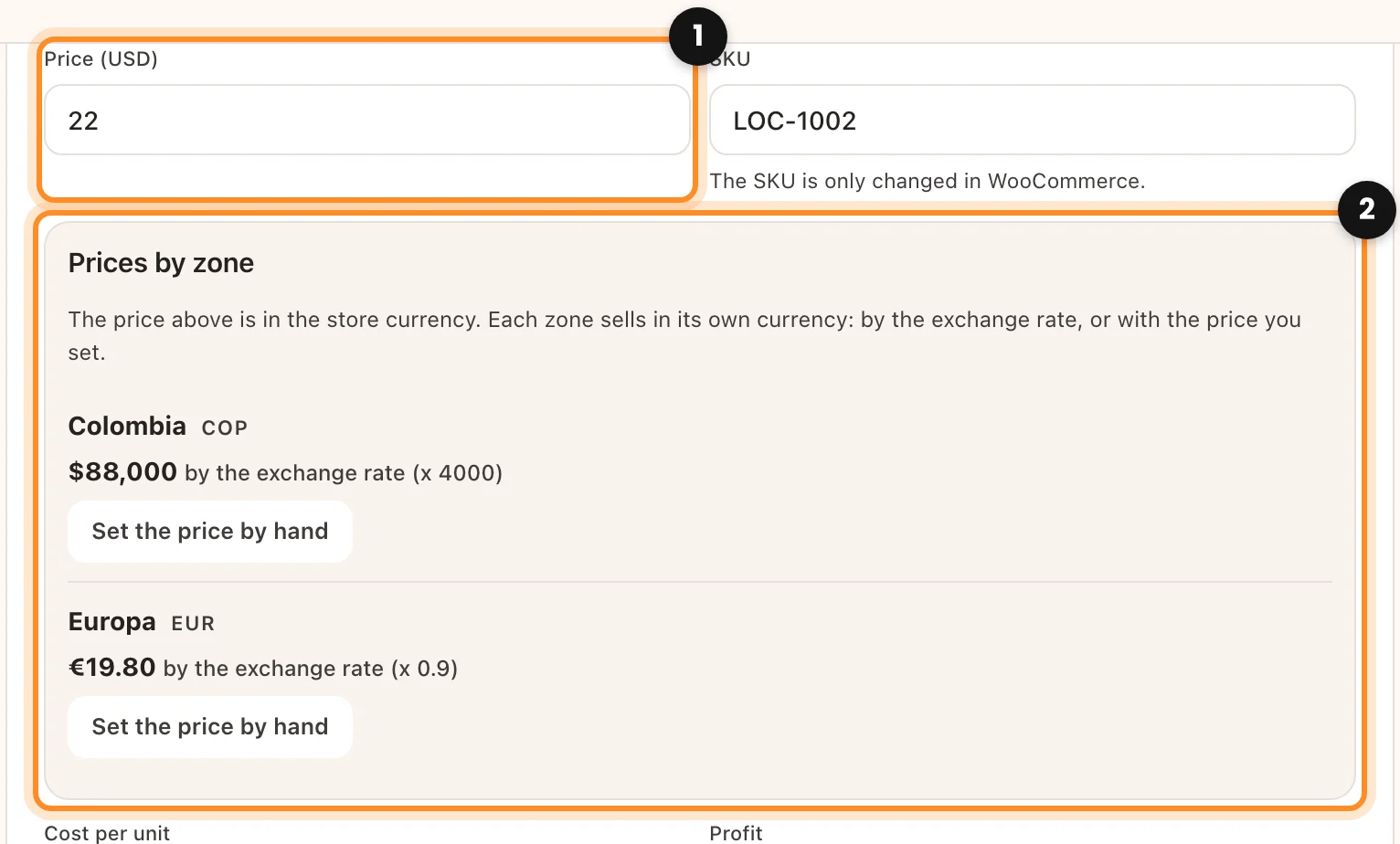
- By the exchange rate (how every zone starts): the block shows what the product costs in that zone, worked out from the price above as you type it. You cannot edit it there; it changes when you change the price above or the zone’s rate.
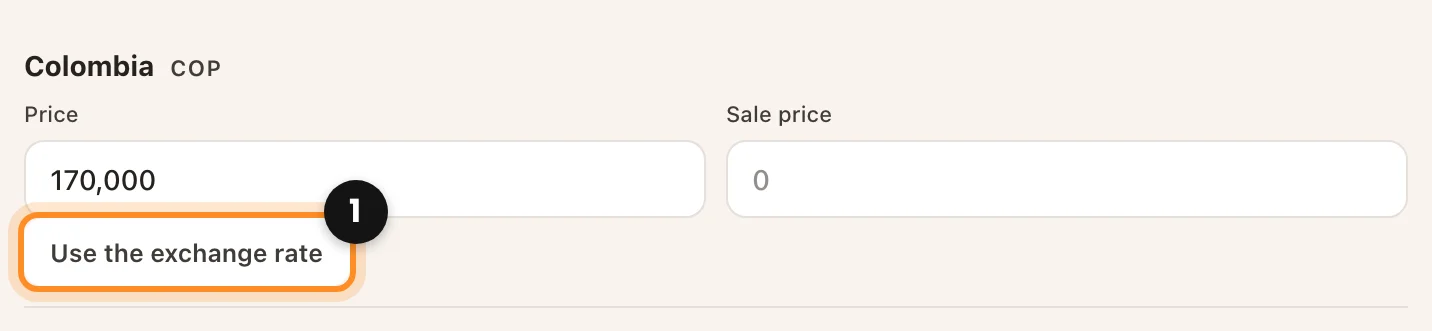
- Set the price by hand: the block turns into Price and Sale price, filled with what the exchange rate gave, so you only round it. Use the exchange rate takes it back.
- In a product with sizes, the price of each zone goes to all its sizes. If the sizes already had different prices in that zone, the field says Different by size and, if you leave it empty, nothing changes.
- The register does not save a price that makes no sense, and says which zone it is: a price set by hand left empty, or a sale price that is not lower than the price.
- The cost is always written in the store currency, whatever the zone of the register.
- With Polylang, the prices of each zone also go to the product’s translations, like the regular price. A store in several languages
- The assistant can also create a product with its price in a zone, if you tell it in the chat (“and 1,398,000 in Colombia”).
Reports, one currency at a time
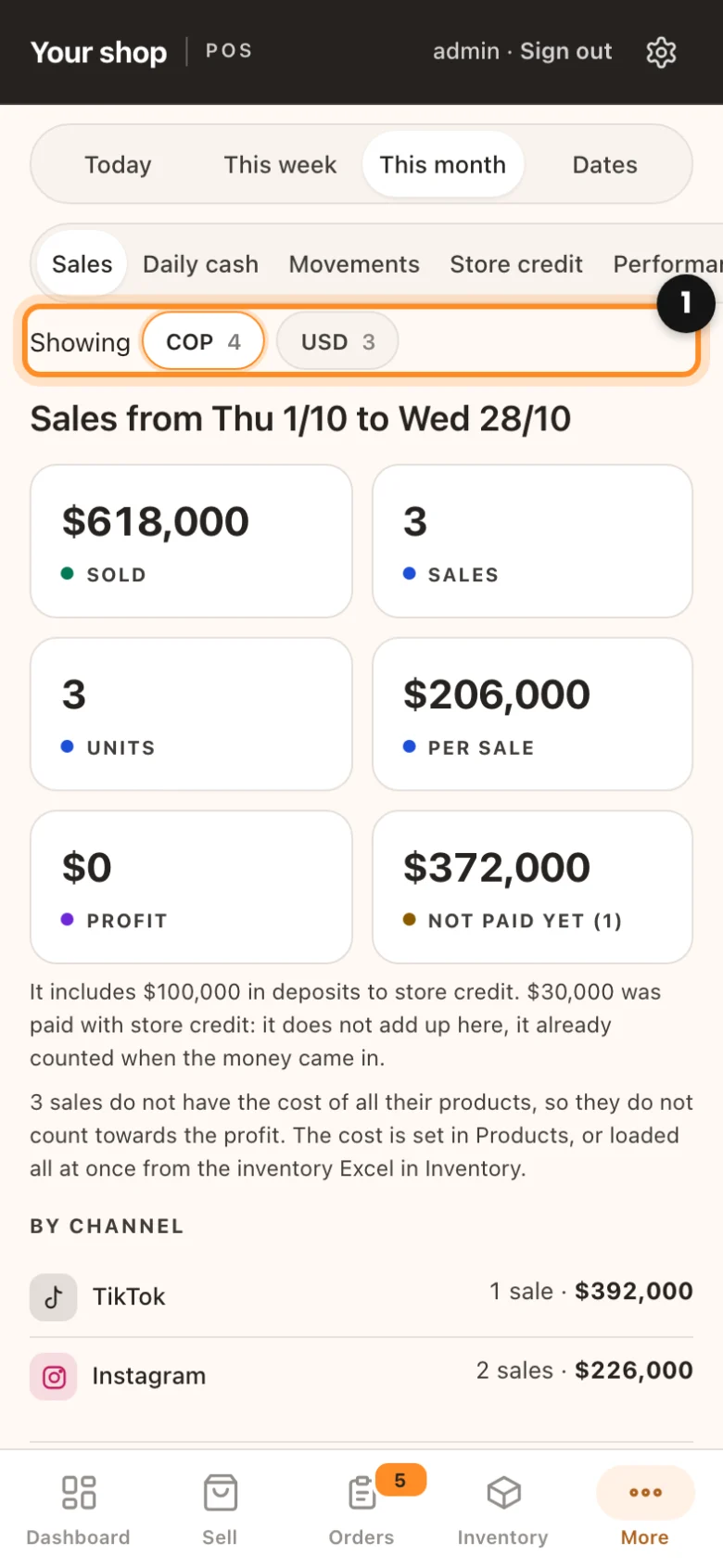
Dox POS never adds dollars to pesos. Sales and Daily cash show the register’s currency, and when there are orders in more than one currency (sales from the website in dollars, for example), a row at the top says Showing COP 9 · USD 2: tap a currency to see only its orders. The Excel file downloads in the currency you are looking at.
- The Dashboard, Performance and the assistant count the register’s currency.
- The till closing only adds the cash of the register’s currency.
- A sale in a currency that is not the store’s shows no profit: the cost is in the store currency and Dox POS does not convert it with a rate that may not be the real one.
Store credit and layaways keep their currency
- Each store credit movement is saved in the currency it was made in. The register shows the balance in its own currency: credit in pesos only pays sales in pesos. If someone tries to pay with credit they have in another currency, the register says “It has … in store credit in another currency, which cannot pay this sale.”
- A layaway stays in the currency it was made in. A deposit on it is charged in that currency, even if the register is now in another zone. If the register can no longer charge in it (for example, with Dox POS Pro turned off), it says so and charges nothing.
- An order from another currency opens with its own amounts, each with its currency code ($39.00 USD), in Orders, the order detail and Reports, so dollars and pesos never look the same even with the same “$”. Amounts in the register’s own currency have no code. A return to store credit goes to the balance in the order’s currency.
- When you choose a customer in a sale, the customer box also shows the credit they have in another currency, as information only: Store credit in another currency: $35.10 USD. It cannot be used there; it pays sales when the register is in that currency.
The card reader
The Stripe reader charges in the register’s currency only if Stripe Terminal accepts it (US dollars, euros, pounds and a few more). If it does not (Colombian pesos, for example), the register says “The card reader cannot charge in COP” before anything happens: nothing is charged and you choose another payment method for that sale. Card reader with Stripe and the customer screen
Taxes in currencies without cents
If your store adds taxes on top of the price (prices without tax included), a sale in a currency without cents, like Colombian pesos, can end with a few cents in the order total: WooCommerce rounds the order with the store currency’s decimals. With prices that include tax, or with no taxes, it does not happen.
With no zone chosen
Everything works as before: the register sells in the store currency, with the regular price. The form still shows Prices by zone, so you can set them from the register for the website. Reports show the store currency, with the currency row if the website sold in another one.