
Dox POS Pro · with Dox POS 0.48 or later
Charge cards at the Counter on a Stripe reader: the amount goes to the reader by itself and the sale is recorded only when the bank approves the payment. And with a second monitor, the customer sees what you are charging.
What you need
- A Stripe account in a country where Stripe sells readers: the United States, Canada, the United Kingdom, most of Europe, Australia and a few more. Elsewhere the Card button keeps working with your usual card machine.
- To try it, nothing else: with Stripe’s test key the Counter uses a simulated reader and no real money moves.
- To charge for real, a Stripe reader connected to the internet, such as the WisePOS E or the S700.
Connect Stripe
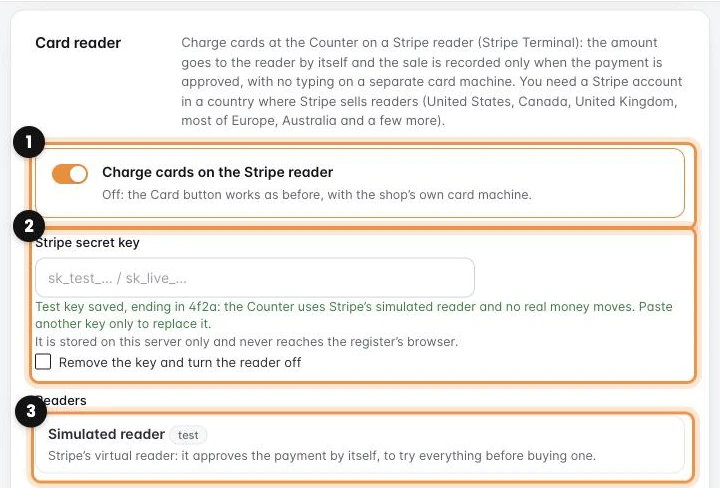
- In your Stripe dashboard go to Developers › API keys and copy the Secret key. To try it, turn on Test mode first: the key starts with
sk_test_. - In the Dox POS settings, Counter tab, Card reader card, paste it in Stripe secret key (2) and save. The first key turns the switch (1) on by itself.
- With a test key you get the Simulated reader (3). With the live key, add your reader: on the reader go to Settings › Generate pairing code, type the three words it shows in Add a reader and save.
The key is stored on your shop’s server only and never reaches the register’s browser.
Charge on the reader
At the Counter, tap Card (or the F6 key). The reader connects by itself when the Counter opens, so the charge starts right away: the reader asks for the card and the register’s window waits.
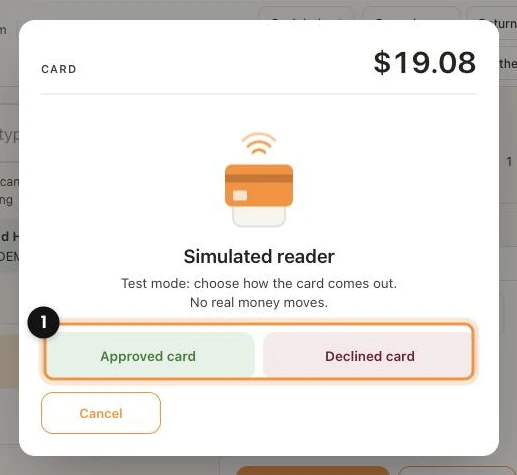
In test mode you choose how the card comes out (1): Approved card or Declined card. With a real reader, the customer taps, inserts or swipes their card.
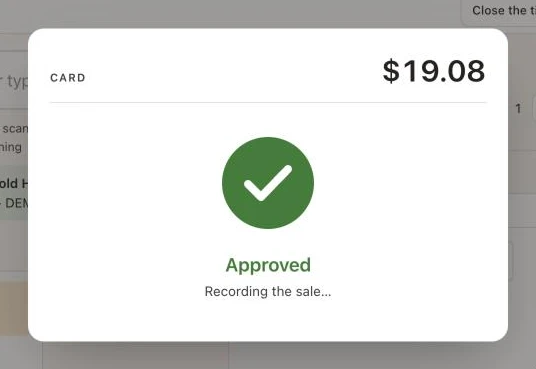
When the bank approves, Approved shows up and the sale records itself, with the receipt as usual. The order keeps the Stripe payment number.
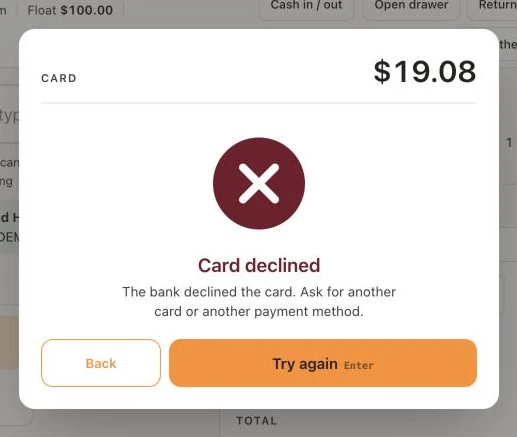
If the bank declines it, the register says why (no funds, expired, wrong PIN) and nothing is recorded. Tap Try again with another card, or Back to take another payment method.
If you return a sale charged on the reader by the same method, the money goes back to the customer’s card through Stripe by itself. In cash, it comes out of the drawer as usual.
The customer screen
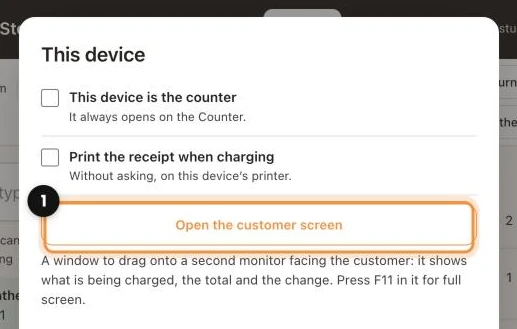
If the till computer has a second monitor facing the customer, open This device and tap Open the customer screen (1). Drag the window that opens onto that monitor and press F11 for full screen. Once when you open the shop is enough.
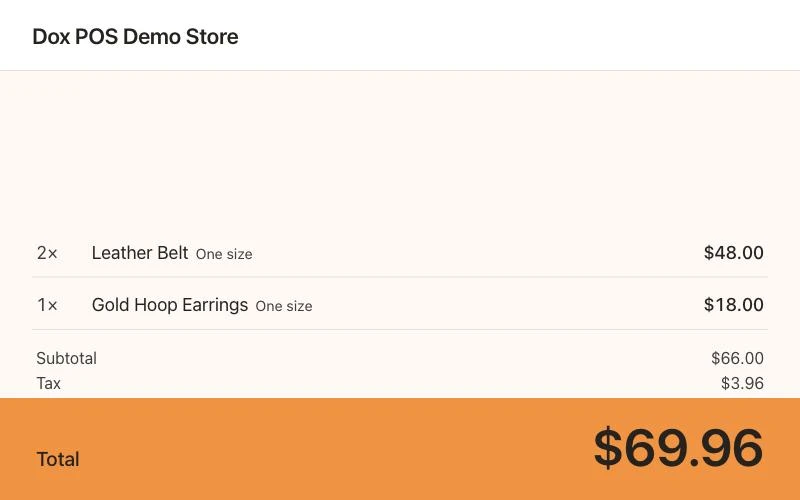
The customer sees each product with its price as you scan it, and the total in large type. When you charge on the reader it tells them to pay there, and at the end it thanks them and shows their change. Any monitor plugged into the same computer works.