
Dox POS Pro · with Dox POS 0.48 or later · direct printing in beta
With a connected receipt printer, the receipt prints straight away with no print window and the cash drawer opens by itself. And with the Pro editor, the receipt carries your template, a QR code and a coupon for the next purchase.
The receipt printer
It works with printers that connect to the internet by cable or Wi-Fi and ask the shop whether there is something to print: Star with CloudPRNT (such as the mC-Print3 or the TSP100IV) and Epson with Server Direct Print (such as the TM-m30 or the TM-T88VII). Nothing gets installed on the till computer. Without one, the Counter keeps printing from the browser on any printer.
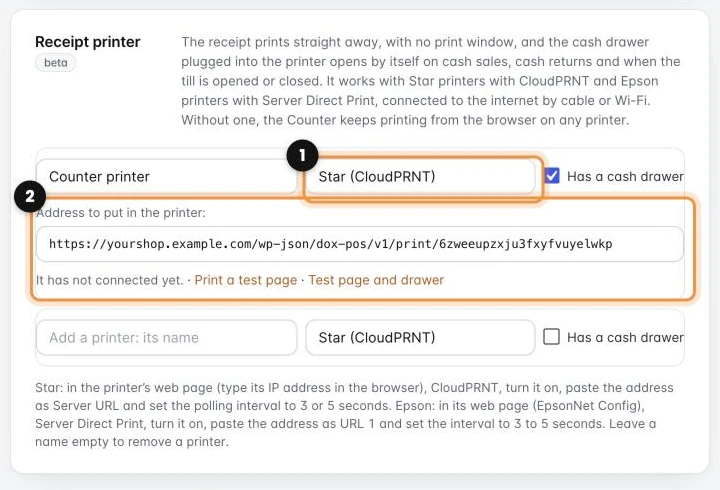
- In the Dox POS settings, Counter tab, Receipt printer card, type a name, choose the brand (1), tick Has a cash drawer if the drawer is plugged into the printer, and save. With several tills, choose the till too.
- Copy the address to put in the printer (2).
- Open the printer’s configuration page: type its IP address in the browser (it is on the sheet it prints when you hold the feed button). On a Star, go to CloudPRNT, turn it on, paste the address as Server URL and set the interval to 3 or 5 seconds. On an Epson, go to Server Direct Print, turn it on, paste the address as URL 1 and set the interval to 3 to 5 seconds.
- Back in Settings, tap Print a test page. It comes out a few seconds later, and the card says when the printer last checked in.
From then on, at that till, Print receipt, the last receipt, returns and the till closing go to the printer. The drawer opens by itself on cash sales and cash returns and when the till is opened or closed, and the Counter bar gets an Open drawer button to give change without a sale (it asks for the PIN if you have PINs on).
Direct printing is in beta: if your printer does not print the test page, write to us with its model.
More for the receipt
In the Dox POS settings, Sales tab, under the receipt editor, the Pro adds More for the receipt. The preview changes as you type:
- Template: classic (typewriter letters), modern (clean letters and a bigger total) or compact (less paper). It applies to what prints from the browser; a connected receipt printer uses its own letters.
- QR code: a link, such as your Google review link or your Instagram, with a line of text above it.
- Coupon for the next purchase: the code of one of your WooCommerce coupons (Marketing › Coupons), its text and, if you want, the sale amount it starts from. Its discount and expiry date are set in WooCommerce.
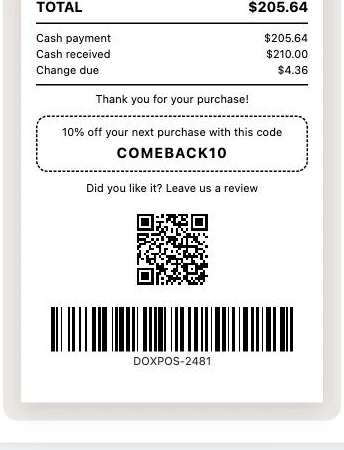
The coupon goes in a box at the bottom of sale receipts, not on returns, with the QR under it. Both also print on Star and Epson printers.