
Free plugin · Dox POS 0.48 or later
The Counter keeps track of the cash in the drawer: you open with a float, charge, give money back, and at closing you count the drawer and see whether it matches. Every sale has its receipt, which prints on any printer and is what you scan for a return.
Open the till
- Count the cash in the drawer before you start. That is the float.
- Tap Open the till in the bar at the top of the Counter, type the float and confirm. If you charge before opening it, the register asks for it right then and carries on with the payment.
The bar shows since when it is open, the float, and how many sales and how much money so far. Next time it suggests the same float.
The receipt
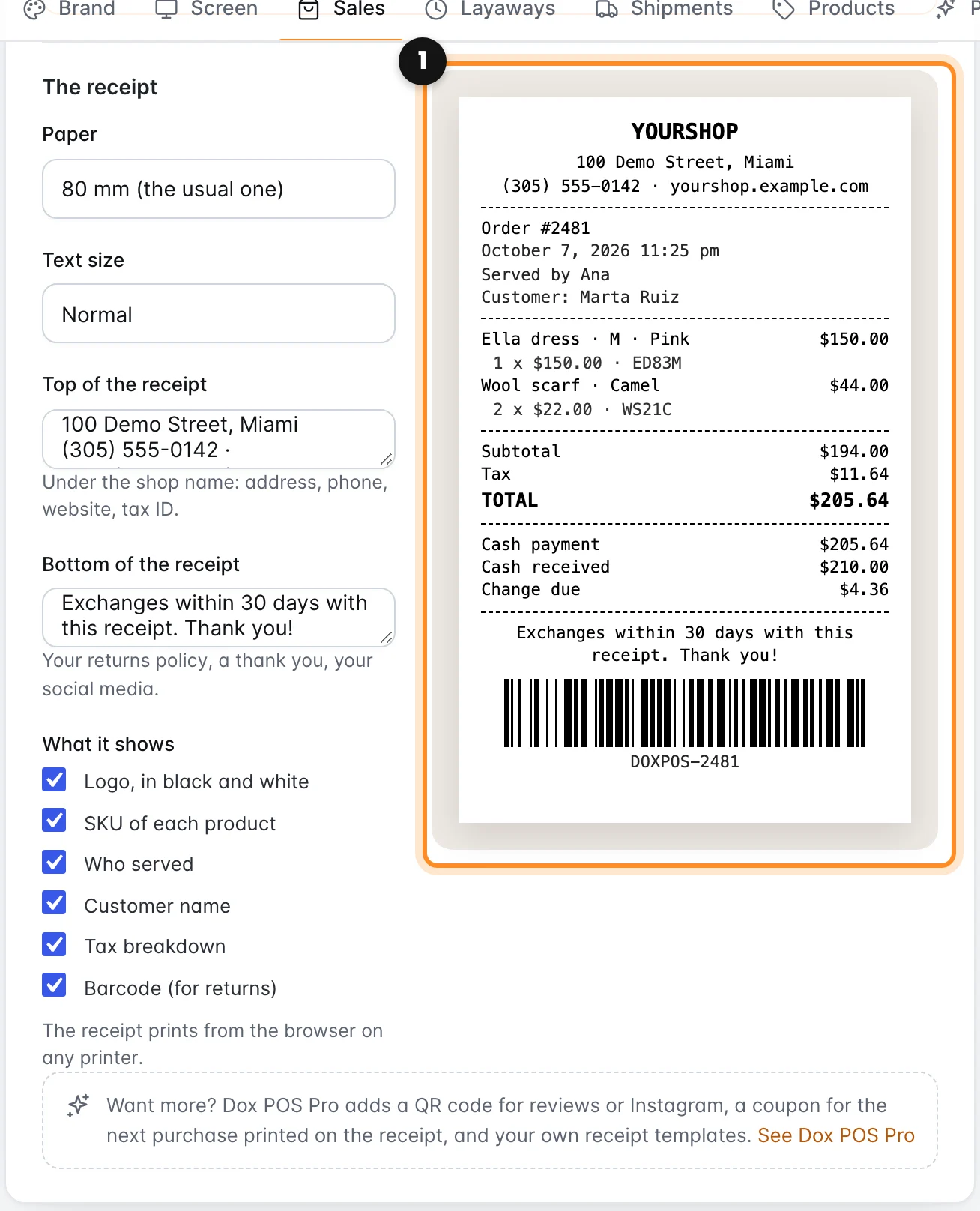
After charging, tap Print receipt (or press P). The browser’s print window opens and any printer works, including a thermal receipt printer installed on the computer. Last receipt prints it again.
How it looks is up to you in WooCommerce › Dox POS › Sales, with the preview next to it (1):
- The paper: 80 mm, the usual one, or 58 mm for small printers. And the text size.
- Top of the receipt: address, phone, website, tax ID. It starts with your store address from WooCommerce.
- Bottom of the receipt: your returns policy, a thank you, your social media.
- What it shows: the logo, each product’s SKU, who served, the customer’s name, the tax breakdown and the barcode for returns.
Make a return
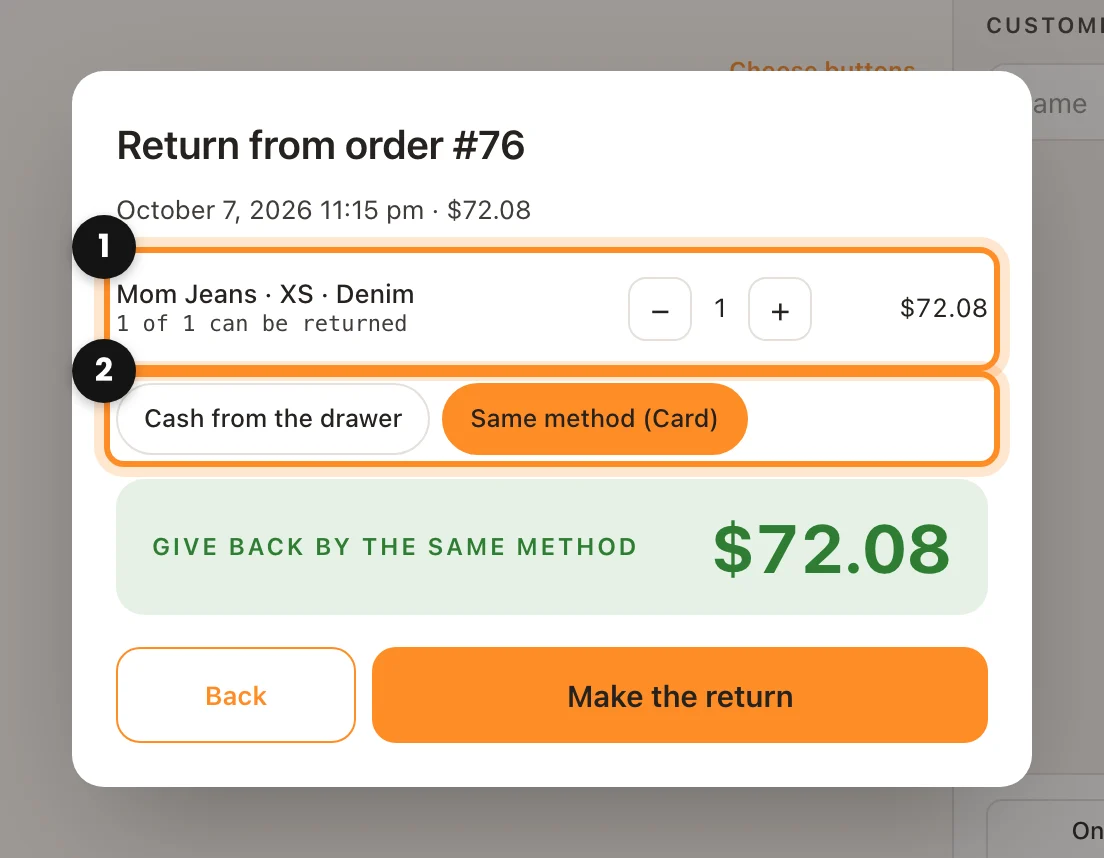
- Scan the barcode on the receipt. Without the receipt, tap Return and type the order number.
- Pick the pieces coming back with + and − (1). It won’t let you return more than was sold.
- Choose how the money goes back (2): Cash from the drawer, or by the same method they paid with (a card refund goes through your card machine).
- Tap Make the return. The pieces go back into stock and you can print the slip.
What goes back is what they paid for each piece, with its share of the discount and the tax. It is a WooCommerce refund, so the reports take it off on their own.
Close the till
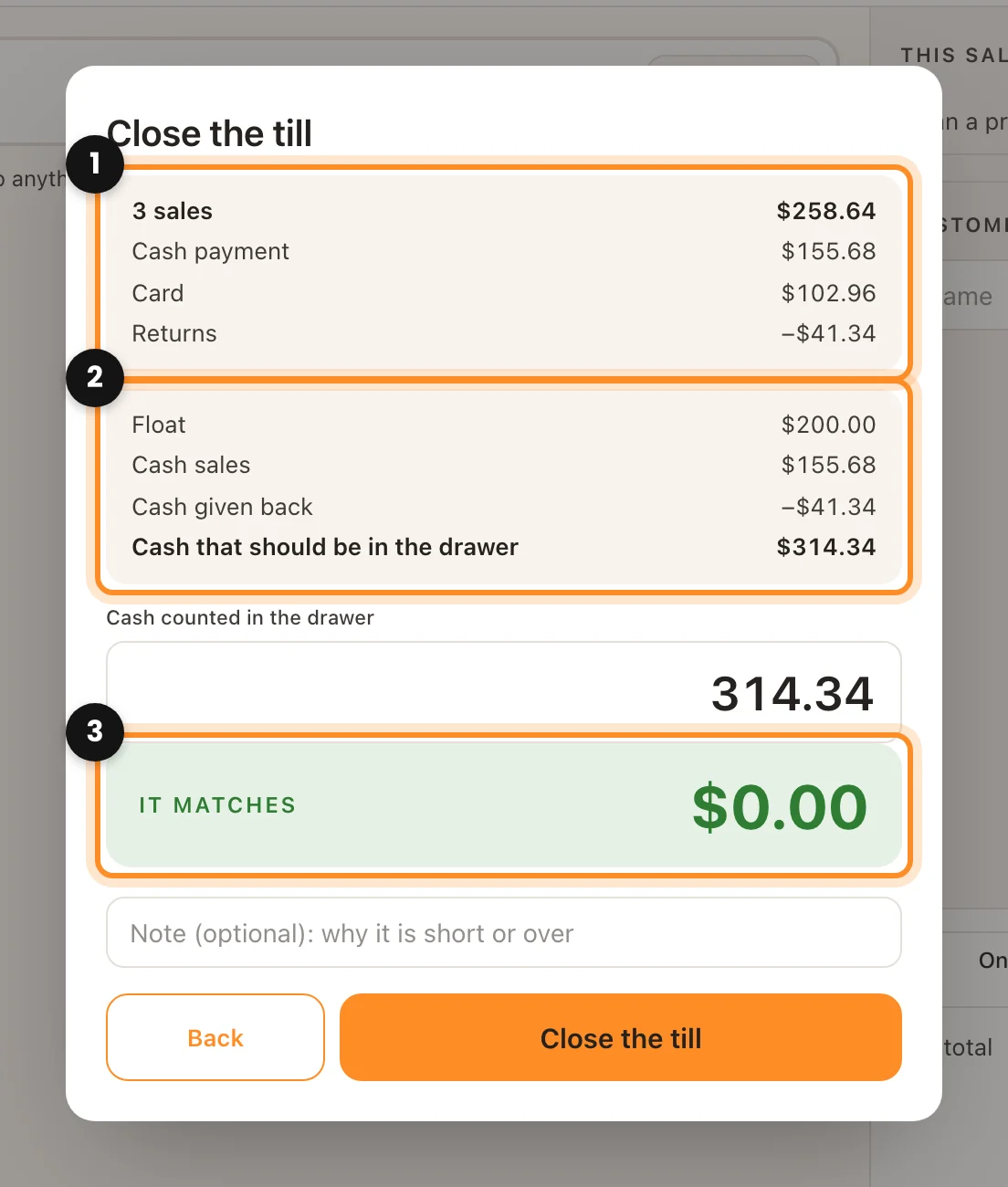
- Tap Close the till. At the top you see the shift’s sales by payment method and the returns (1).
- Below, the cash that should be in the drawer (2): the float, plus cash taken, minus cash given back.
- Count the drawer and type what is there (3). The register tells you whether it matches, is short or is over, and by how much. If it doesn’t match, leave a note.
- Whoever does not manage the shop closes blind: they don’t see the cash that should be there, they just count the drawer and type the total, float included. On closing they see whether it matches. That way nobody can pocket what is over.
- Confirm with Close the till. You can print the closing to keep it with the money.
Want more from the receipt? Dox POS Pro adds a QR code for reviews or Instagram, a coupon for the next purchase printed on the receipt, and your own templates.