
Dox Sales Booster 1.7.4 · free plugin · Needs WooCommerce
A bar in the cart that tells the customer how much is left for free shipping. It uses the real cart and updates without reloading the page.
Set up free shipping in WooCommerce
The best way is to let the bar read the amount from WooCommerce itself. That way the bar and the checkout always say the same thing, and if you change the amount you change it in one place.
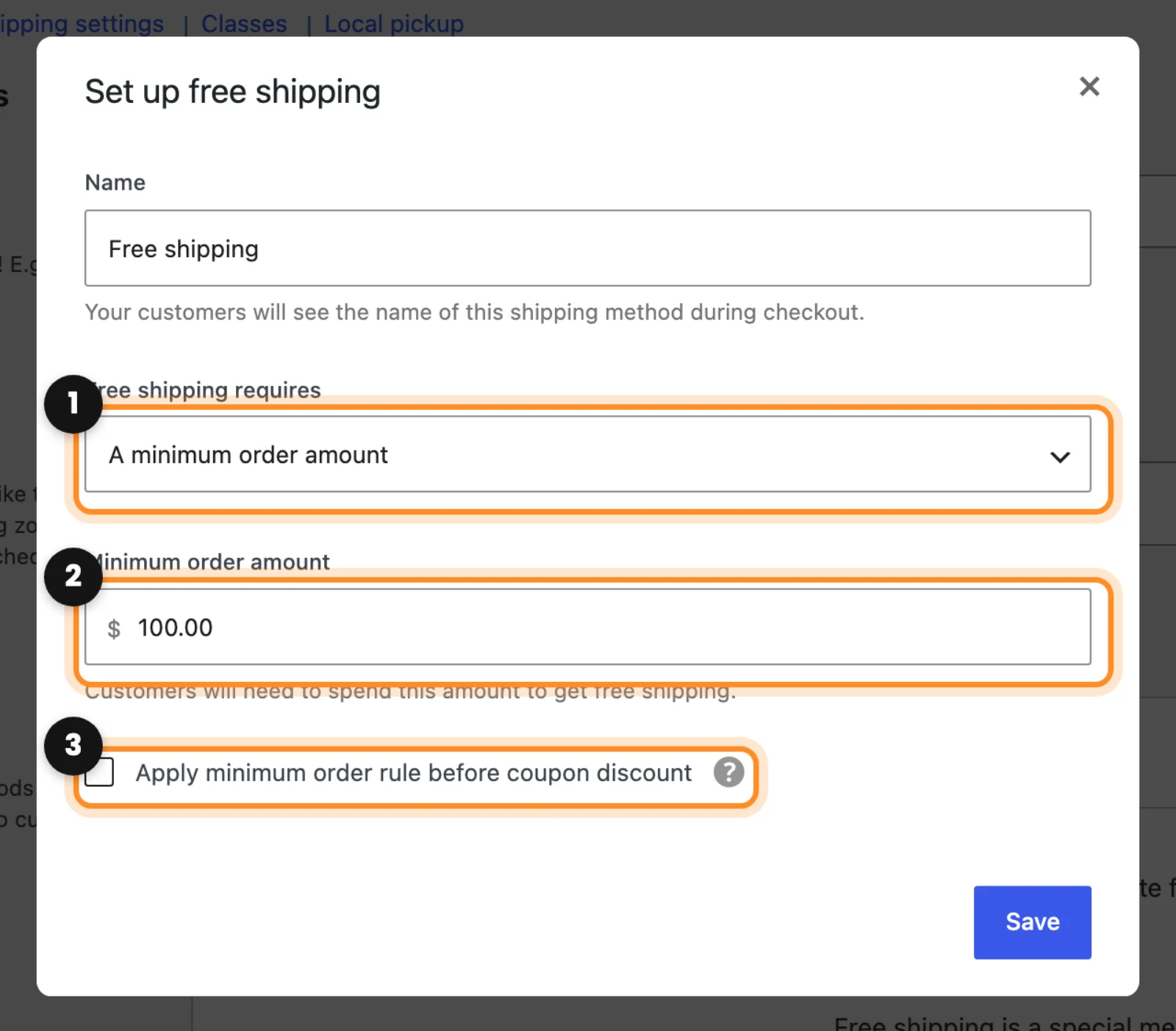
- Go to WooCommerce › Settings › Shipping and open the zone where you offer free shipping.
- Click Edit on the Free shipping method. If the zone doesn’t have it, add it with Add shipping method.
- In Free shipping requires, choose A minimum order amount (1).
- Write the amount in Minimum order amount (2), for example 100.
- Check Apply minimum order rule before coupon discount (3) if coupons should not lower what counts toward free shipping. The bar follows this box too.
- Click Save.
Turn on the bar
- Go to Dox Plugins › Sales Booster, open the Free shipping tab and turn on the switch (1). The bar comes off after installing.
- In Where it is shown (2), choose where it appears: Mini cart (offcanvas / widget), Cart page and Checkout page. It inserts itself; you don’t need a shortcode.
- In Amount source (3), choose WooCommerce “Free shipping” method (minimum order). The bar uses the minimum of the shipping zone that matches the customer.
- Adjust the Progress text if you want (4).
{amount}is replaced with what is left, with your currency. The Success text shows once the cart reaches the amount. - Pick the Colors of the bar and click Save changes.
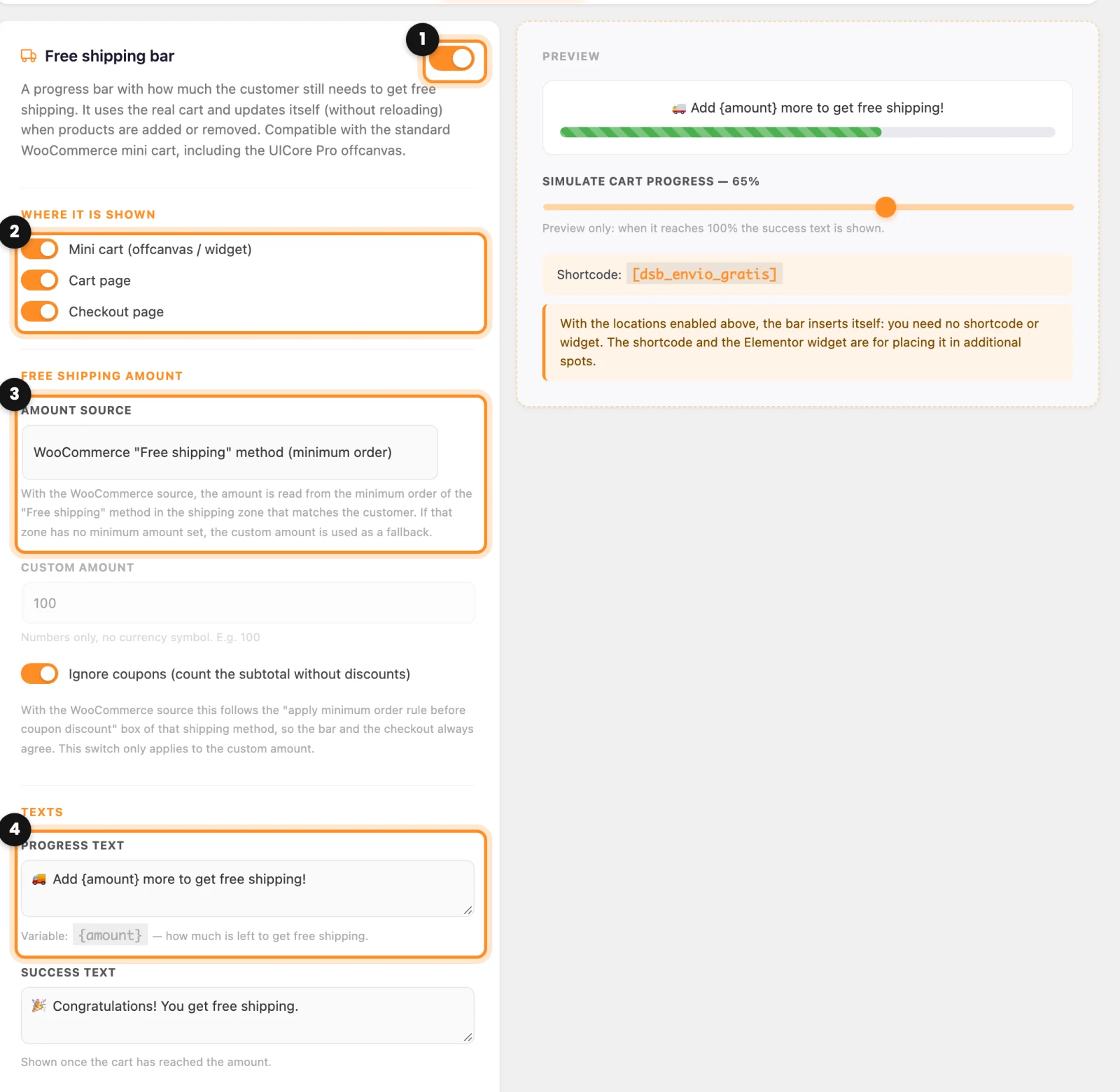
Your own amount: if you don’t use the WooCommerce Free shipping method, choose Custom amount (set here) and write the number in Custom amount, with no currency symbol. Then Ignore coupons decides whether coupons count. Make sure the amount matches your real shipping rule, or the bar will promise something the checkout doesn’t give. The custom amount is also the backup when the customer’s zone has no minimum set.
How it looks
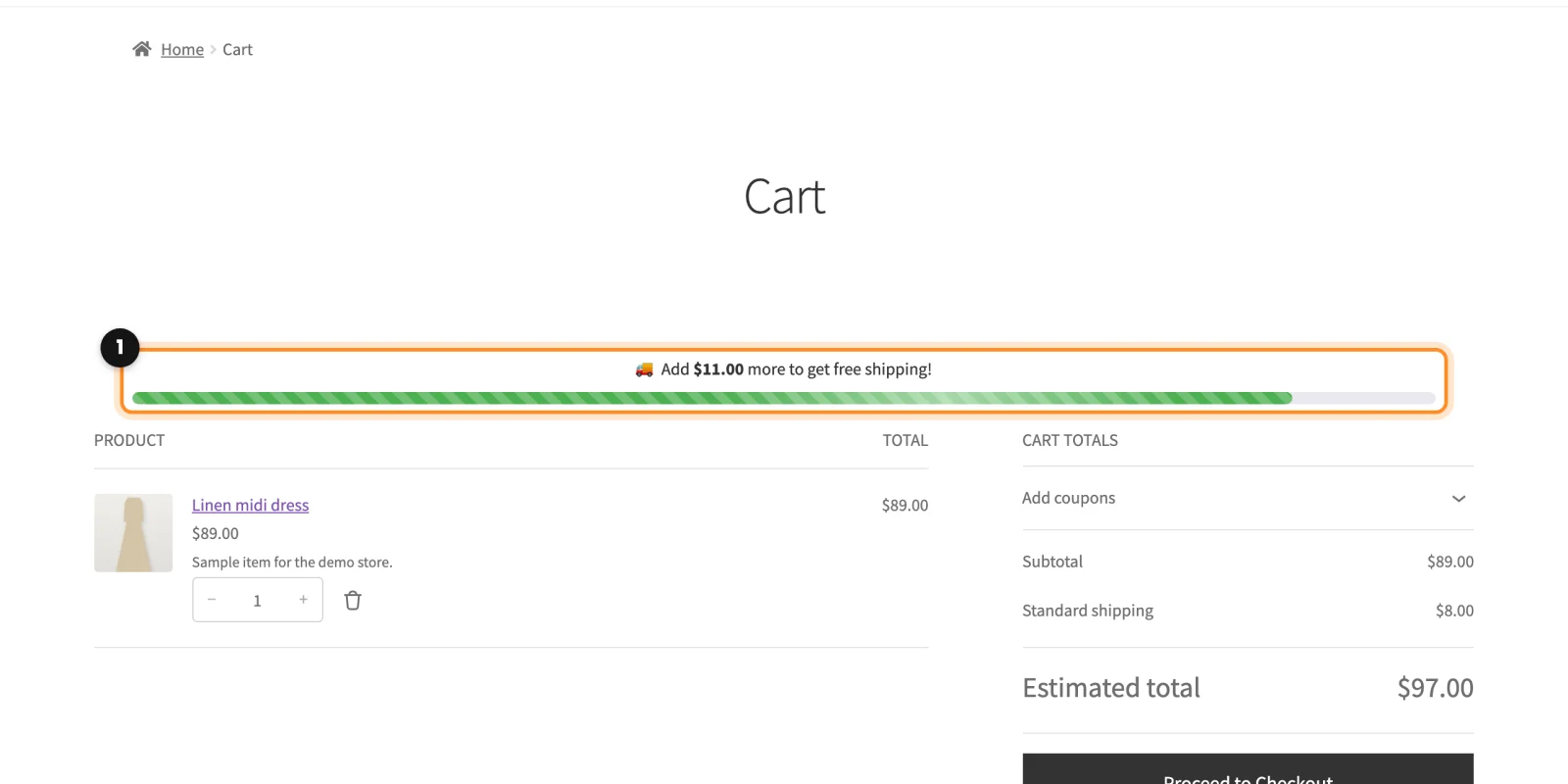
Add a product to the cart and open it. The bar (1) says how much is left and fills up. When the customer adds or removes products, or applies a coupon, it updates by itself in the mini cart, the cart and the checkout.
Related: Place the elements yourself: blocks, Elementor and shortcodes