
Dox Sales Booster 1.7.4 · free plugin · Needs WooCommerce
If your product page is built with blocks or Elementor, or you want an element somewhere else, place it yourself with a block, a widget or a shortcode.
First, turn off the automatic placement
Recent sales, Low stock and People viewing insert themselves into the WooCommerce product page. If you also place them by hand, they show up twice.
- Go to Dox Plugins › Sales Booster and open the tab of the element you are going to place.
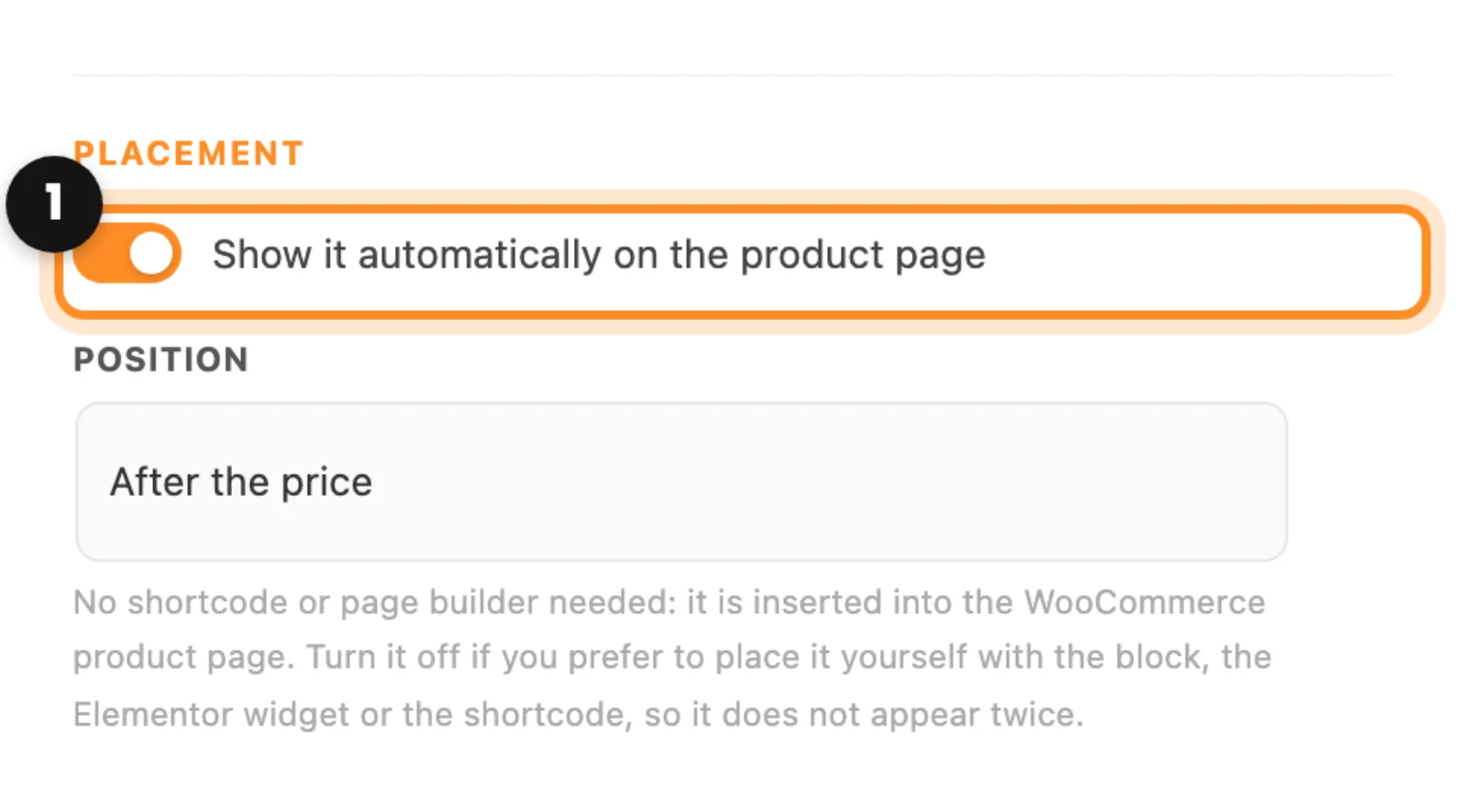
- Under Placement, turn off Show it automatically on the product page (1). Leave the element’s main switch on: if it is off, the block, the widget and the shortcode show nothing.
- Click Save changes.
With blocks
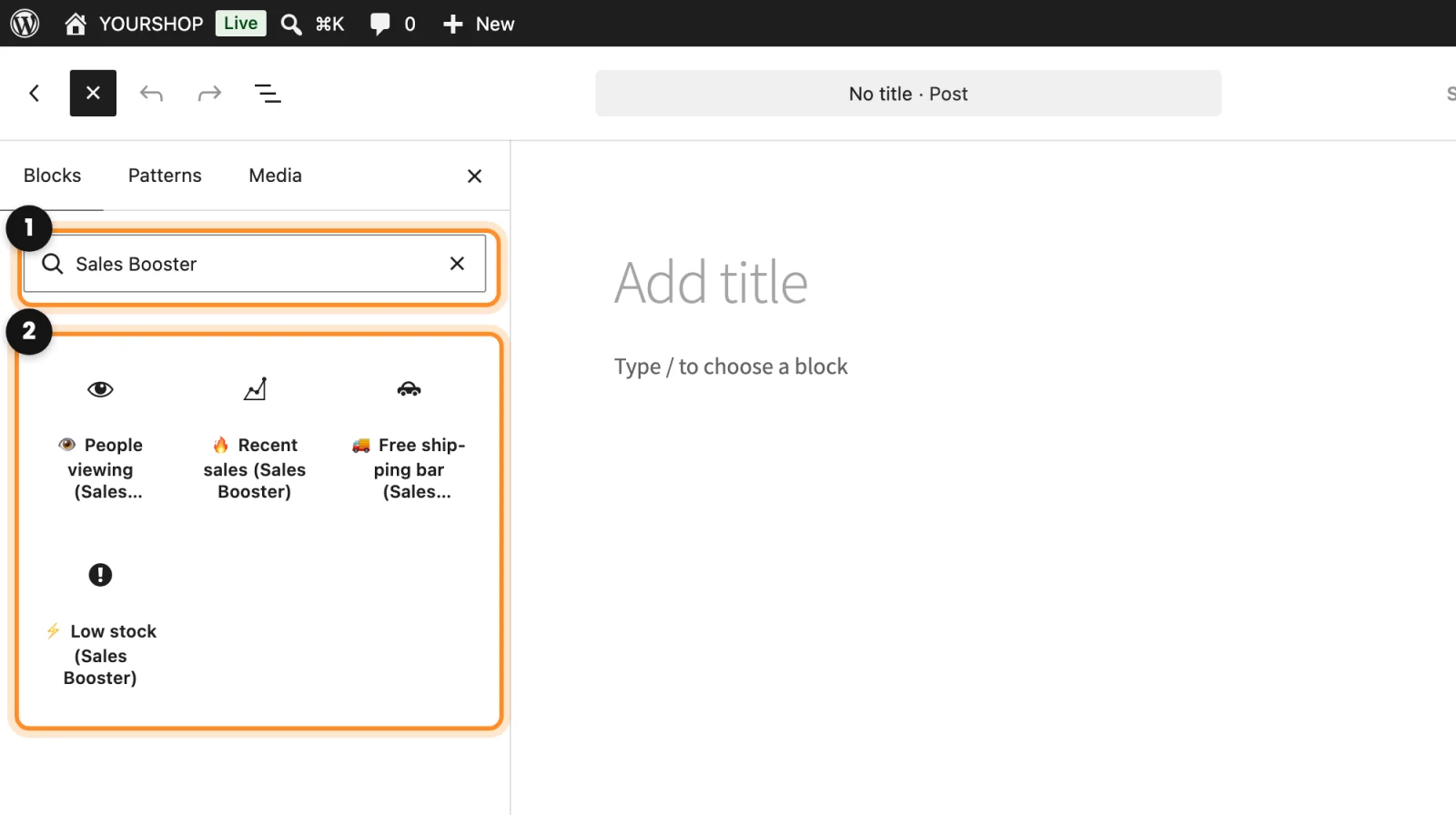
- In the block editor (a page, or the product page template), open the block inserter with + and type Sales Booster (1).
- Pick one of the four blocks (2): People viewing (Sales Booster), Recent sales (Sales Booster), Free shipping bar (Sales Booster) or Low stock (Sales Booster).
- In the block’s Settings, on the right, change only what you need. Empty fields use the values from the Sales Booster panel. Leave Product ID (empty = current product) empty on a product page; fill it in to show a specific product somewhere else.
With Elementor
In the Elementor widgets panel, search for Sales Booster. The same four elements are there as widgets, with the same names. Drag the one you need into the design. The Settings tab changes the text and numbers of that widget only, and Style its colors; what you leave empty comes from the panel.
With shortcodes
The Shortcodes tab (1) has each code with an example. Paste it in a Shortcode block, a text widget or wherever your theme accepts shortcodes.
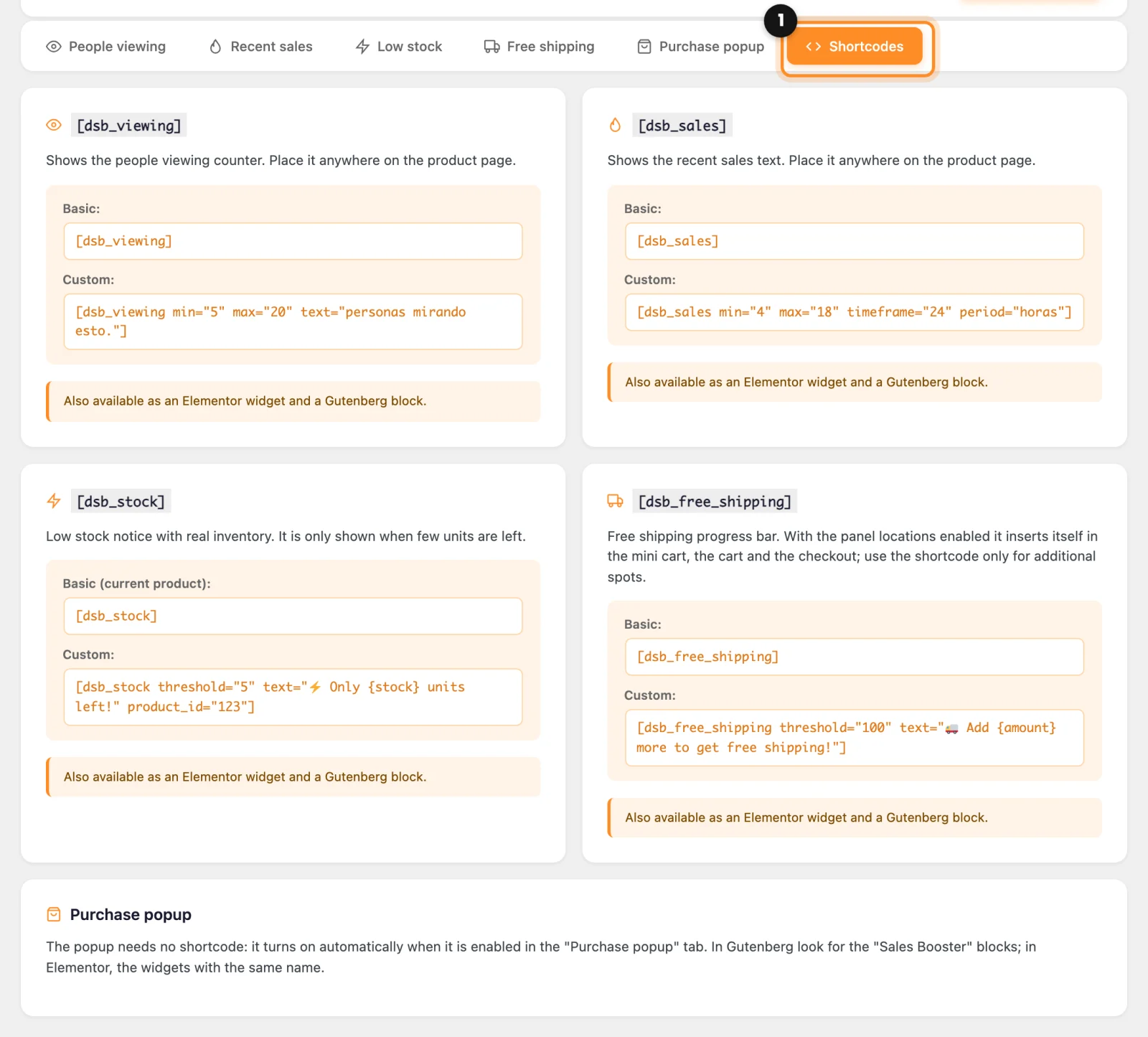
[dsb_sales]: recent sales. You can change the period, for example[dsb_sales timeframe="7" period="days"](minutes,hours,daysorweeks).[dsb_stock]: low stock. For example[dsb_stock threshold="5"].[dsb_viewing]: people viewing (not measured from real visits).[dsb_free_shipping]: the free shipping bar, for spots other than the mini cart, the cart and the checkout, where it already inserts itself. The old name,[dsb_envio_gratis], still works.
The first three also accept product_id="123" to show a specific product outside its page, and text="..." to change the sentence.
The popup needs nothing: it has no block, widget or shortcode. It appears across the whole site when it is on in the Purchase popup tab.
Related: Show recent sales and low stock on the product page