
Dox Sales Booster 1.7.4 · free plugin · Needs WooCommerce
Show on the product page how many units you really sold and when only a few are left. Both come from your orders and your inventory.
Recent sales, with real data
- Go to Dox Plugins › Sales Booster and open the Recent sales tab. Check that the switch is on (1).
- In Data mode, choose Real (actual units sold) (2). It counts the units of that product in completed or processing orders within the period. If there were no sales, the text is simply not shown.
- Set the period in Quantity and Period (3). For a small shop, 7 days works better than 24 hours: more products will have something to show.
- Leave Show it automatically on the product page on (4) and pick where it goes in Position, for example After the price.
- Click Save changes (5).
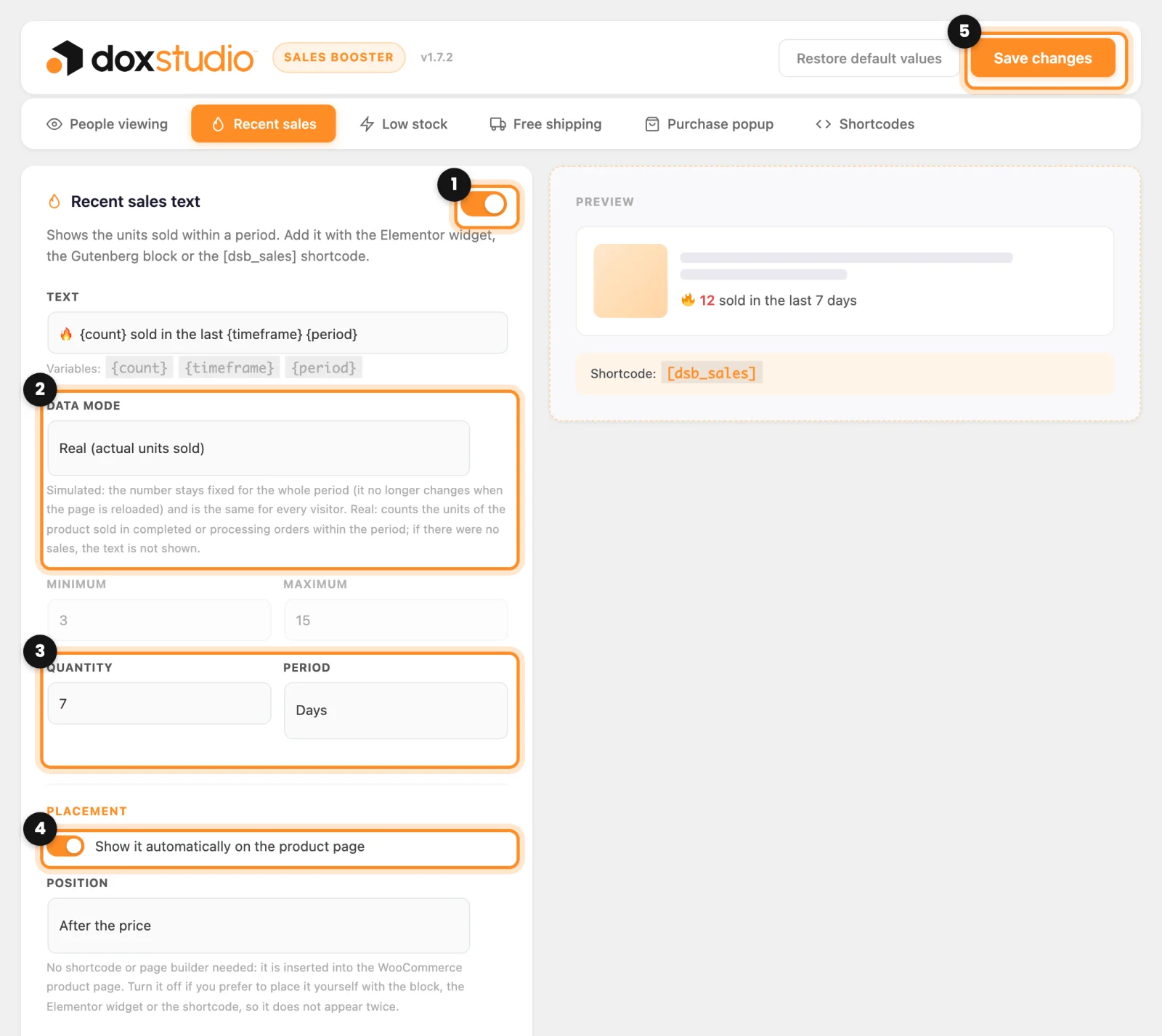
The Text field sets the sentence. {count} is the number of units, {timeframe} the quantity and {period} the unit of time. The preview on the right uses a sample number; the real one is on the product page.
Low stock
This notice always uses your real WooCommerce inventory. It only shows on products that manage stock and have between 1 and the number you choose left. On variable products it adds up the stock of the variations.
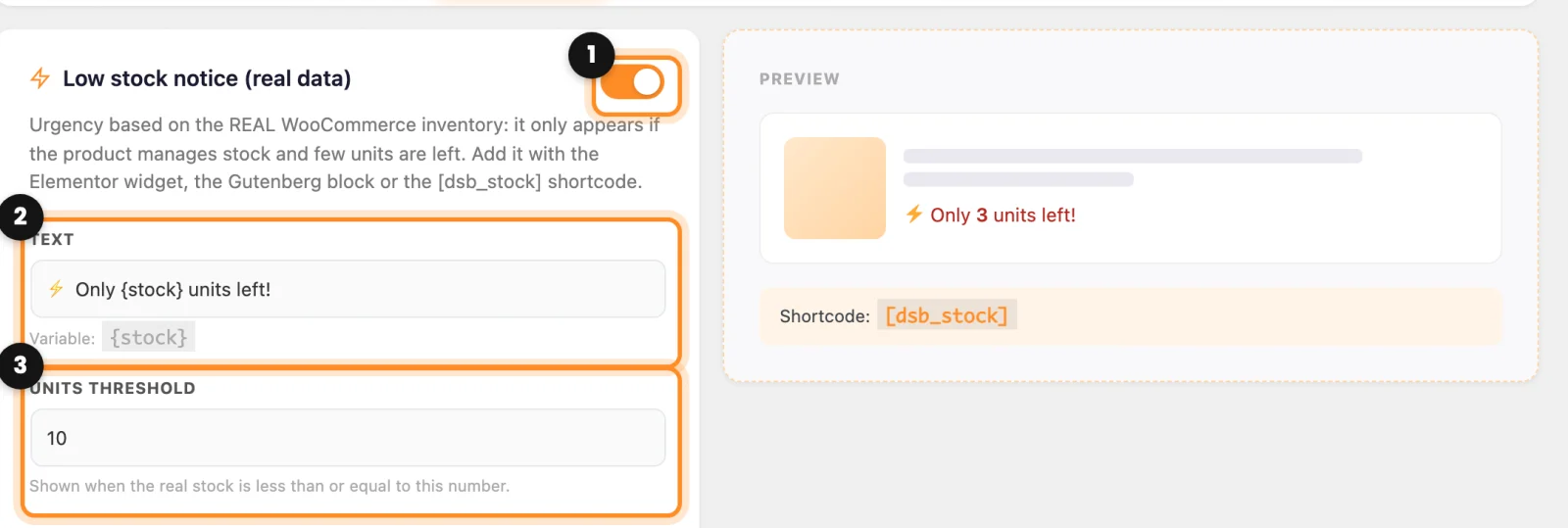
- Open the Low stock tab and check that the switch is on (1).
- Adjust the Text if you want (2).
{stock}is replaced with the units left. - In Units threshold (3), write from how many units down the notice appears. With 10, a product with 4 left says “Only 4 units left!”.
- Choose the Position further down, the same as in Recent sales, and click Save changes.
People viewing
This counter does not measure real visits. It shows a number between the Minimum and the Maximum you set and moves it a little every few minutes. If you want your store to show only real data, turn it off with its switch (1) and click Save changes.
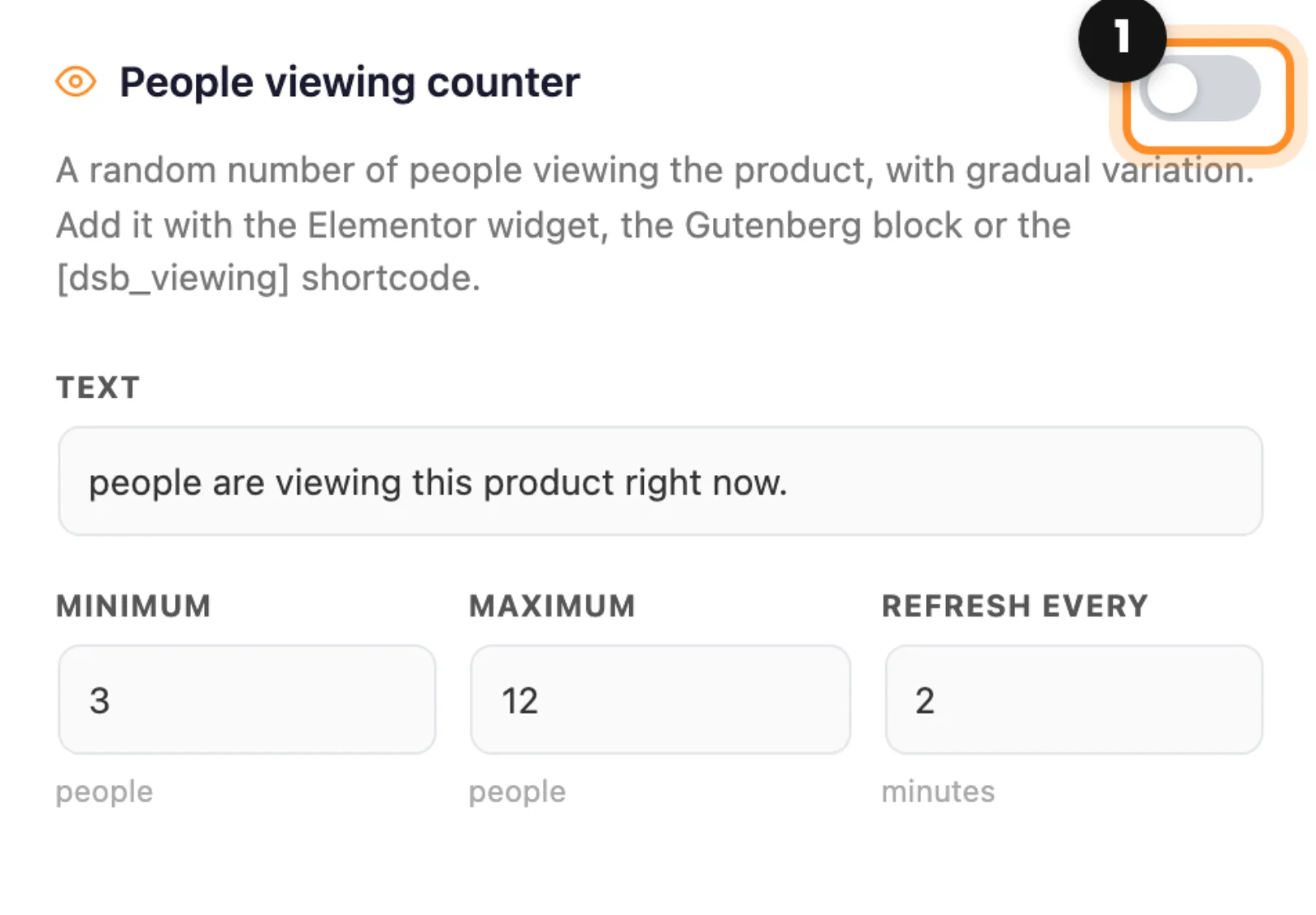
Real data only: in the United States, the FTC treats made-up sales counts, viewers or scarcity as a deceptive practice. With Recent sales in Real mode, Low stock and People viewing off, everything your customers see is true.
How it looks
Open any product in your store. You see the units sold in the period (1) and, if few are left, the low stock notice (2).
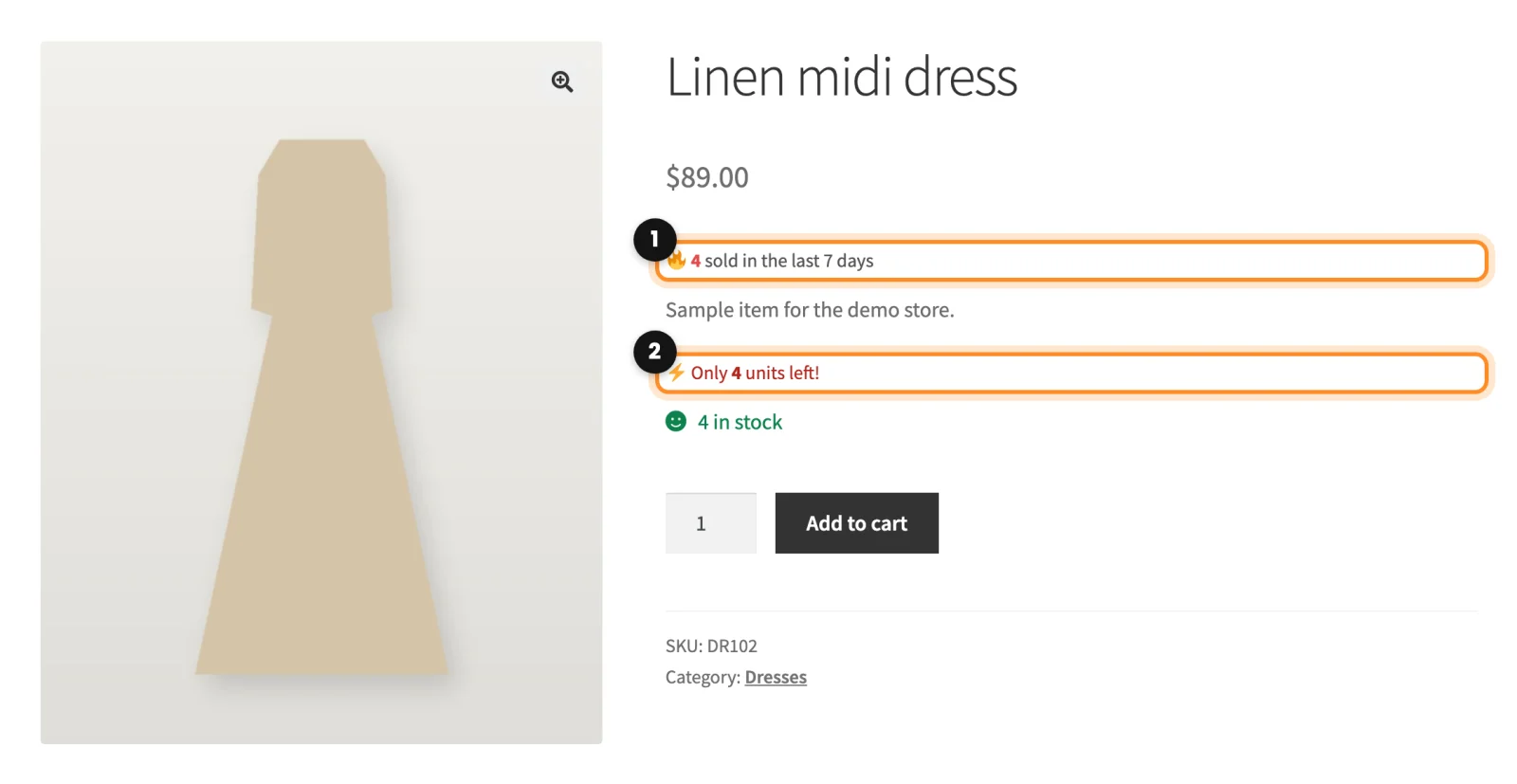
Nothing shows up? The automatic placement works on the standard WooCommerce product page. If yours is built with Elementor or with blocks, place the elements yourself.
Related: Place the elements yourself: blocks, Elementor and shortcodes