
Free plugin · Dox POS 0.47 or newer
The Orders tab puts the sales from the register and the orders from your online store in one list, each with its status and the button for the next step. You don’t need to open wp-admin to move an order along.
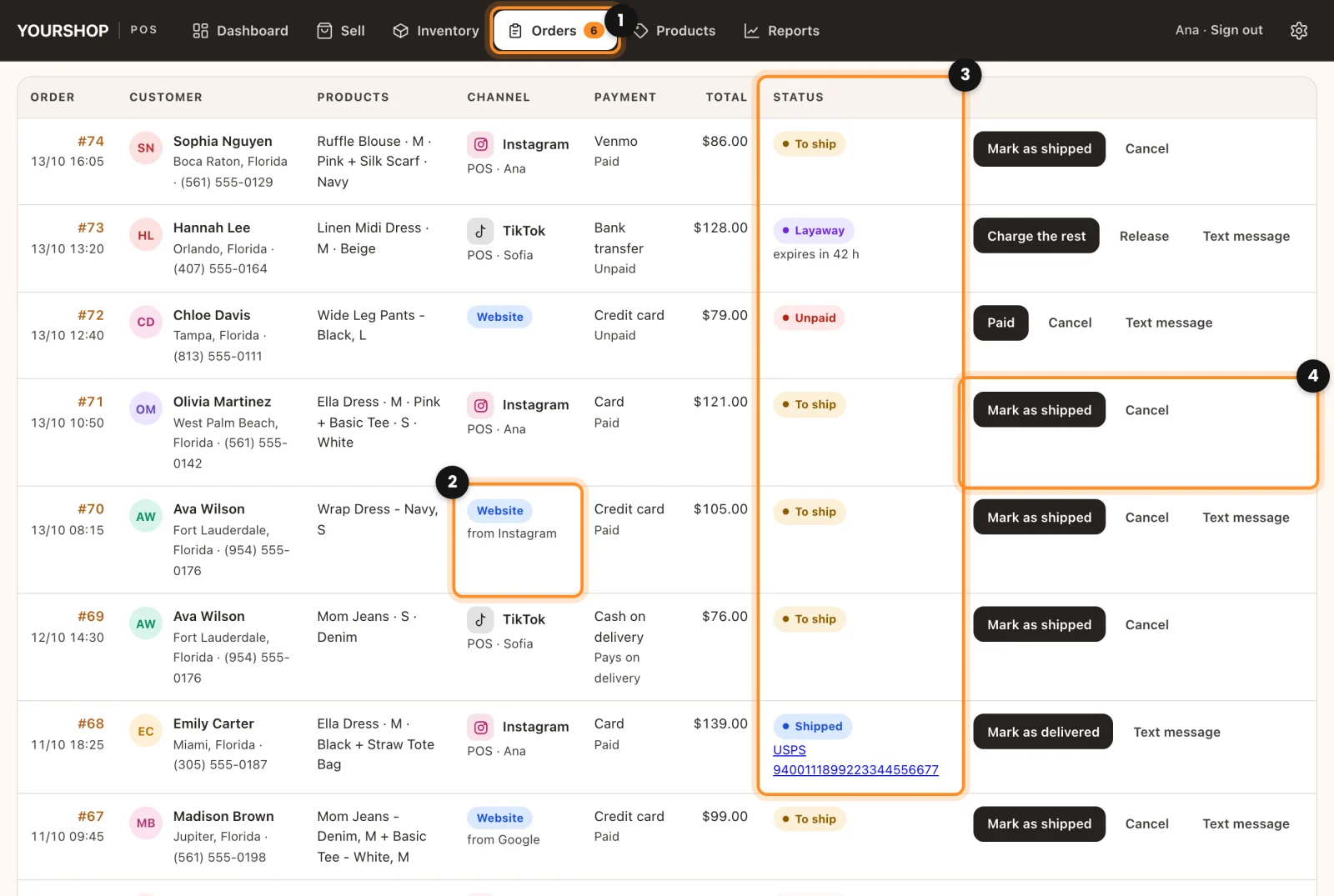
Read the list
The newest orders come first. Each row shows Order, Customer, Products, Channel, Payment, Total and Status.
- The number next to Orders (1) counts what is waiting for you: layaways, orders to ship and payments to confirm.
- In Channel (2), a register sale shows how it came in and who recorded it. An order from your online store carries the Website tag and, when WooCommerce knows it, where the customer came from (from Instagram). Orders created by hand in WooCommerce say Manual.
- In Payment, under the method, it says Paid, Unpaid, In progress (a payment still to be confirmed) or Pays on delivery.
- To find an order, type the name, the phone, the product or the order number in the search box at the top. It searches every order, old ones too, and finds a phone however you write it: with spaces or with the country code. Clear what you typed and the full list comes back.
The statuses
The Status column (3) tells you where each order is:
- Layaway: held for a customer who hasn’t paid all of it yet, with when it expires and, if they left deposits, what was deposited and what is left.
- To ship: paid, or cash on delivery, and waiting to go out.
- Shipped: on its way, with the carrier and the tracking number under it.
- Delivered: closed. Cancelled and Refunded show grayed out.
- Website orders can also be Unpaid (the customer left the payment halfway), Payment to confirm or Payment failed.
Move an order along
The buttons at the end of each row (4) change with the status:
- A layaway: Charge the rest or Release (in its detail, also Add deposit and Change deadline).
- A website order that isn’t paid: Paid, to confirm a payment that came in another way, or Cancel.
- To ship: Mark as shipped or Cancel. Cancelling gives the stock back; if it was already paid, the money is not refunded from the register: give it back to the customer the way they paid, or use Return to store credit.
- Shipped: Mark as delivered, which asks first and closes the order. Whoever runs the shop also sees Cancel, in case the parcel comes back: the stock goes back and, if it was already paid, the money is returned separately, as with To ship.
Next to them, the Text message button opens a message to the customer, already written: the layaway reminder, the shipping notice with the tracking number, or a greeting about their website order. In a store set to WhatsApp, the button says WhatsApp.
Tap anywhere on an order to open the detail (cancelled ones too); its buttons still do their own thing. Three figures come first: the Total, how it was paid and where the Delivery is. Below, the products with their photos on the left and, on the right, the customer with a message button and the Profit (only for whoever runs the shop). The History is folded at the end: tap it to open it. A store credit deposit opens as a Deposit, with how much, how it was paid and the credit the customer has left. Administrators and shop managers also see Open in WooCommerce, which opens the same order in wp-admin.
If a product in the detail says Actual size: 18-24 months, pack the piece with that size on its label. It happens with sizes that share units: the customer ordered another size of the group, and the piece you have is that one.
Only the register’s orders? Website orders show up by default. To hide them, turn off Show website orders in the register in WooCommerce › Dox POS › Sales. With the Cashier role, confirming the payment of a website order and cancelling an order that was already shipped or delivered are left to administrators and shop managers.
Note a loss
Sometimes an order costs you more than you charged: a pricier shipment, a freight you refunded, a repair. Administrators and shop managers note it in the order detail, in any status:
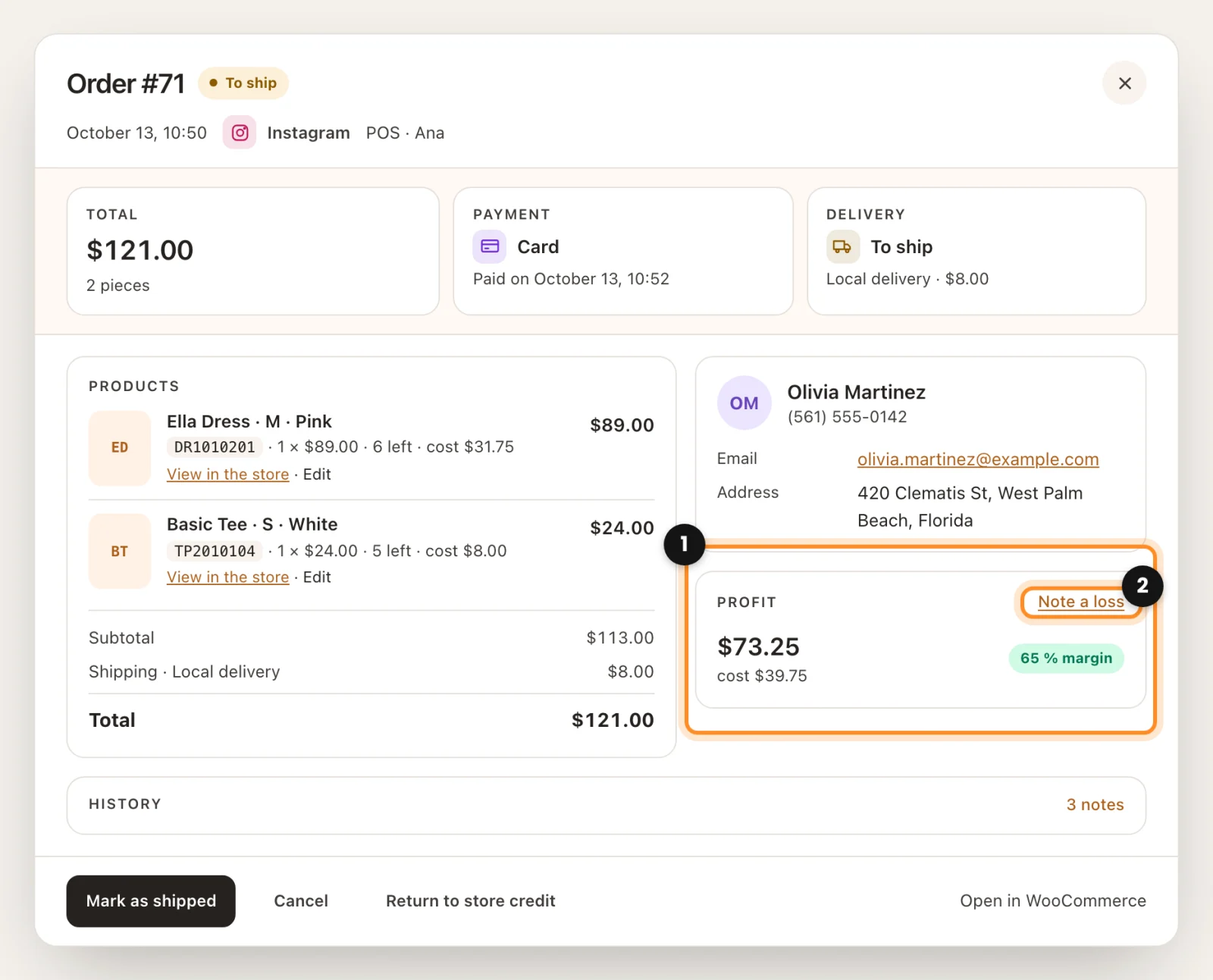
- Open the order detail. On the right is the Profit block (1) (or Loss, if the order is not a sale yet).
- Tap Note a loss (2).
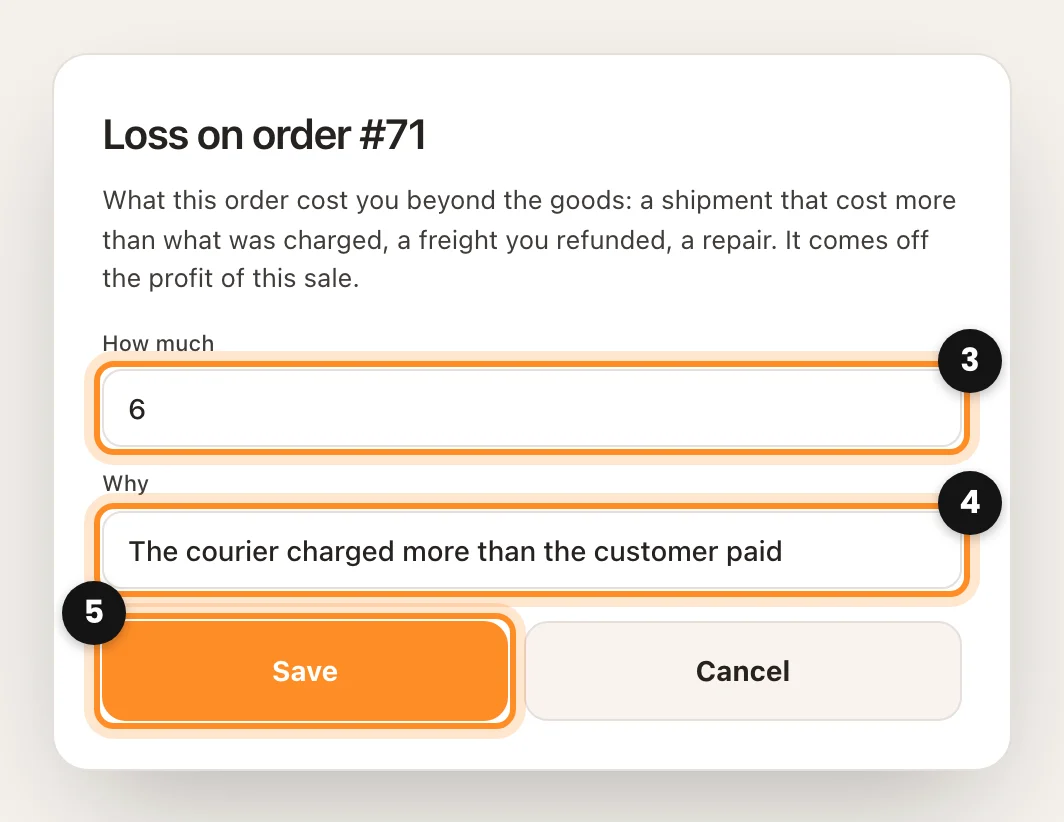
- Type How much (3) and, if you want, the Why (4). Tap Save (5).
The loss comes off the profit of that sale, and the order history keeps who noted it. To change it, tap Edit next to the loss; Remove the loss deletes it. In Reports › Sales the ones in the period add up as Losses on N sales: see Reports: sales, the daily cash and the stock ledger.