
Dox Studio hosting · all plans
Your business email works in any email app: the iPhone’s Mail, Gmail on Android, Outlook or Apple Mail on the computer. The app asks for the same few details, and they are all here.
The settings
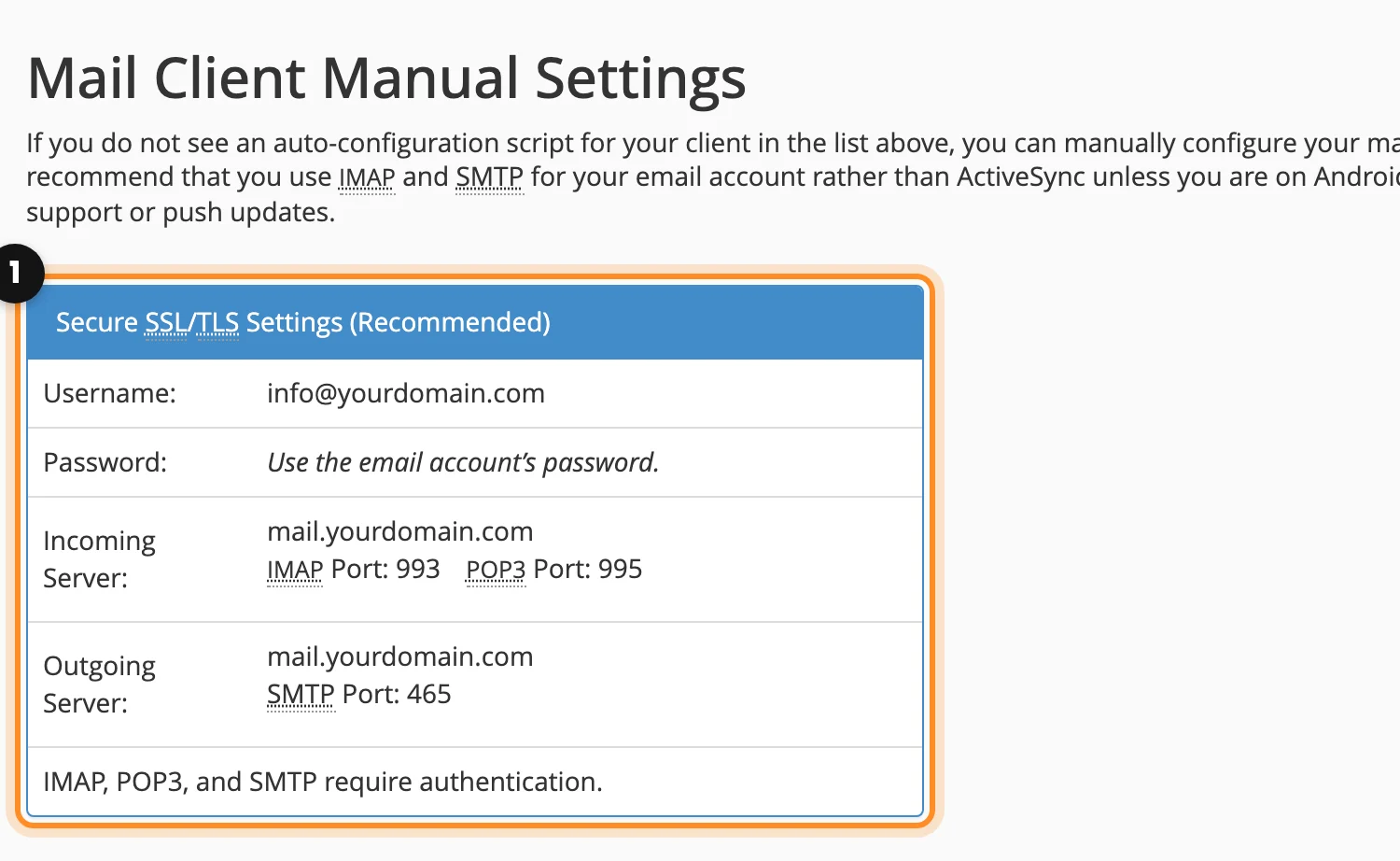
| Username | Your full email address, for example maria@yourdomain.com |
|---|---|
| Password | The password of that mailbox |
| Incoming server | mail.yourdomain.com |
| IMAP (recommended) | Port 993, SSL/TLS |
| POP3 | Port 995, SSL/TLS |
| Outgoing server (SMTP) | mail.yourdomain.com, port 465 with SSL/TLS (or 587 with STARTTLS) |
| Outgoing authentication | Yes, with the same email and password |
Change yourdomain.com for your own domain. cPanel shows these same details for each mailbox: in Email Accounts, click Connect Devices next to the account and look at Secure SSL/TLS Settings (Recommended) (1).
IMAP or POP3?
- IMAP keeps the email on the server, so the phone, the computer and webmail all show the same inbox. Choose it if you read your email on more than one device.
- POP3 downloads the email to one device. What you read or delete there doesn’t change anywhere else. Choose it if email is filling up your hosting: here is how to switch Outlook from IMAP to POP.
On your phone or computer
Find your app below. In all of them, the username is your full email address and both the incoming and outgoing server are mail.yourdomain.com.
iPhone or iPad (Mail)
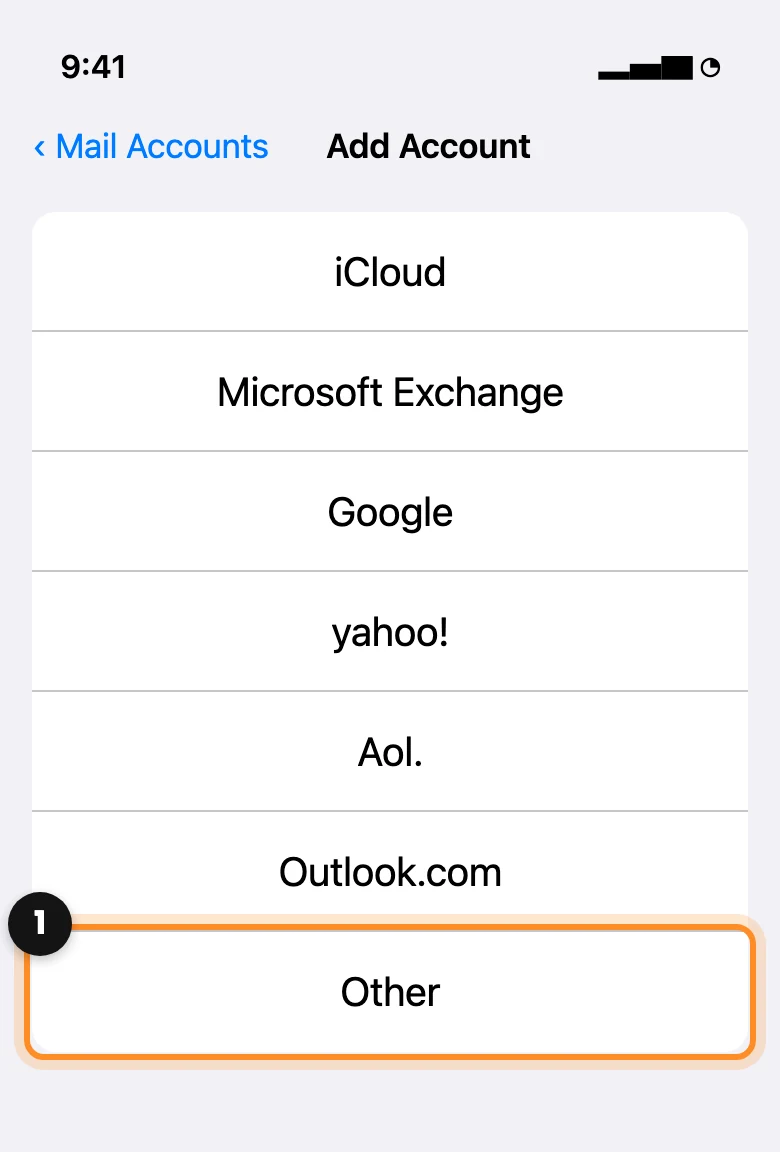
- Open Settings › Apps › Mail › Mail Accounts › Add Account, tap Other (1) and then Add Mail Account.
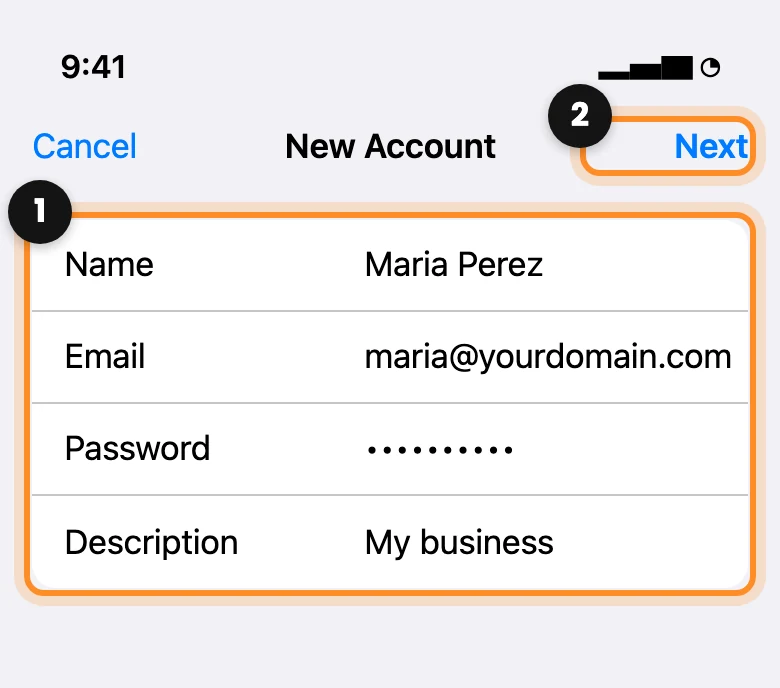
- Enter your name, the full email address, its password and a description (1), and tap Next (2).
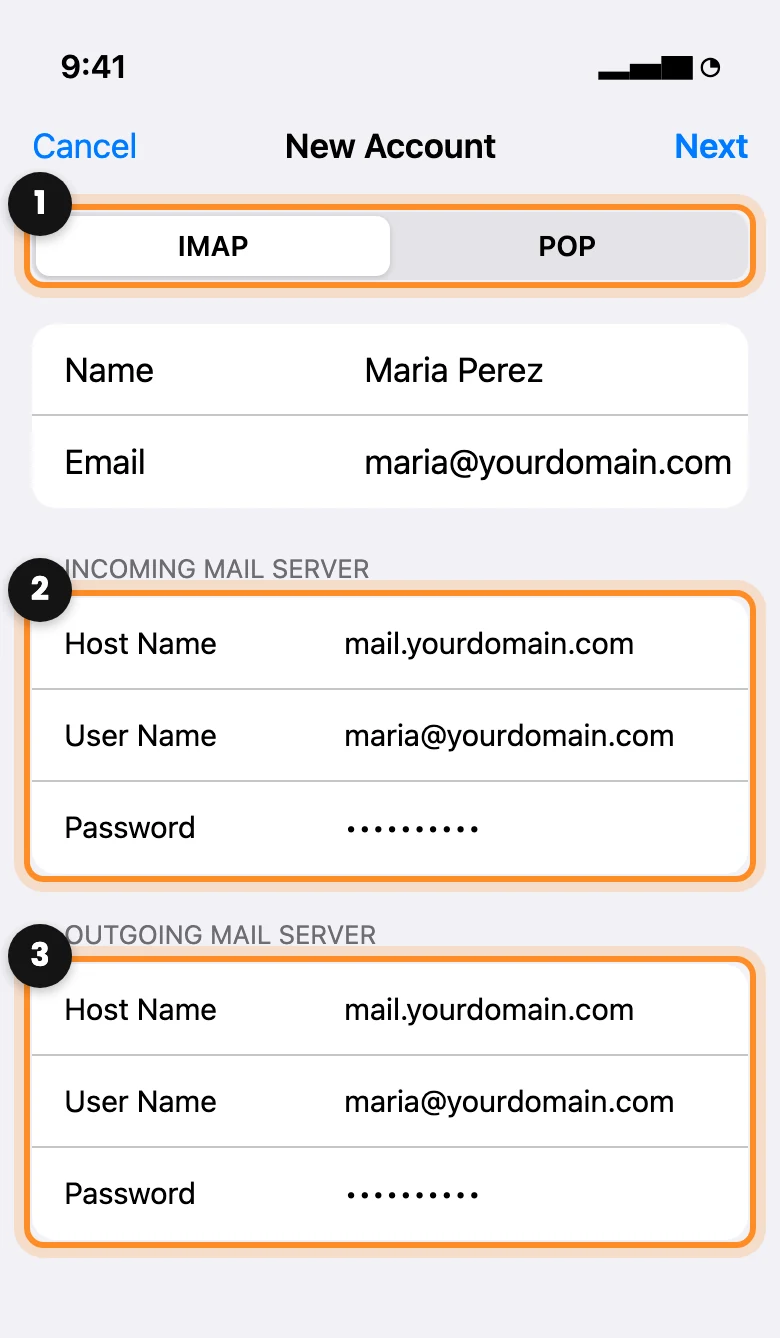
- Leave IMAP selected (1). Under Incoming mail server (2) and Outgoing mail server (3), enter
mail.yourdomain.com, the full email address as the user name and its password. The outgoing ones say “Optional”, but you need to fill them in. - Tap Next and then Save.
Android (Gmail app)
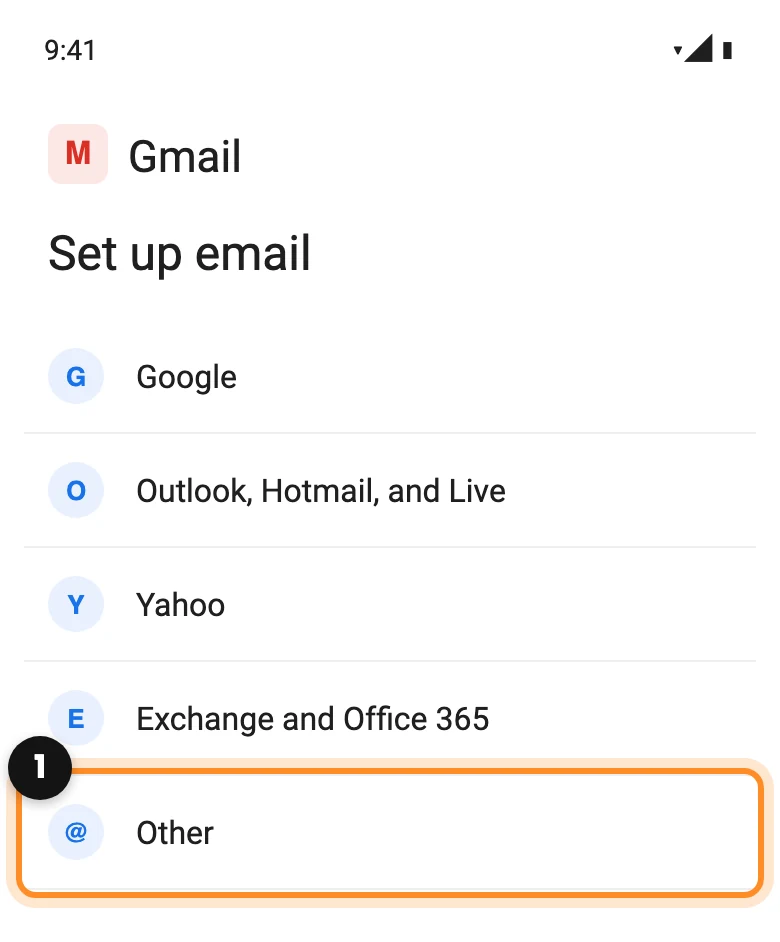
- In the Gmail app, tap your photo at the top right, then Add another account, and choose Other (1).
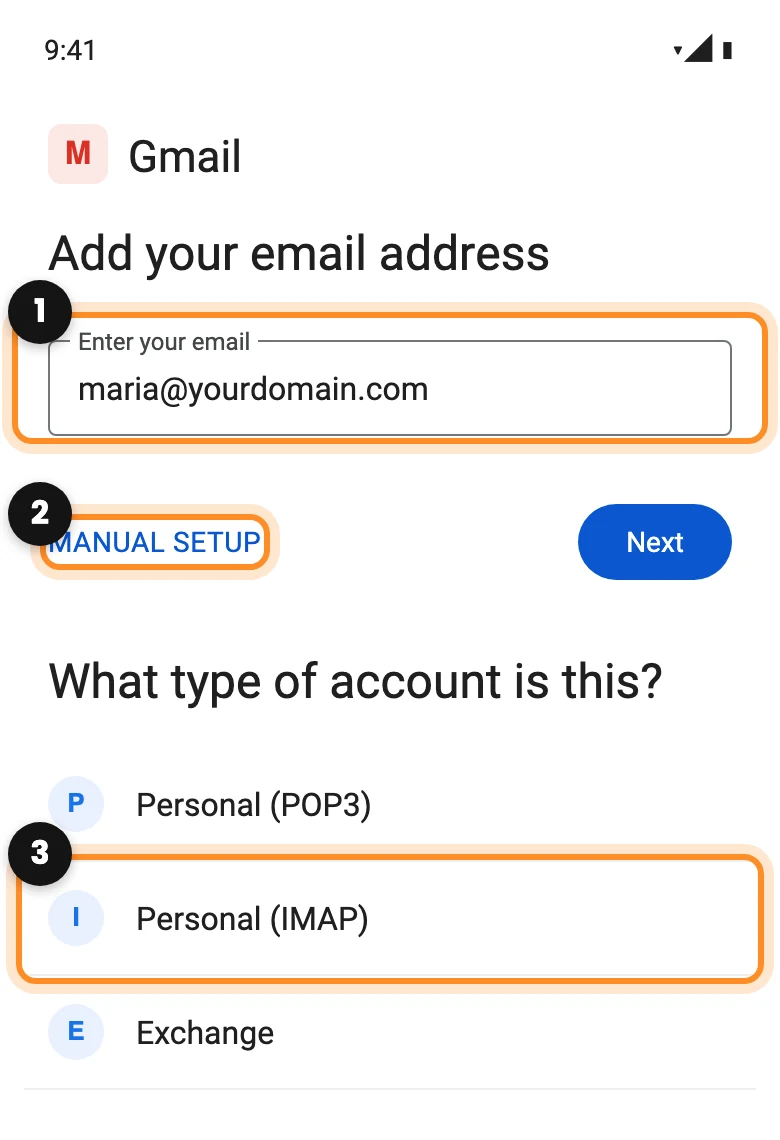
- Enter your full email address (1), tap Manual setup (2), choose Personal (IMAP) (3) and enter the password.
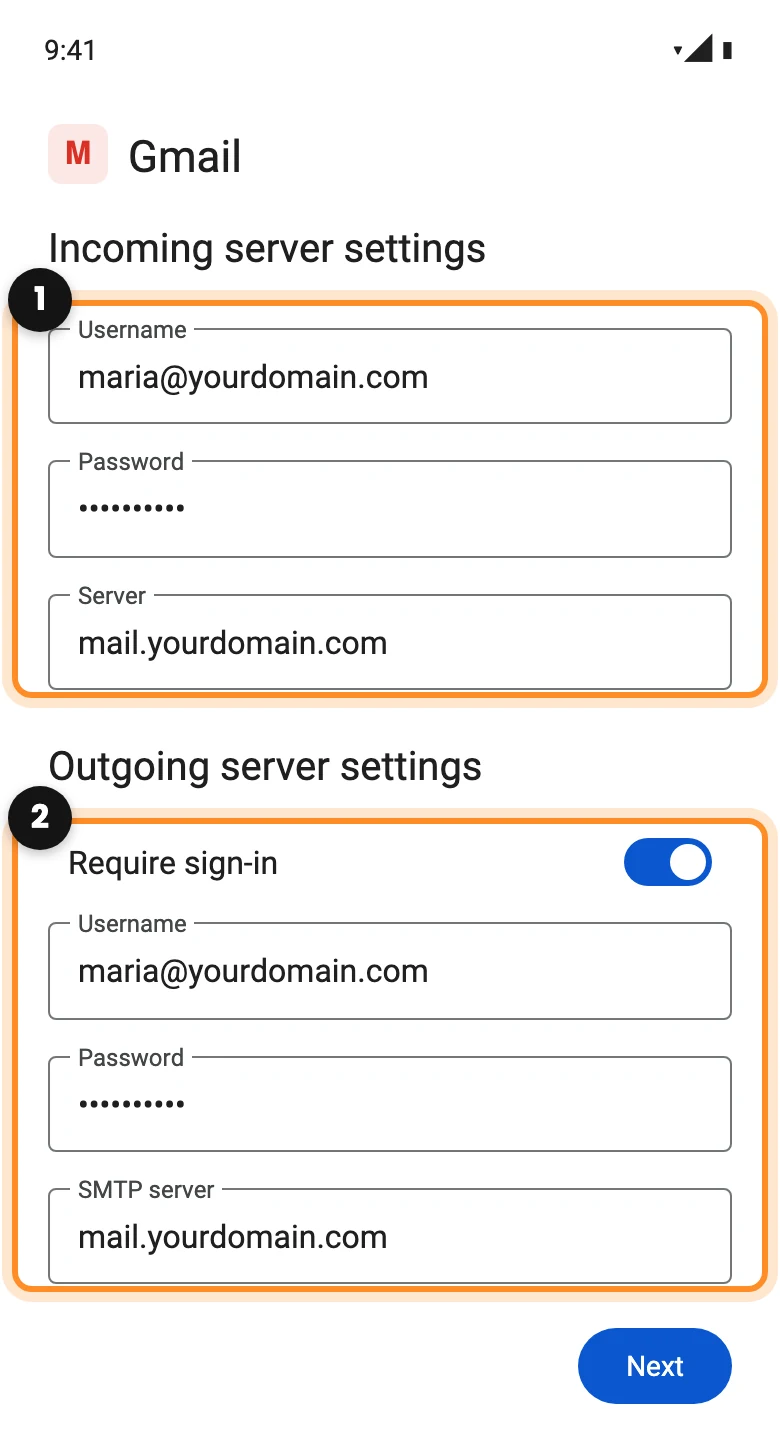
- For the incoming server (1) and the outgoing server (2), enter the full email address, its password and
mail.yourdomain.com. Leave Require sign-in on. If the app asks for the port and security, use the ones in the table. - Tap Next until you are done.
Outlook on Windows
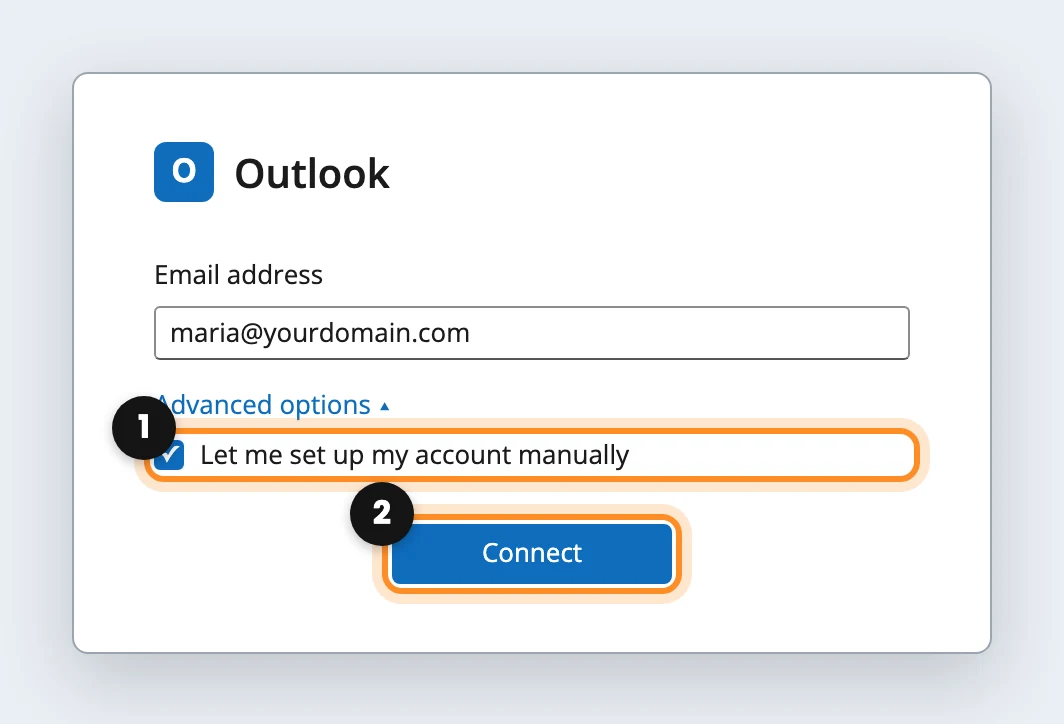
- Go to File › Add Account and enter your email. Open Advanced options, check Let me set up my account manually (1) and click Connect (2).
- Choose IMAP (1).
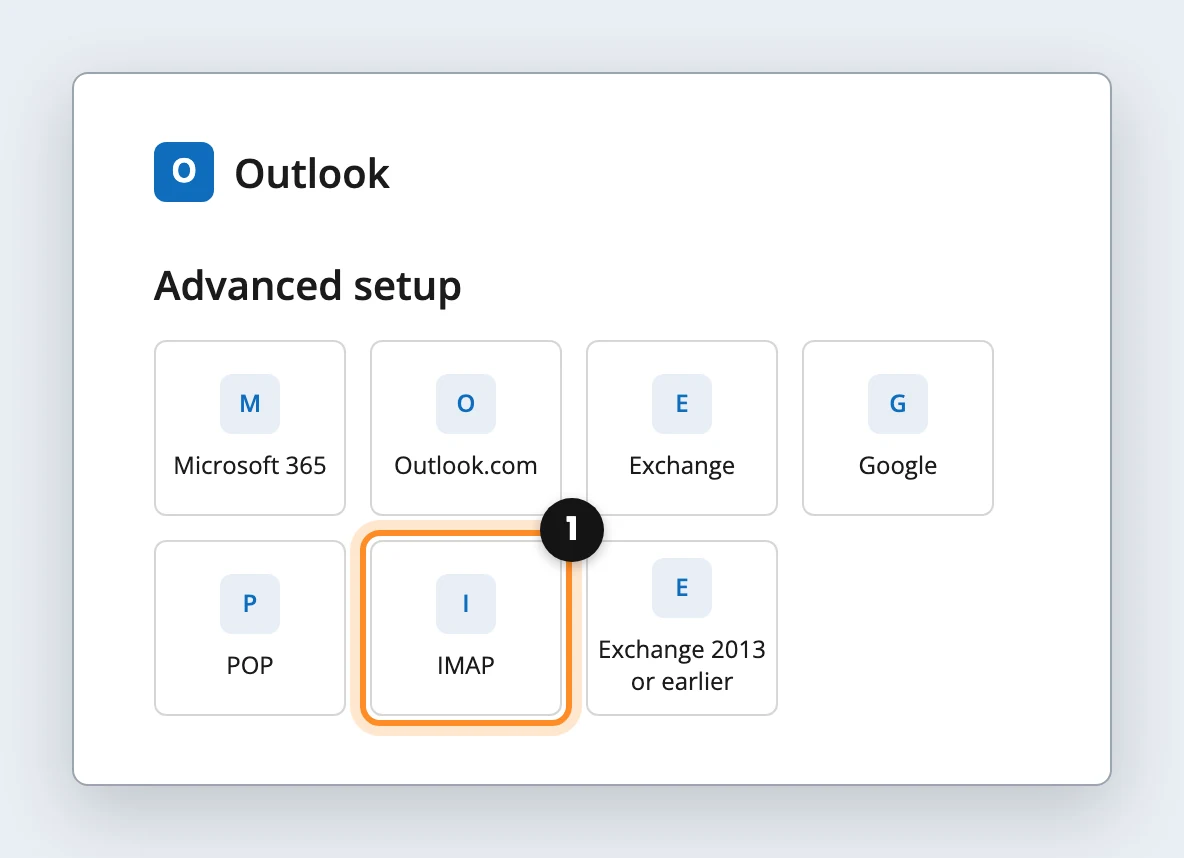
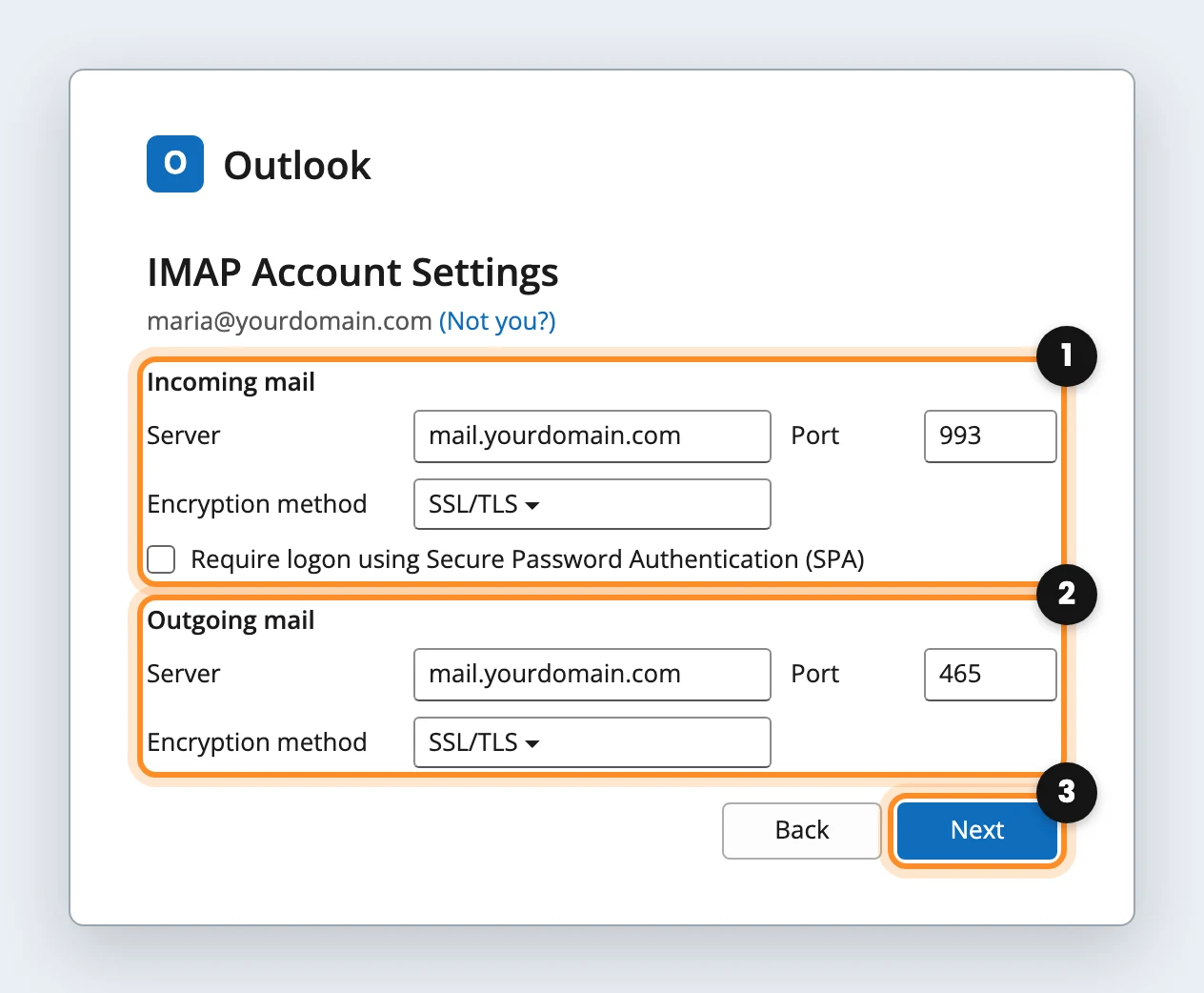
- Under Incoming mail (1), enter
mail.yourdomain.com, port993and SSL/TLS. Under Outgoing mail (2), the same server, port465and SSL/TLS. Click Next (3), enter the password and click Connect.
Using the new Outlook? Go to Settings › Accounts › Add account, enter your email, choose IMAP and use the same details.
Mail on a Mac
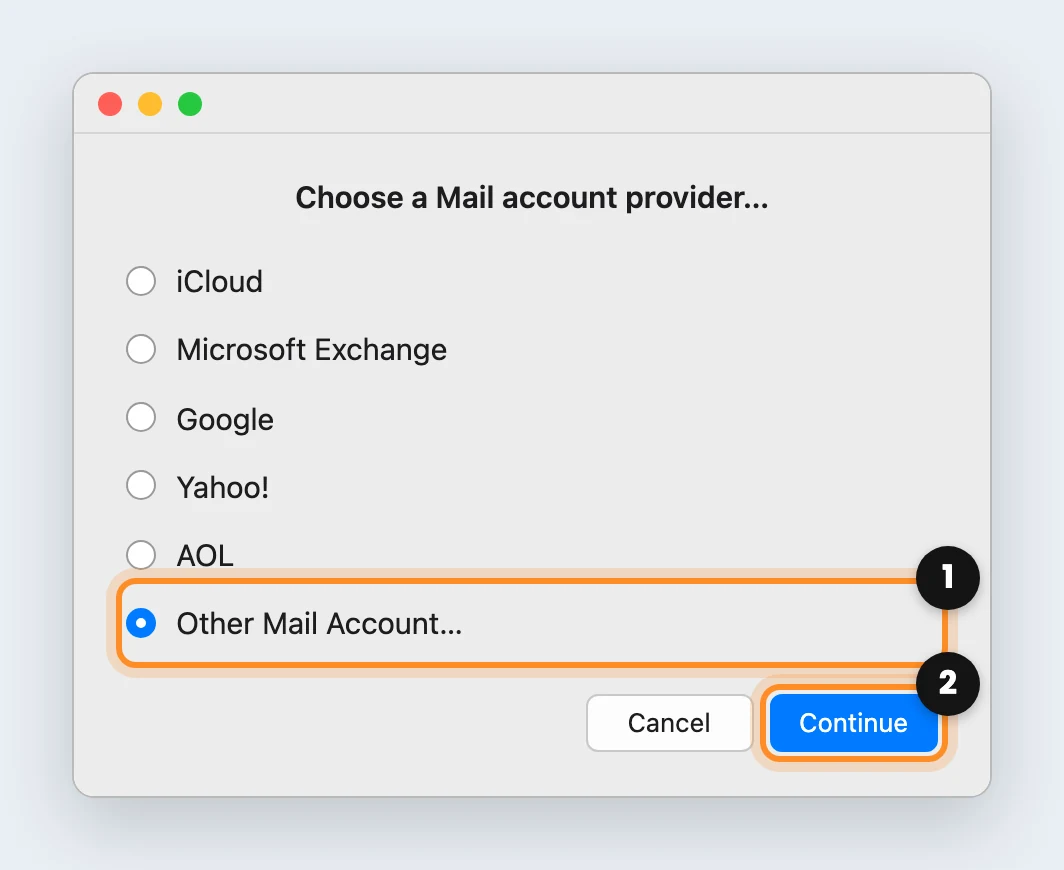
- Open Mail (if it already has another account, go to Mail › Add Account). Choose Other Mail Account (1) and click Continue (2).
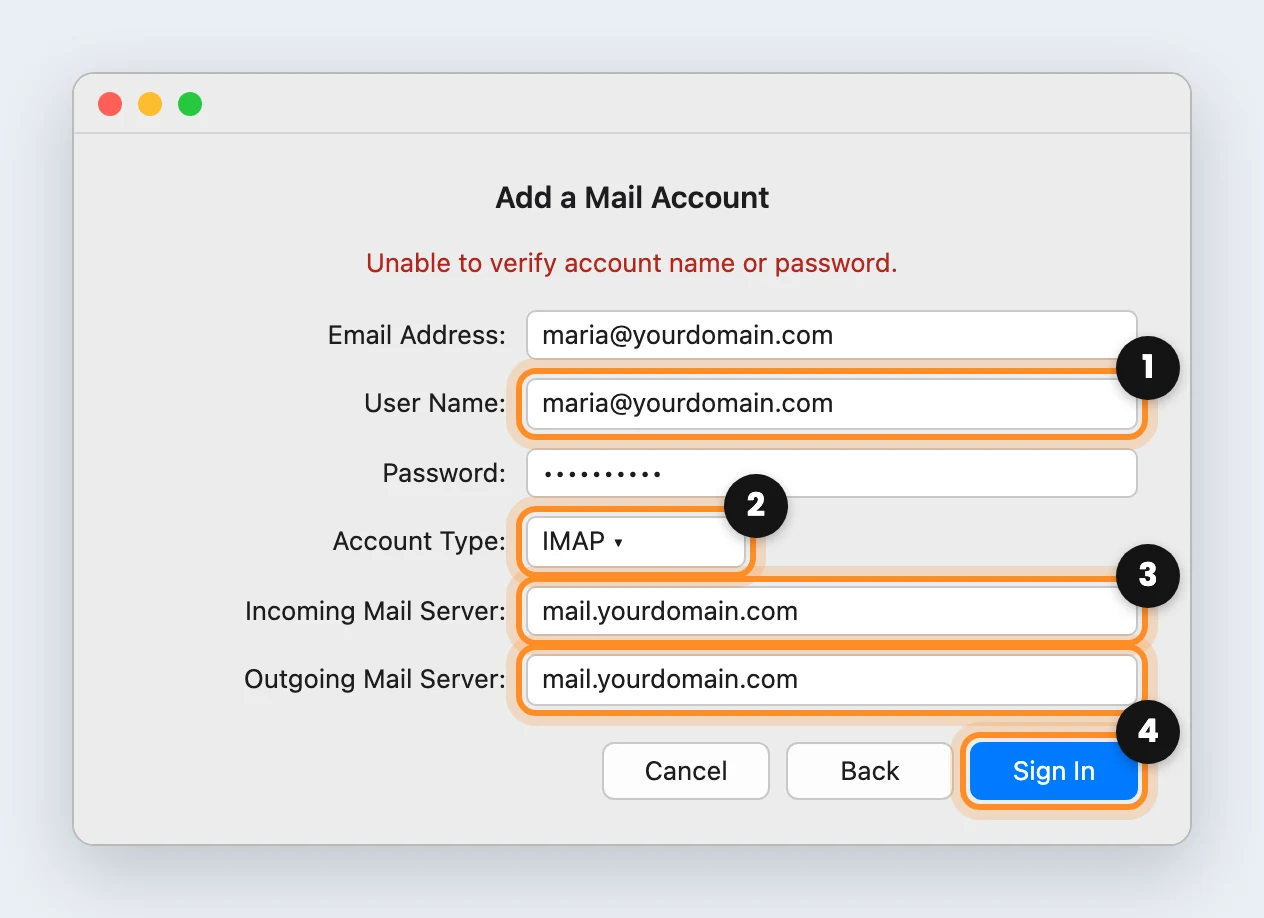
- Enter your name, email and password, and click Sign In. Mail will say it could not verify the account: that is normal, it still needs the server.
- Enter the full email address as the user name (1), leave IMAP (2), type
mail.yourdomain.comfor both servers (3) and click Sign In (4). - Leave Mail checked and click Done.
Without installing anything: webmail is at webmail.yourdomain.com. Sign in with the full email address and its password, from any browser.
It doesn’t connect? Check that the username is the full address and that the ports match the security: 993, 995 and 465 go with SSL/TLS. A common mistake is POP3 on port 110 with SSL turned on.