
Dox Studio hosting · all plans
Most email problems are one of three things: the emails you send come back, the emails you get fall in the spam folder, or a mailbox sends spam without you knowing. Here is what to do with each one.
Your emails come back
- The bounce says “max emails per hour”: each domain can send up to 200 emails per hour, and the ones over the limit are held back. If you didn’t send that many, a mailbox may be sending spam: see the last section. For newsletters or campaigns, use an email marketing service, not your mailbox.
- The bounce says the address doesn’t exist: check the address you wrote.
- Anything else: open a ticket and forward us the bounce, with its full text.
Your emails land in the other person’s spam
Mail providers trust email that proves it comes from your domain. That proof is three DNS records, SPF, DKIM and DMARC, and we leave them in place when we set up your domain. Here is how to check them:
- In cPanel, open Email Deliverability, in the Email section.
- Next to your domain, the status (1) should say Valid.
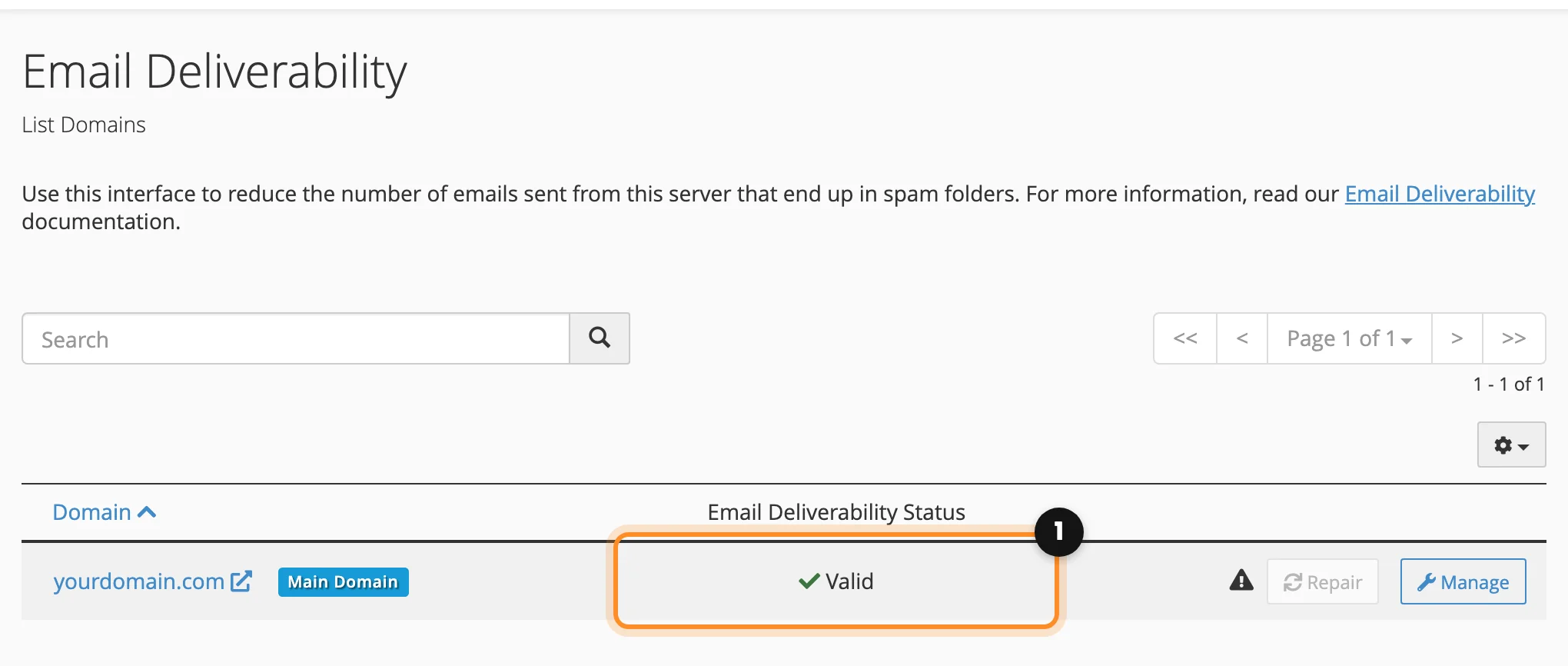
If it says Problems Exist, or your domain’s DNS is outside cPanel (for example in Cloudflare), open a ticket and we’ll fix the records.
Good emails fall in your spam folder
The server checks every email you receive, and the ones that look like spam go to a folder called spam in your mailbox, instead of the inbox. Look there first when an email doesn’t arrive.
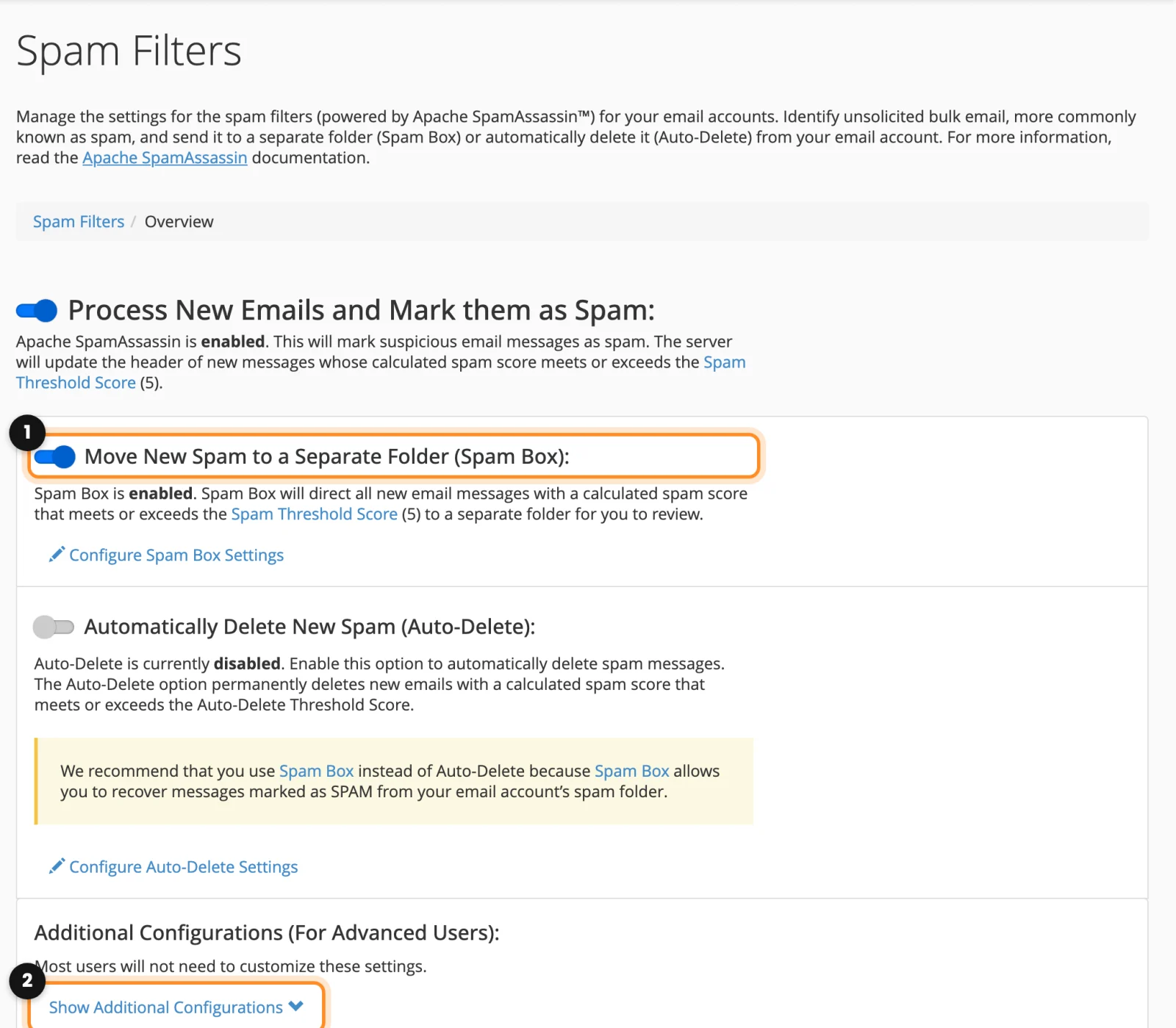
- In cPanel, open Spam Filters. Move New Spam to a Separate Folder (Spam Box) (1) is on for everyone.
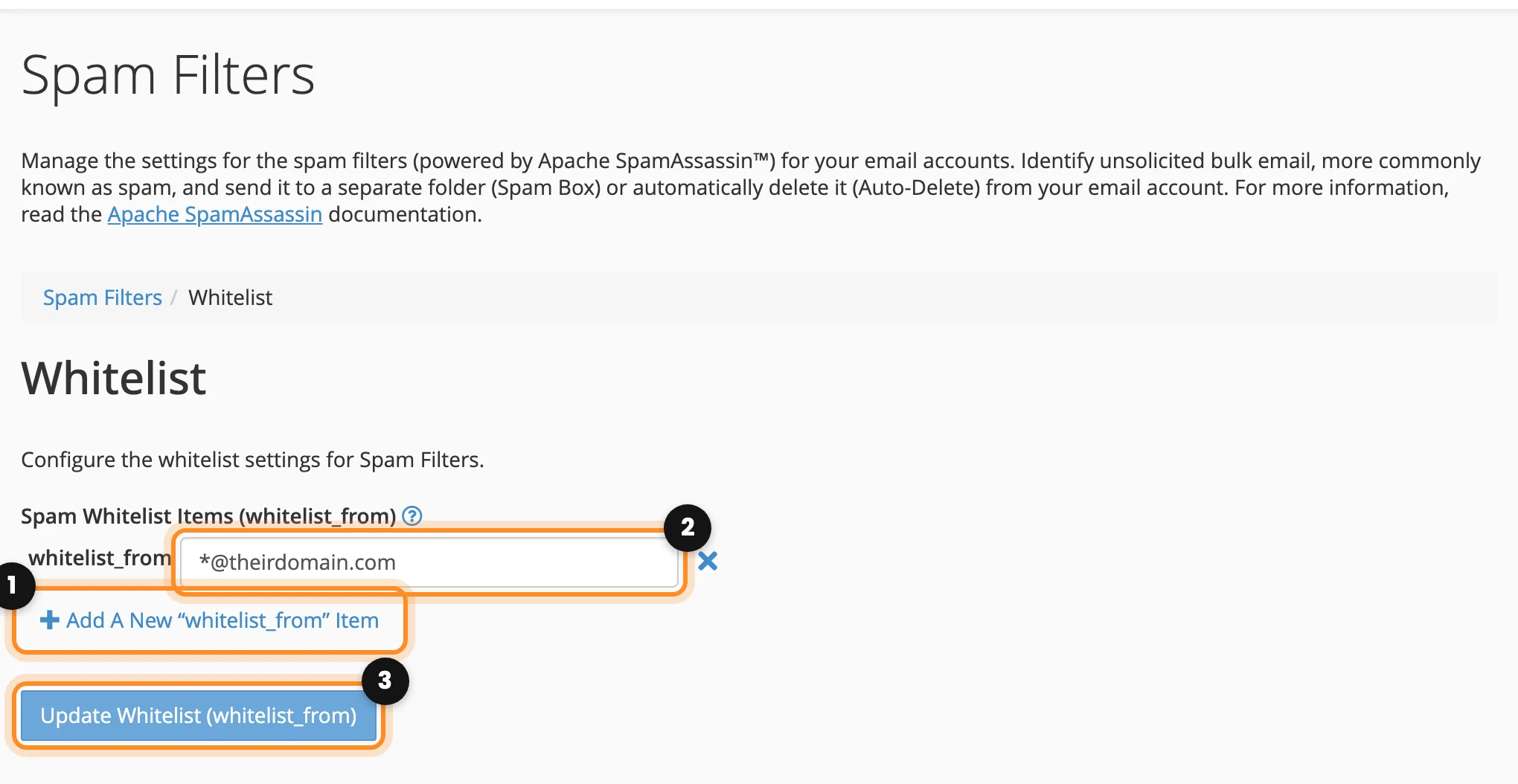
- So that a sender never goes to spam, click Show Additional Configurations (2) and then Edit Spam Whitelist Settings.
- Click Add A New “whitelist_from” Item (1) and type the sender’s address (2), or
*@theirdomain.comfor their whole company. - Click Update Whitelist (whitelist_from) (3).
A mailbox sends spam on its own
It happens when someone steals a password, almost always from an infected computer. The server watches for it: when a mailbox starts sending from many places at once, its sending is paused and we get an alert.
- Scan the computers that use that mailbox with an antivirus. If you skip this, the new password gets stolen too.
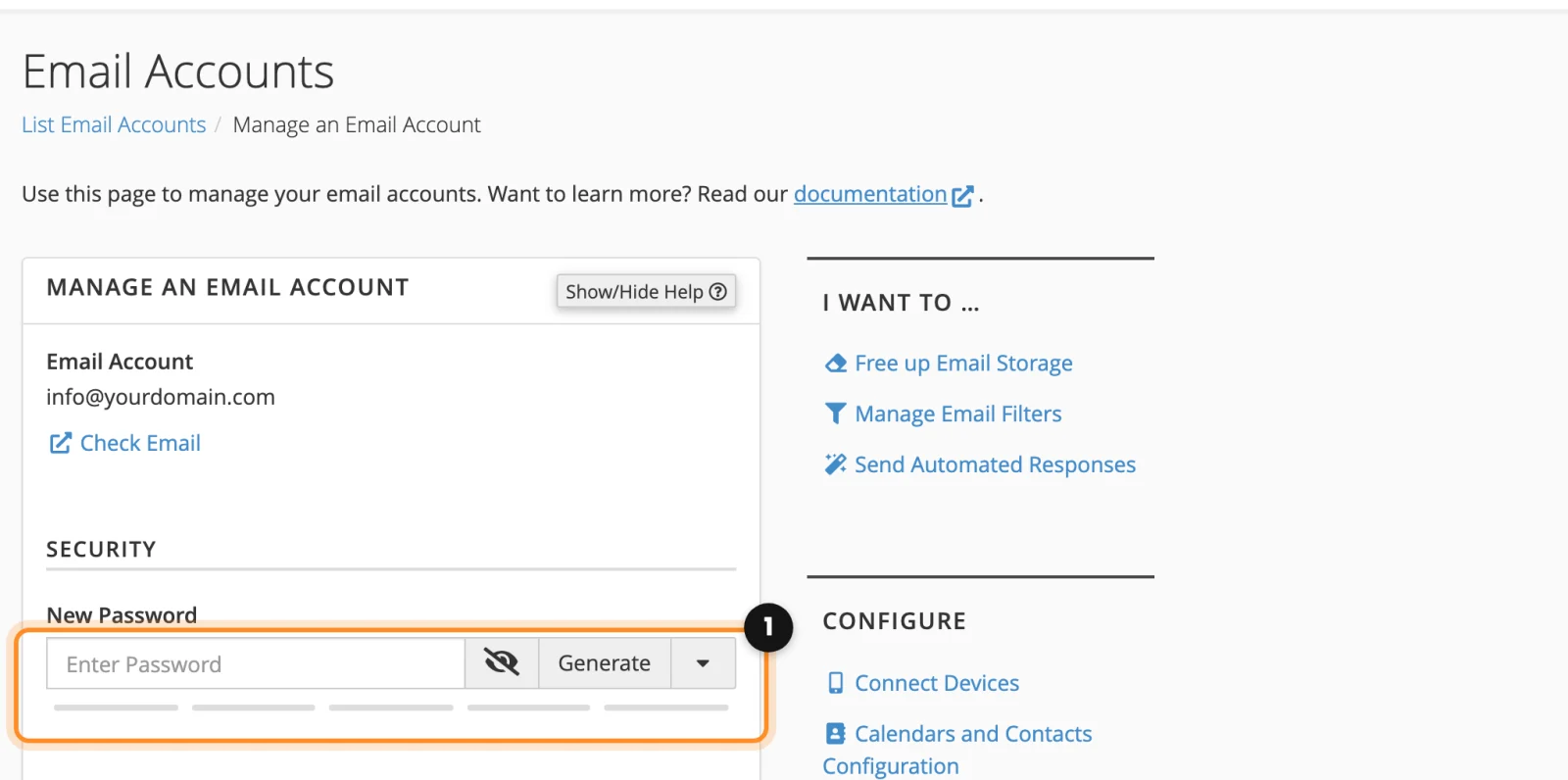
- Change the password of the mailbox: in Email Accounts, click Manage next to the mailbox and write the new one in New Password (1). It is step by step in Change the password. You can also ask us to do it.
- Put the new password on your devices and let us know, so we turn the sending back on.