
Dox Studio hosting · all plans
Three cPanel tools save you time with email: a forwarder sends a copy of what arrives to another address, an autoresponder answers on its own while you are away, and a filter moves or deletes emails by rules.
Forward an address
- In cPanel, open Forwarders and click Add Forwarder.
- In Address to Forward (1), write the address that receives the email.
- In Forward to Email Address (2), write where the copy goes. It can be an address of another company.
- Click Add Forwarder (3).
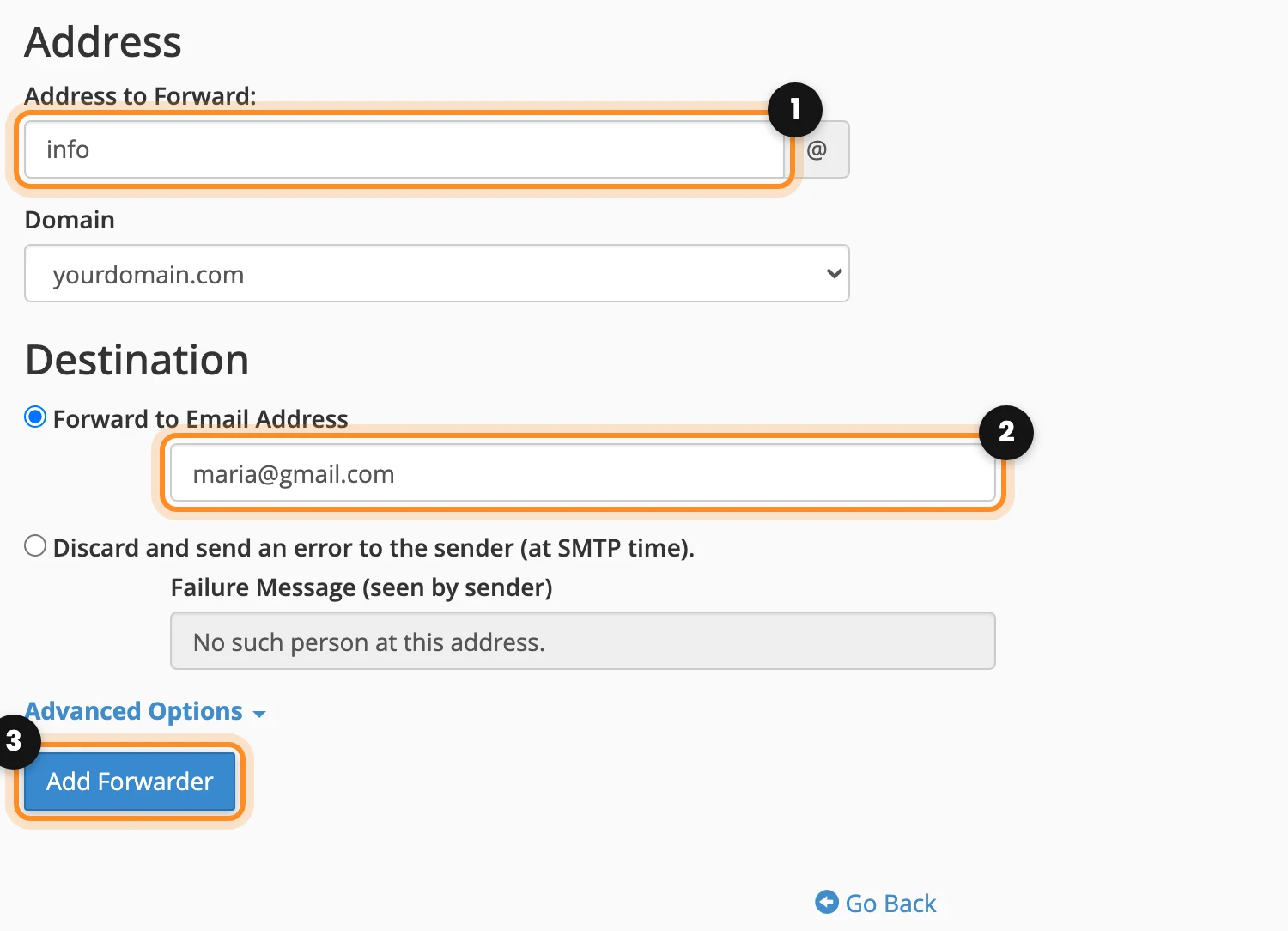
The forwarder also works for an address that has no mailbox: the email goes only to the destination. To remove a forwarder, click Delete next to it on the Forwarders page.
Note: when you forward to Gmail or Outlook.com, the spam that reaches your address is forwarded too, and those services can start treating your domain as a sender of spam. Keep the spam filter on (see My emails go to spam or bounce).
Set an automatic reply
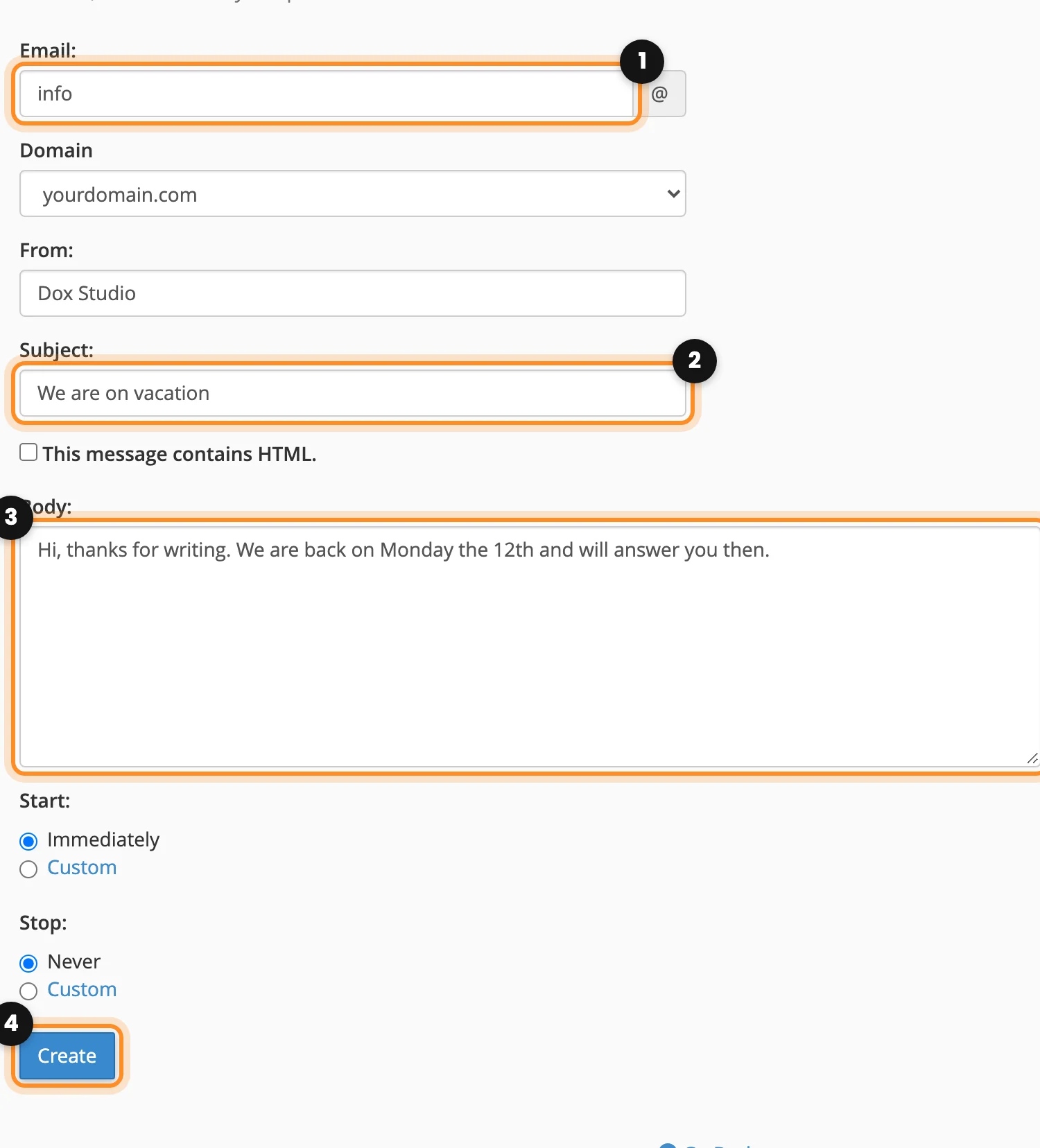
- In cPanel, open Autoresponders and click Add Autoresponder.
- In Email (1), write the address that answers.
- Write the Subject (2) and the Body (3), for example the day you are back.
- In Start and Stop, leave Immediately and Never, or choose Custom to set the dates of your vacation.
- Click Create (4).
Filter emails
In cPanel, Email Filters sets rules for one mailbox, for example “if the subject contains invoice, move it to the Invoices folder”. Global Email Filters does the same for every address of the domain. Choose the account, click Create a New Filter, set the rule and the action, and save.
Keep your own copy of the email
Our daily backup includes the email (see Backups), but our terms ask you to keep your own copy of the messages that matter. The easy way is an email app on your computer, like Outlook or Apple Mail, that keeps a copy of the mailbox on the disk. Each message can be up to 50 MB with its attachments.