
Dox Studio hosting · domains with ns1/ns2.doxstudio.com
Google, Meta, Microsoft and many other services ask you to add a DNS record to prove the domain is yours, or to connect it. If your domain uses our nameservers, you add those records yourself in cPanel, in the Zone Editor.
Add a record
- In cPanel, open Zone Editor, in the Domains section, and click Manage next to your domain.
- Click + Add Record (1). A new row appears at the top of the list.
- Choose the Type the service asks for (TXT, CNAME…), and copy its Name and its value into Record, exactly as the service shows them.
- Save the record, then go back to the service and click its verify button. If it fails, wait an hour and try again: the change takes a moment to spread.
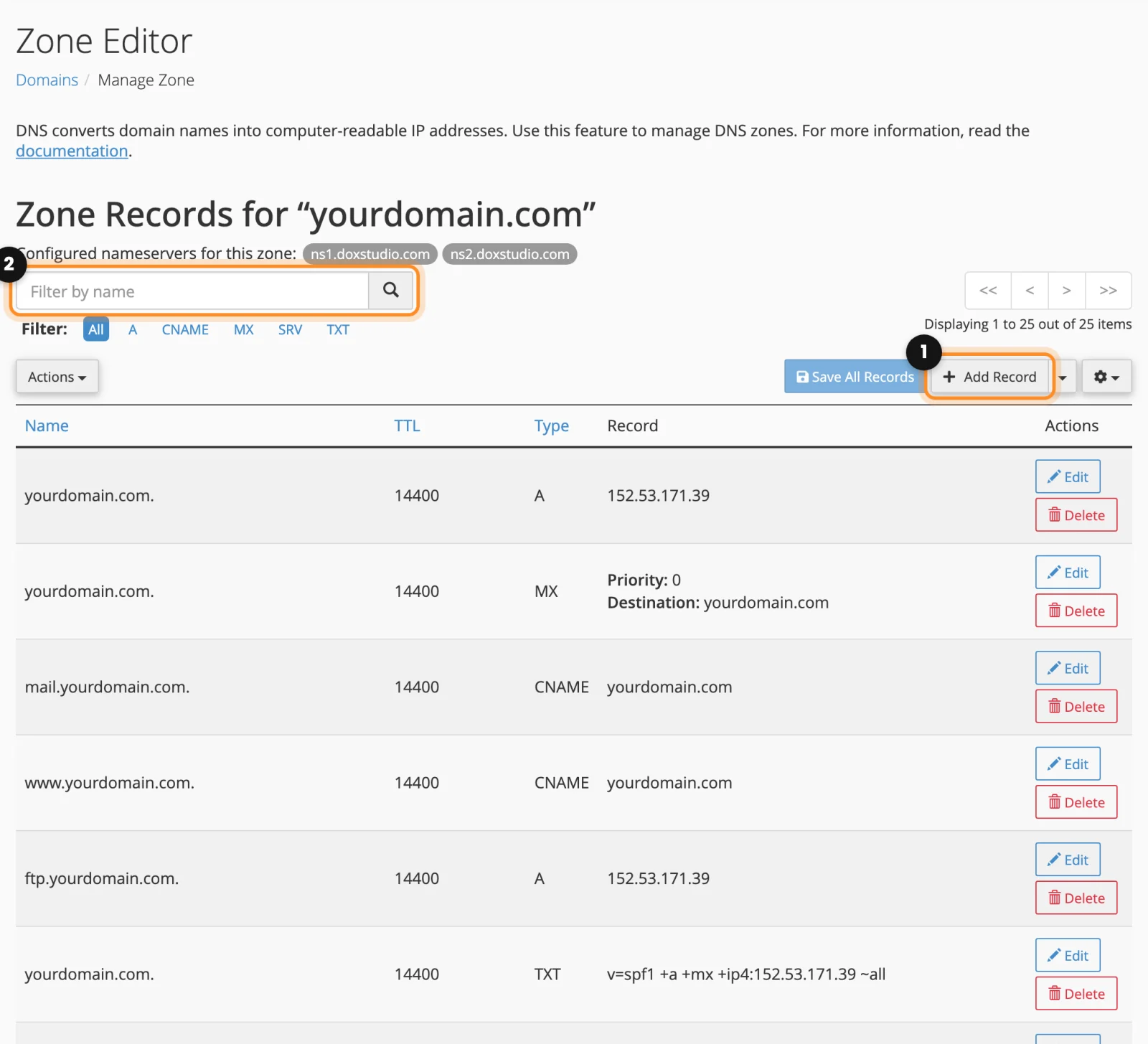
To find a record, write part of its name in Filter by name (2), or use the A, CNAME, MX and TXT filters. Edit and Delete are on each row.
Common cases
- Verify the domain in Google Search Console or Meta Business: a TXT record, name
@(your domain), with the text they give you. - Connect a subdomain to another service (a shop, a booking page): a CNAME record, with the name of the subdomain and the address the service gives you.
Better not to touch the records the hosting created: the MX records, the TXT that starts with v=spf1, and the ones named mail, cpanel, webmail and default._domainkey. Changing them can stop your email. If a service asks you to change one of them, open a ticket first.
Is your domain in Cloudflare? Then the records are edited in Cloudflare, not in cPanel. If we manage your Cloudflare, send us the record in a ticket and we add it.