
Free plugin · Dox POS 0.50 or later
Store credit is a customer’s money that the shop keeps for them to use later: the deposit on a made-to-order piece paid in instalments, or what returned items are worth when the shop does not give money back. It is kept under their phone number, it is used as a payment method and every amount stays in their history.
Take a deposit
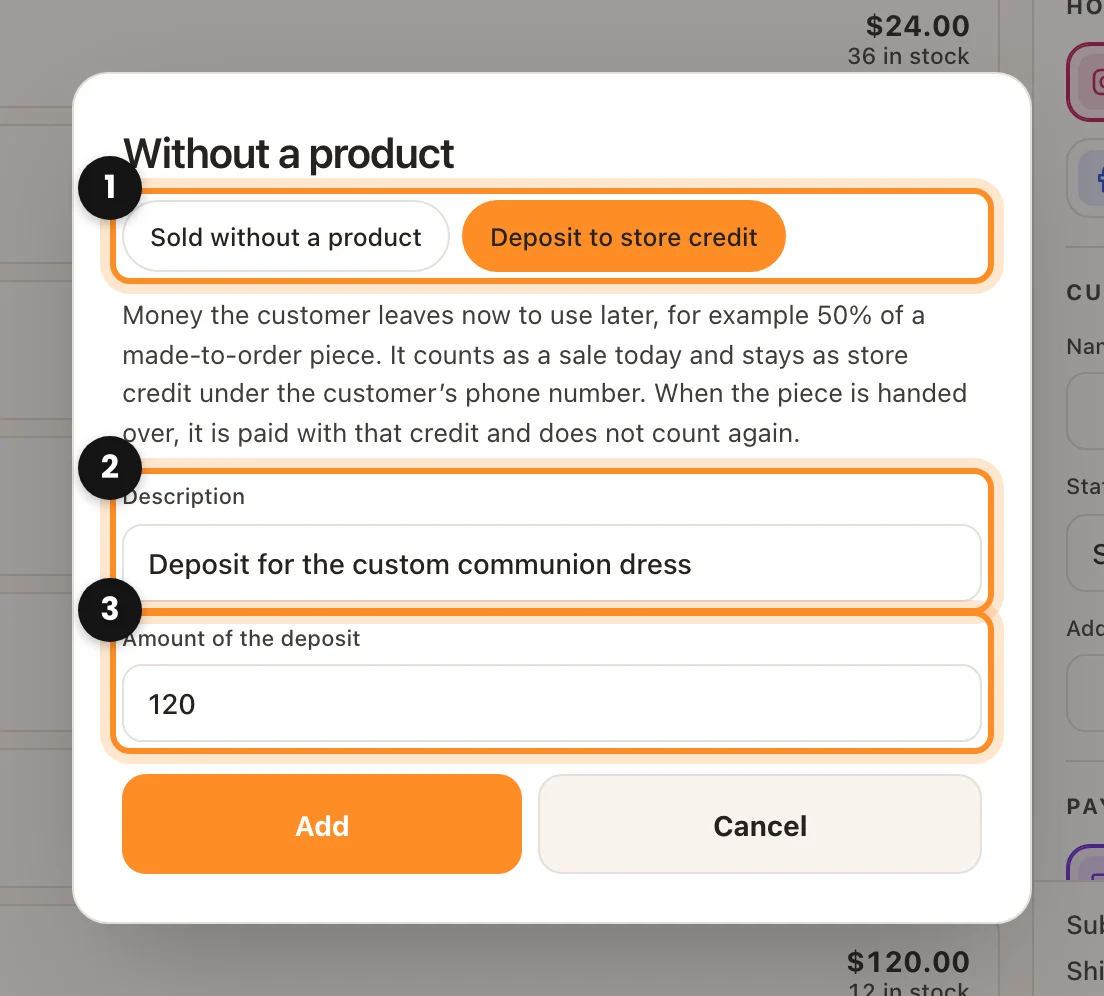
- In Sell, tap Without a product, next to Products.
- Choose Deposit to store credit (1), write what it is for (2), for example Deposit for the custom communion dress, and the amount (3). Tap Add.
- Write the customer’s name and phone number. The credit is kept under that phone number, so it is needed.
- Choose the payment method the money came in with and tap Paid: record the sale.
The register tells you how much credit the customer has now, with a button to let them know by text message (or WhatsApp, depending on your settings). The deposit counts as a sale that day, with its payment method. A deposit cannot go on layaway or be cash on delivery: it is money that comes in now.
Sell something that is not in the catalog
A made-to-order piece, a repair or anything that is not one of the shop’s products: in Sell, tap Without a product, leave Sold without a product selected and write the description and the price. If you want, add a photo in Photo (optional): on a phone it opens the camera or the gallery. The photo shows in the sale line, in the order and in WooCommerce. Forgot to add it? Open the order in Orders and tap Add a photo next to that line (or Change the photo if it already has one). It goes into the sale as one more line, it pays tax like a product and it does not touch the stock.
Pay with store credit
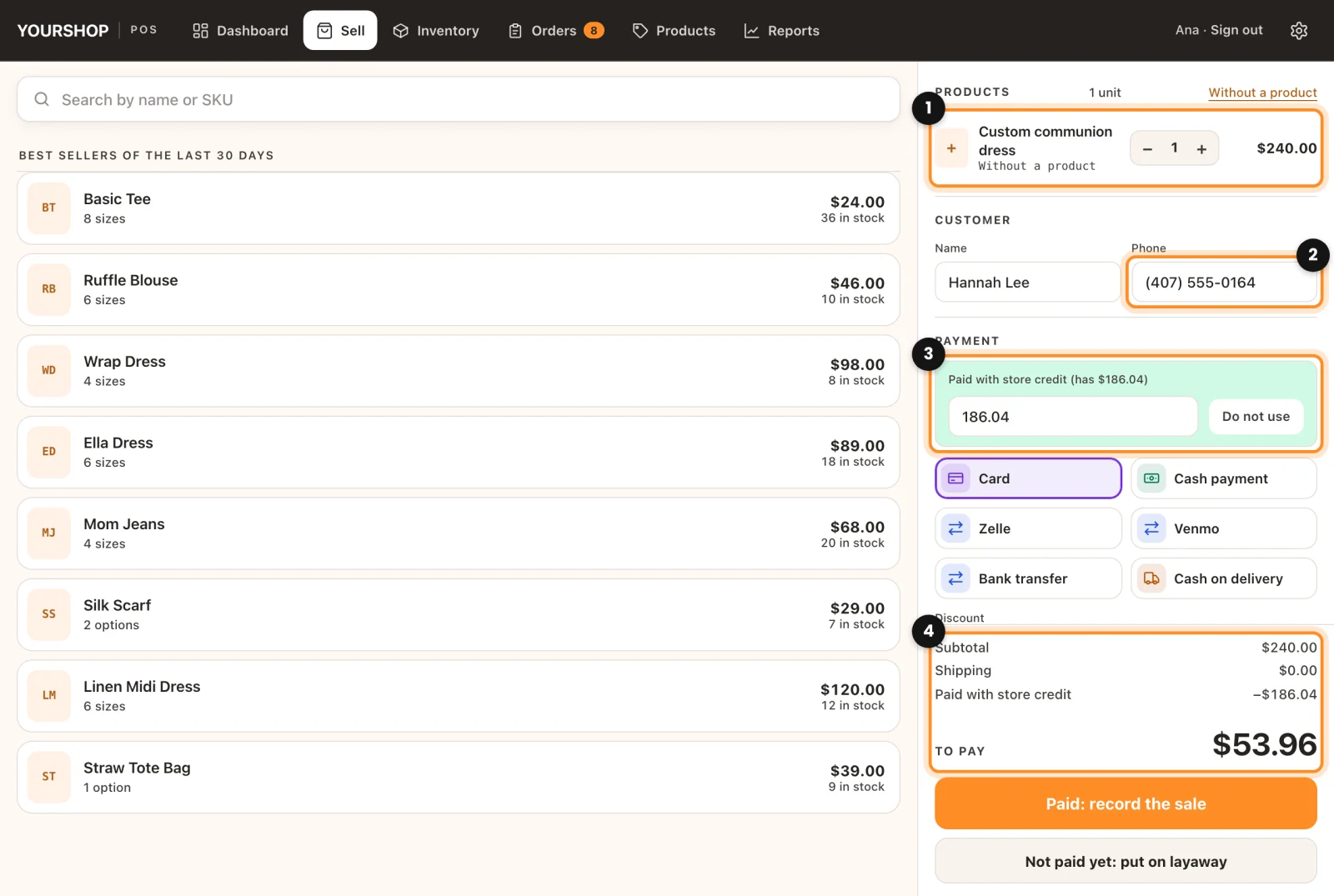
- Put the sale together as usual. To hand over the made-to-order piece, add it with Without a product and its full price (1).
- Write the customer’s phone number (2). If they have credit, it shows under Payment: Hannah has store credit · $186.04.
- Tap Use it (3). The register uses as much as the sale needs; to use only part of it, change the amount.
- If something is left, the total now says To pay (4): choose how they pay the rest and record the sale.
At the Counter it works the same: write the phone number under Customer, tap Use it and charge what is left in cash, by card or split. If the credit covers the whole sale, the register says so and you only have to record it. The tax is charged in full and the credit can pay it too. The receipt shows the credit used and what is left.
An exchange: the pieces come back and credit stays
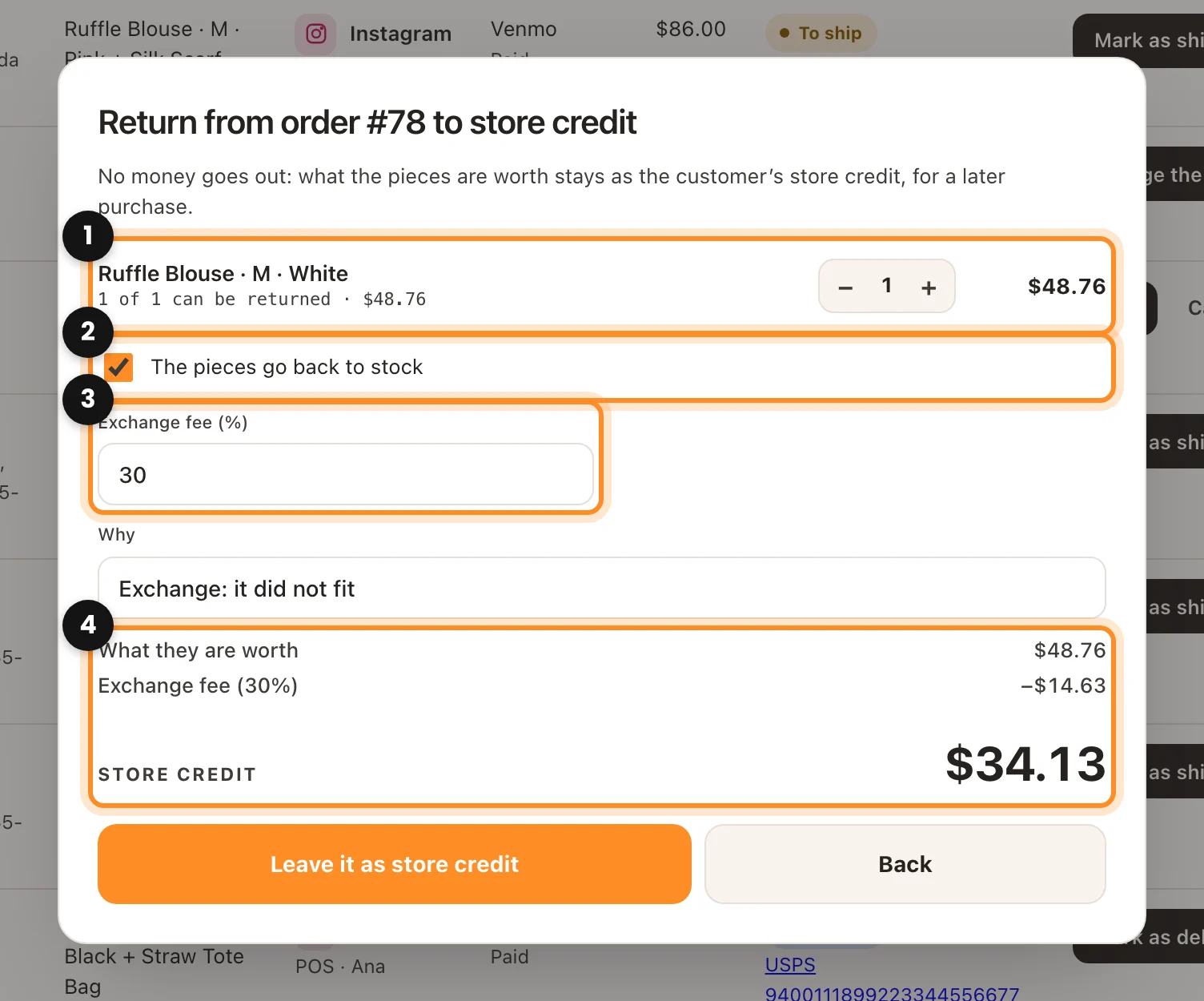
- In Orders, open the order and tap Return to store credit. At the Counter, make the return as usual and choose To store credit.
- Choose with + and − the pieces coming back (1). Leave The pieces go back to stock checked (2) if they can be sold again.
- If your shop keeps part of it, write the Exchange fee as a percentage (3). The register shows what the pieces are worth, the fee and the credit the customer gets (4).
- Write the reason and tap Leave it as store credit.
No money goes out: the sale of those pieces still counts, because the money came in. If you always charge the same fee, set it in WooCommerce › Dox POS › Sales › Store credit and it will be filled in on every return. From Orders, returning to store credit is for administrators and shop managers.
See the balances and their history
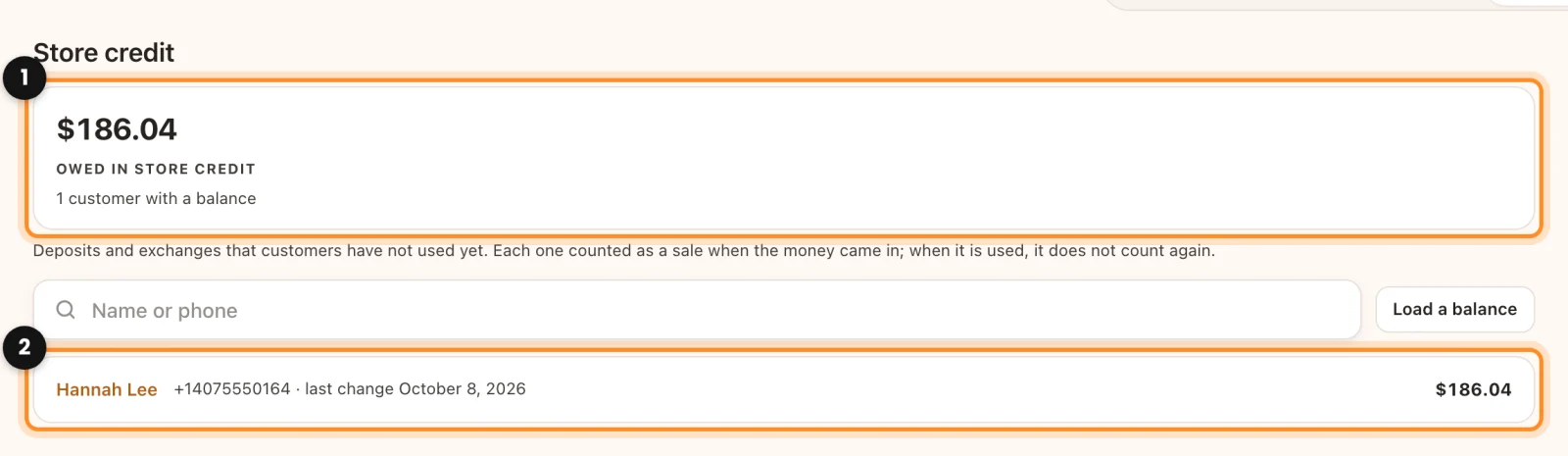
Reports › Store credit shows what the shop owes in store credit (1) and each customer with their balance (2). Search by name or phone and tap a name to see their history: where each amount came from (a deposit, an exchange, an adjustment) and which order it was used on, with the balance left after each movement (1). From there you can let them know their balance or adjust it (2).
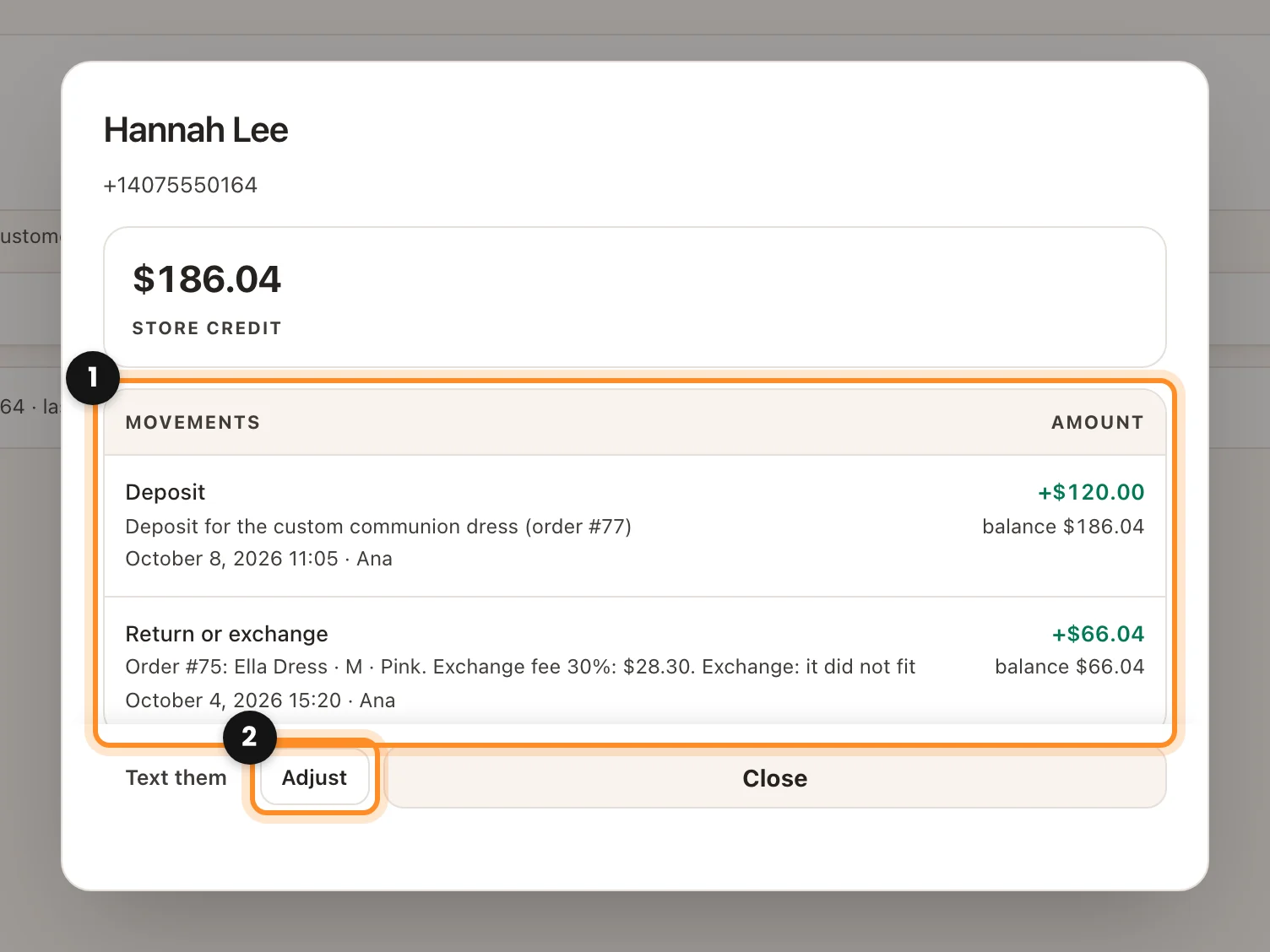
- Adjust: corrects a balance with a positive or negative amount and a reason, which stays in the history. Nothing is deleted.
- Load a balance: for balances you kept in a spreadsheet or a notebook. Write the phone number, the name, the amount and the reason. It does not count as a sale, because that money had already come in.
Selling in several currencies? With Dox POS Pro and Price Based on Country, each balance keeps the currency it was made in: credit in pesos only pays sales in pesos. Sell in several currencies
How it counts in the reports
A sale counts on the day the money comes in. For example, a $500 custom design with two $250 deposits in different months:
- Each deposit adds $250 to the sales of the day it came in, with its payment method.
- When the design is handed over and paid with the $500 of credit, that sale adds $0 (plus the tax, if it is charged on top): the money already counted when it came in.
- An exchange takes nothing off, because no money goes out. What the customer buys later with that credit does not add up again either.
Sales says under the figures how much came in as deposits and how much was paid with store credit in the period. A word on profit: the cost of a piece counts on the day it leaves the shop, so the month of the deposit shows more profit and the month of the delivery less. Across the two months, the numbers add up.
An order paid with credit is cancelled? The credit goes back on its own. A deposit the customer already spent cannot be cancelled from the register, because it would leave them owing: correct it with an adjustment.
Before this: Record a sale