
Dox POS Pro · 0.32 or newer
Ask the assistant about your sales, orders or stock in your own words, or ask it for a change. It answers with the figures of your shop, and a change comes as a card you confirm with a button: nothing is applied without it.
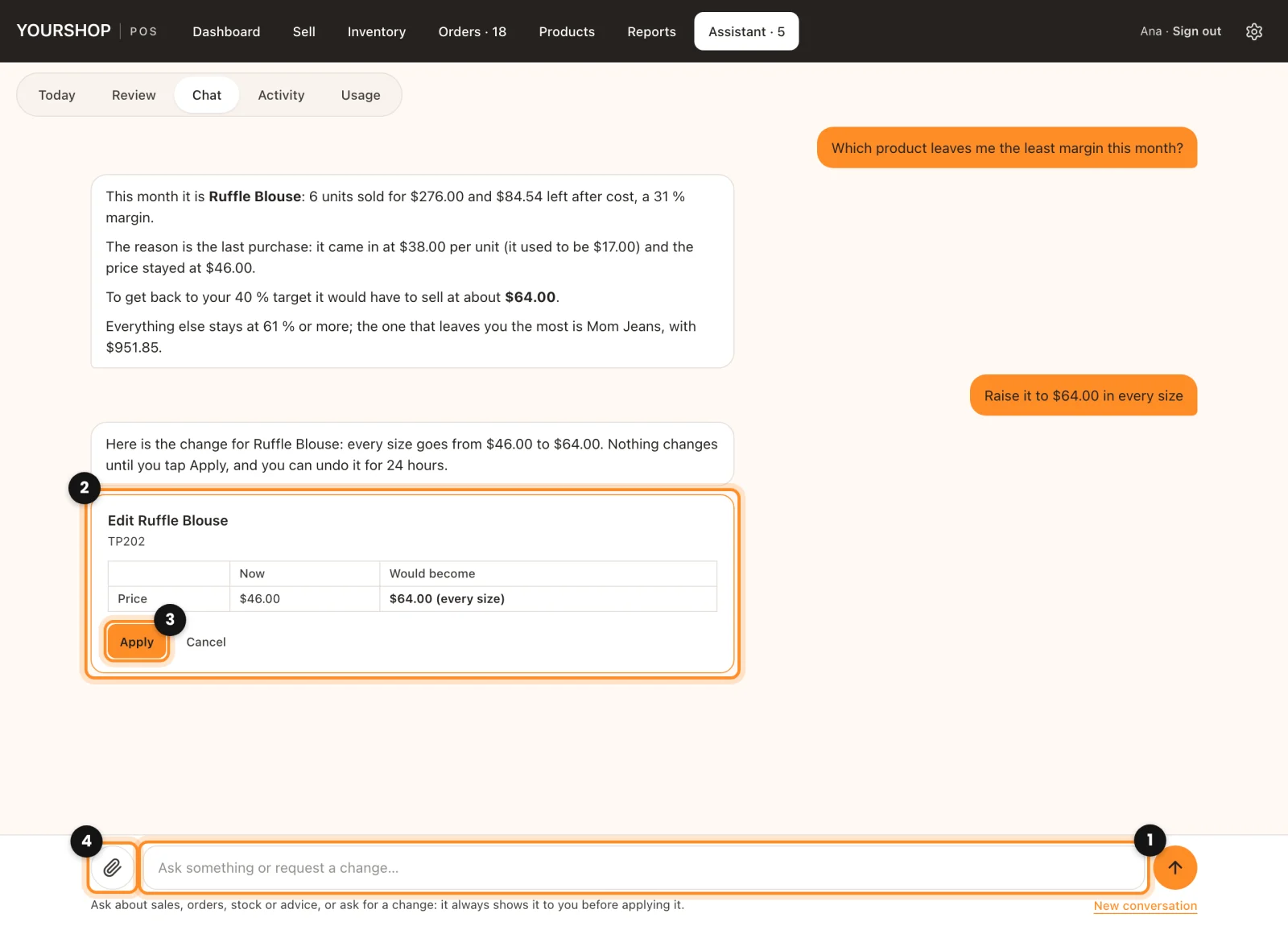
Ask a question
- In the register, open Assistant and tap Chat.
- Write in Ask something or request a change… (1) and press Enter. In an empty conversation you can also tap a suggestion, such as How did yesterday go?, What is running out? or How is the business doing?
- The answer comes with the order numbers and product names you can tap to open them.
It reads what the register reads: products with their sizes and stock, sales between two dates, the daily cash, stock movements, orders, what is pending, the review, the stock entries, the forecast and, with costs turned on, the profit. If it does not have a figure, it says so instead of making one up.
Ask for a change
Write it as you would say it: “put the Ella Dress at $52” or “mark order #1238 as shipped with USPS, tracking 9400 1000 0000 0000 0000 00”. The assistant answers with a card (2) that shows what is there Now and what it Would become.
- Check the card. Tap Apply (3) to make the change, or Cancel to drop it.
- The card says Applied. Most changes keep an Undo button for 24 hours, here and in Assistant › Activity.
- A product: name, price (for every size), sale price, cost, description, shown or hidden in the shop, categories, code, new sizes, photos and stock by size and color.
- An order: confirm the payment, mark it as shipped with carrier and tracking number (the customer gets the shipping email when the order has an email address and that email is turned on), mark it as delivered, cancel it, release a layaway or note a loss. Confirming a payment, cancelling, releasing and noting a loss cannot be undone from the assistant, and the card says so.
Create a product from photos
- Tap the clip, Attach photos (4), and choose up to six photos. iPhone photos work too.
- The box asks Tell me what it is: name, category, price and sizes with units… Write it, for example “linen dress, Dresses, $48, S 2, M 3, L 1”.
- The assistant looks at the photos, suggests the name and a description, and shows a card with everything. Tap Create. The first photo becomes the main one and the code follows the one your store already uses.
If something is missing, it asks for it in one message. Undo on a created product sends it to the trash, as long as it has not sold.
What to keep in mind
- The chat needs an up-to-date licence or your own OpenAI key. Each time the assistant goes to the model counts as one question; a message that has to look up several things can count as two or more, up to six.
- The conversation stays in this browser tab, so a reload keeps it; closing the tab ends it. New conversation starts over. It is not kept on your server, and the assistant only receives the last twelve messages.
- It answers about your shop. It does not write code or give instructions for WordPress settings; for that, write to Dox Studio.
Next: The forecast