
Dox POS Pro · 0.32 or newer
With an up-to-date licence, the assistant comes included: no OpenAI account and no credit to load. Your plan has a number of questions a month, and Usage shows how many you have used. If you would rather pay OpenAI directly, you can paste your own key.

The questions in your plan
In WooCommerce › Dox POS › Assistant, the card The assistant comes with your plan shows Included per month (1), 1,000 questions that go back to zero on the 1st, and Left this month (2). Before the first question it says ready to use.
- What uses questions: only the writing. The tips (at most twice a day), the daily summary (once a day), each description, and each time the chat goes to the model, so a chat message can count two or more, up to six.
- What uses none: the figures under Today, the review and its fixes, the forecast, sales recovery and Performance.
- If they run out: the register keeps working the same, and so do Today and the review, with the tips by rules. What stops until the 1st is the assistant writing or answering.
See what you have used
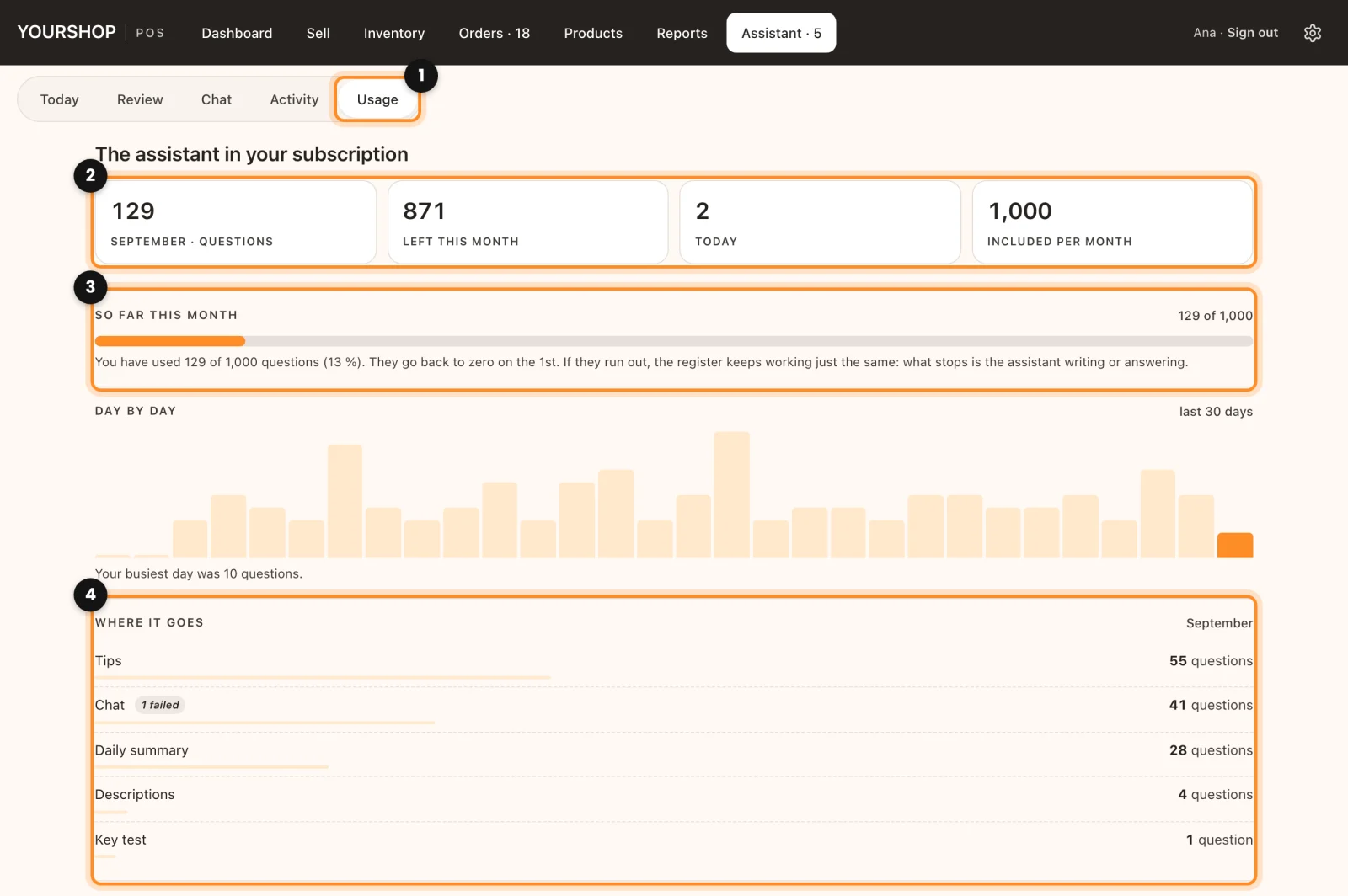
- In the register, open Assistant and tap Usage (1).
- At the top (2): the questions of the month, Left this month, Today and Included per month. The bar under So far this month (3) turns red from 80 %.
- Day by day draws the last 30 days, Where it goes (4) splits the month into Daily summary, Tips, Chat and Descriptions, and Latest questions says when and who asked; the morning summary shows as automatic.
What leaves your shop
- Only when the assistant writes or answers. Everything worked out in the shop stays there.
- With your plan, the request goes to the Dox Studio server with your licence key and your site’s address. It checks the licence, counts the question and passes it on to OpenAI. It keeps the kind of question, its size and how long it took. With your own key, it goes from your server straight to OpenAI.
- What goes: the figures the answer needs (totals, product names, order numbers and the customer names of the pending orders), the main photo of a product for its description, the photos you attach in the chat, and what the chat reads to answer, which can include a customer’s phone number and address when you ask about her order.
- Each request asks OpenAI not to store the answer. Your own OpenAI key stays on your server: it never reaches the browser, and the settings only show its last four characters.
Use your own OpenAI key
Most shops never need this. It is there for a shop that wants to bill OpenAI directly, pick the model or not use the questions in its plan.
- Create the key at platform.openai.com › API keys, with an account that has credit loaded. It starts with “sk-”.
- In Rather use your own OpenAI key?, paste it in Key (API key) and click Save changes. From then on the assistant uses your key, with no monthly question limit.
- Under Test the connection, click Test now. It sends one small call and says how long it took and what it cost.
- A new card, Model and spending cap, shows up: Model (gpt-5.6-luna to start with) and Cap per month (5 USD). Once the month’s spending reaches the cap, the assistant stops calling OpenAI until the next month. Usage then counts in dollars.
To go back to your plan, turn on Remove the saved key and go back to my plan’s questions and click Save changes.