
Dox POS Pro · 0.32 or newer
The review goes through every product in your shop and lists what needs attention: no price, no photo, hidden with stock, negative stock and more. Some checks come with a fix you apply in one tap, and every fix can be undone for 24 hours.
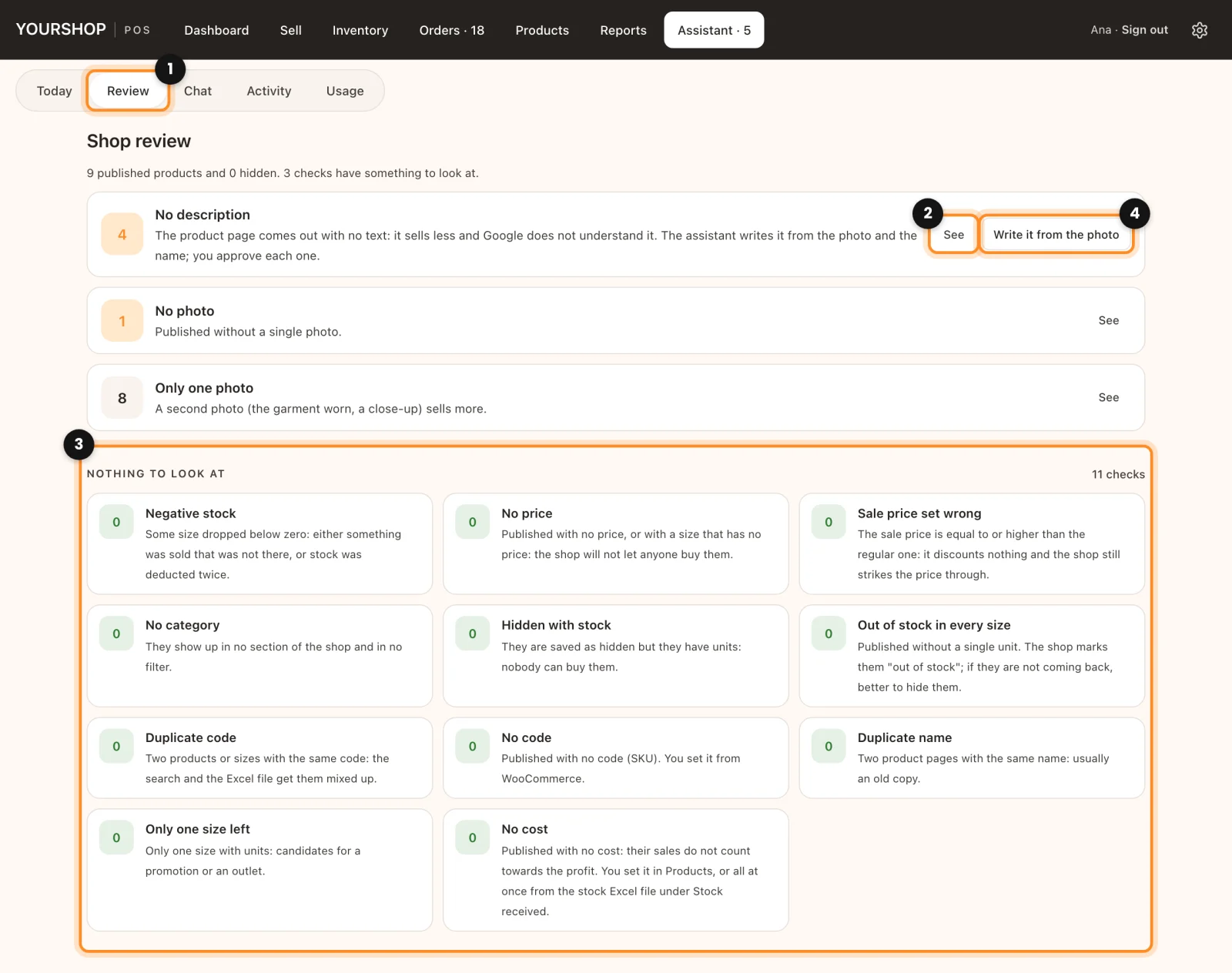
Read the review
- In the register, open Assistant and tap Review (1). The first line counts your products, for example “48 published products and 3 hidden.”, and how many checks found something.
- The checks that found something come first, each with its number and what it looks for. Tap See (2) to list the products, with their code and units. Edit opens the product in the register; See on a product opens its page in the shop.
- The checks with nothing to find are grouped at the end, under Nothing to look at (3).
What it checks
- Negative stock, fix Set to 0.
- Sale price set wrong (equal to or higher than the regular price), fix Remove the sale price.
- Hidden with stock, fix Publish in the shop.
- Out of stock in every size, fix Hide from the shop.
- No description, fix Write it from the photo (see below).
- With no fix, because you decide what goes there: No price, No category, No photo, Duplicate code, No code, Duplicate name, Price out of the ordinary, Only one photo, Only one size left and, with costs turned on, No cost.
Apply a fix and undo it
- Tap the fix button of the check (4). The window says how many products it changes.
- Tap Yes, apply it. The Done window says what changed.
- If it was a mistake, tap Undo right there. Later, the change is in Assistant › Activity, with the date, who confirmed it and its own Undo button for 24 hours. Undoing leaves alone whatever somebody changed afterwards.
One exception: Set to 0 cannot be undone, because undoing would bring the negative stock back. Count the units first if you are not sure.
Descriptions from the photo
Write it from the photo asks the assistant for a description of each product with no text, using its main photo, its name and its category. It writes ten at a time, and nothing is saved until you say so:
- Read each one and correct it in Description and Short version (optional).
- Save keeps that one, Skip drops it, Save all keeps every one still on screen and Write 10 more goes on with the list.
This is the only part of the review that needs the assistant: an up-to-date licence or your own OpenAI key. Each description uses one question from your plan, and the product’s photo is sent to write it. The rest of the checks and fixes work with no licence and use nothing. More on questions and data: Questions included and your own OpenAI key.
Next: The assistant’s chat