
Dox Sales Booster 1.7.4 · free plugin · Needs WooCommerce
A small notice at the bottom of the screen with a recent purchase from your store: product, city and time, never the customer’s name.
Use your real orders
- Go to Dox Plugins › Sales Booster and open the Purchase popup tab.
- Under Data, in Data mode, choose Real (orders from the last 30 days) (1).
- Leave Show the product price on or off, as you prefer (3). It shows the product’s current price.
- Click Save changes, at the top.
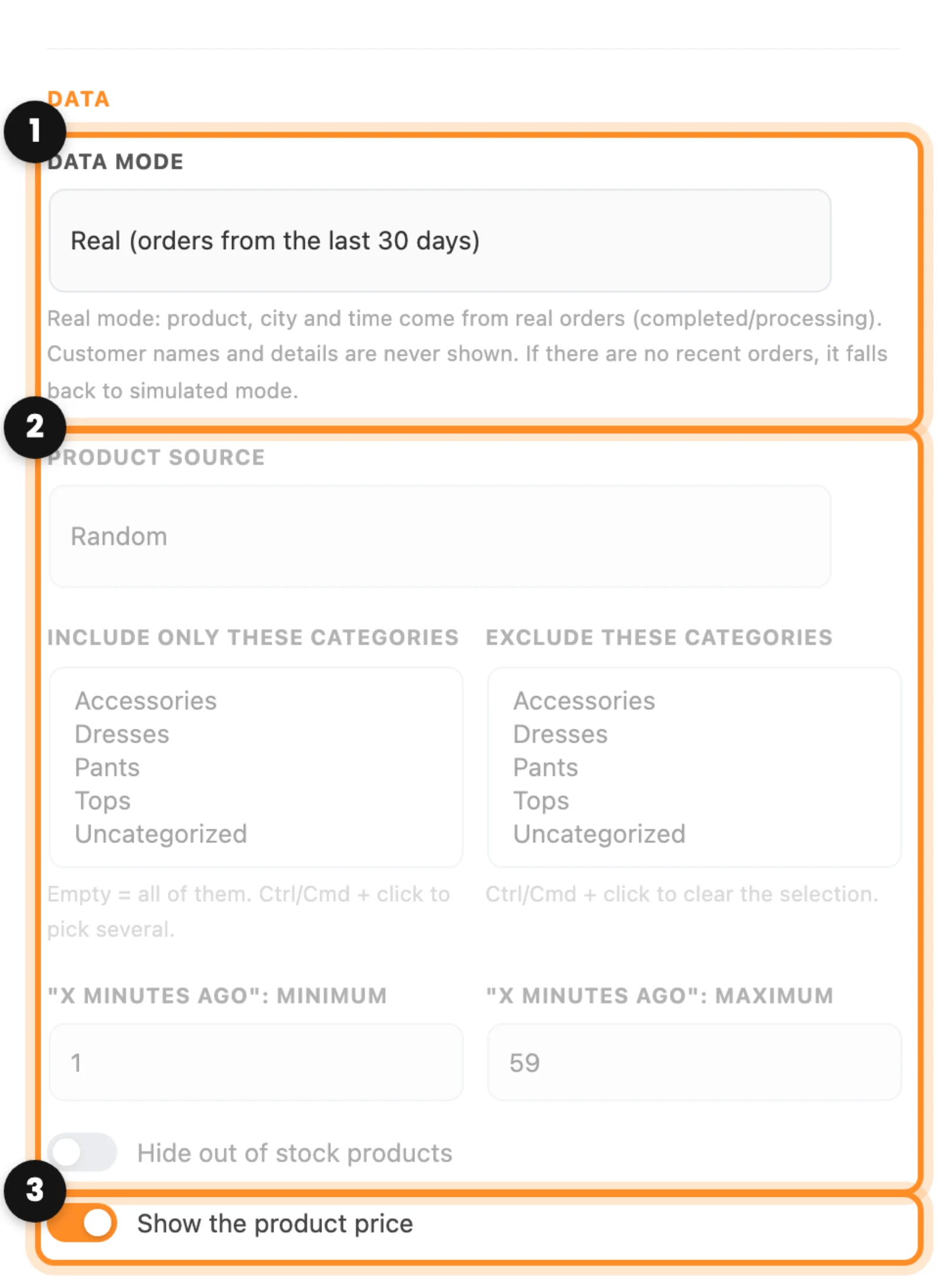
In real mode, each notice comes from a completed or processing order of the last 30 days: the product bought, the city of the order and how long ago it was, for example “3 hours ago · Miami”. Names, emails and addresses are never shown.
When there are no recent orders: since version 1.7.4, if your store has no completed or processing orders in the last 30 days, the popup stays hidden, and the panel tells you so. It comes back on its own with the next order. The grayed-out options (2) only apply to simulated mode. Also leave the {name} variable out of the title: the names come from a list you write, not from your customers.
When it appears
- The switch at the top turns the popup on or off for the whole site (1). It needs no shortcode.
- In Show every (2), set the seconds between one notice and the next. Popup duration is how long each one stays visible.
- First popup: minimum wait and First popup: maximum wait (3) set how long the first one waits after the page opens.
- Silence after closing (4) is how many minutes the visitor goes without popups after closing one. Maximum per page limits how many show on each page (0 means no limit).
- Keep Hide on cart and checkout on (5), so nothing distracts during payment. Show on mobile, just above, turns it on or off on phones.
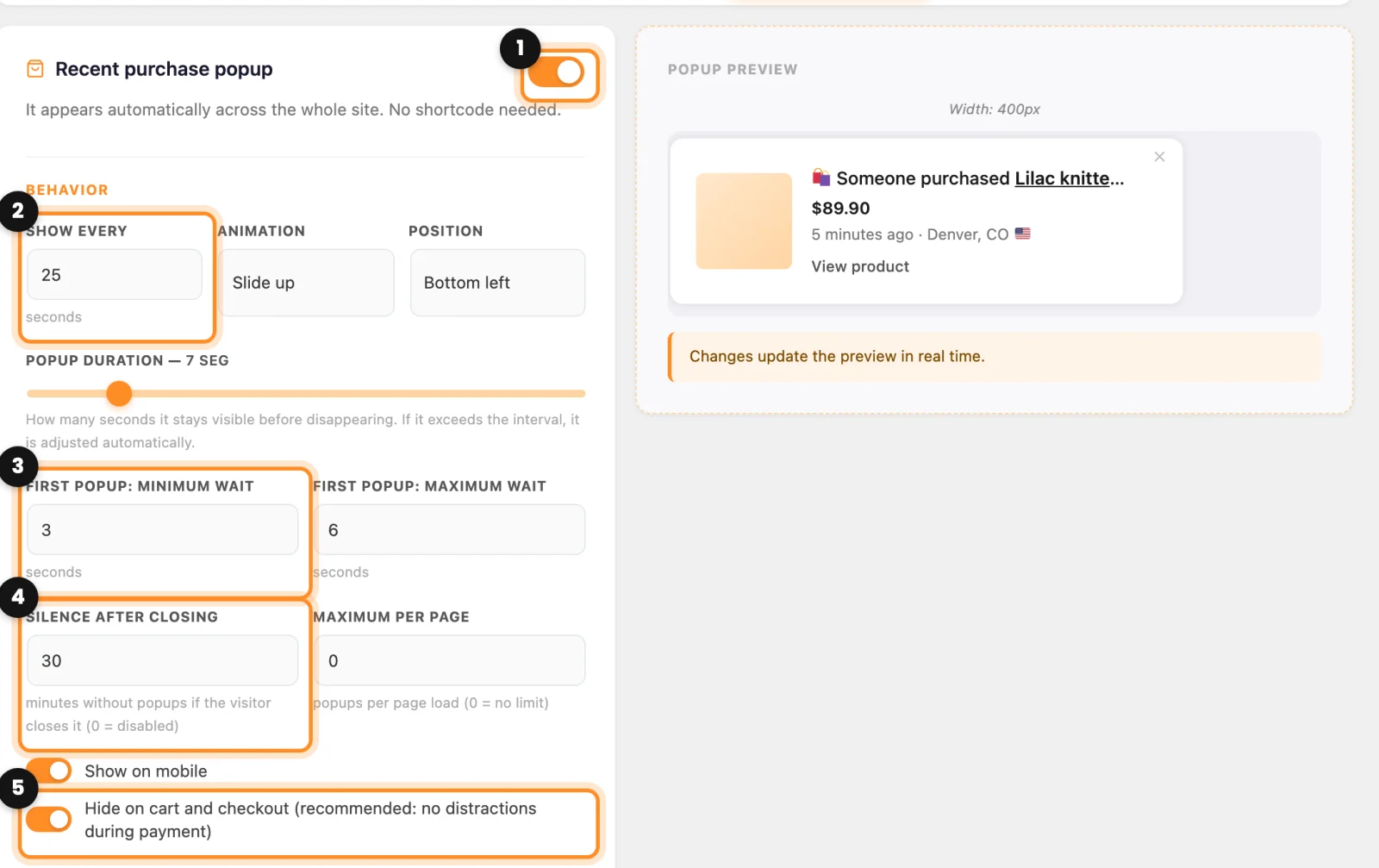
Further down, Content and Appearance set the title text, the link text, the width, the image size, the text sizes and the colors. The preview on the right changes as you edit.
Cities
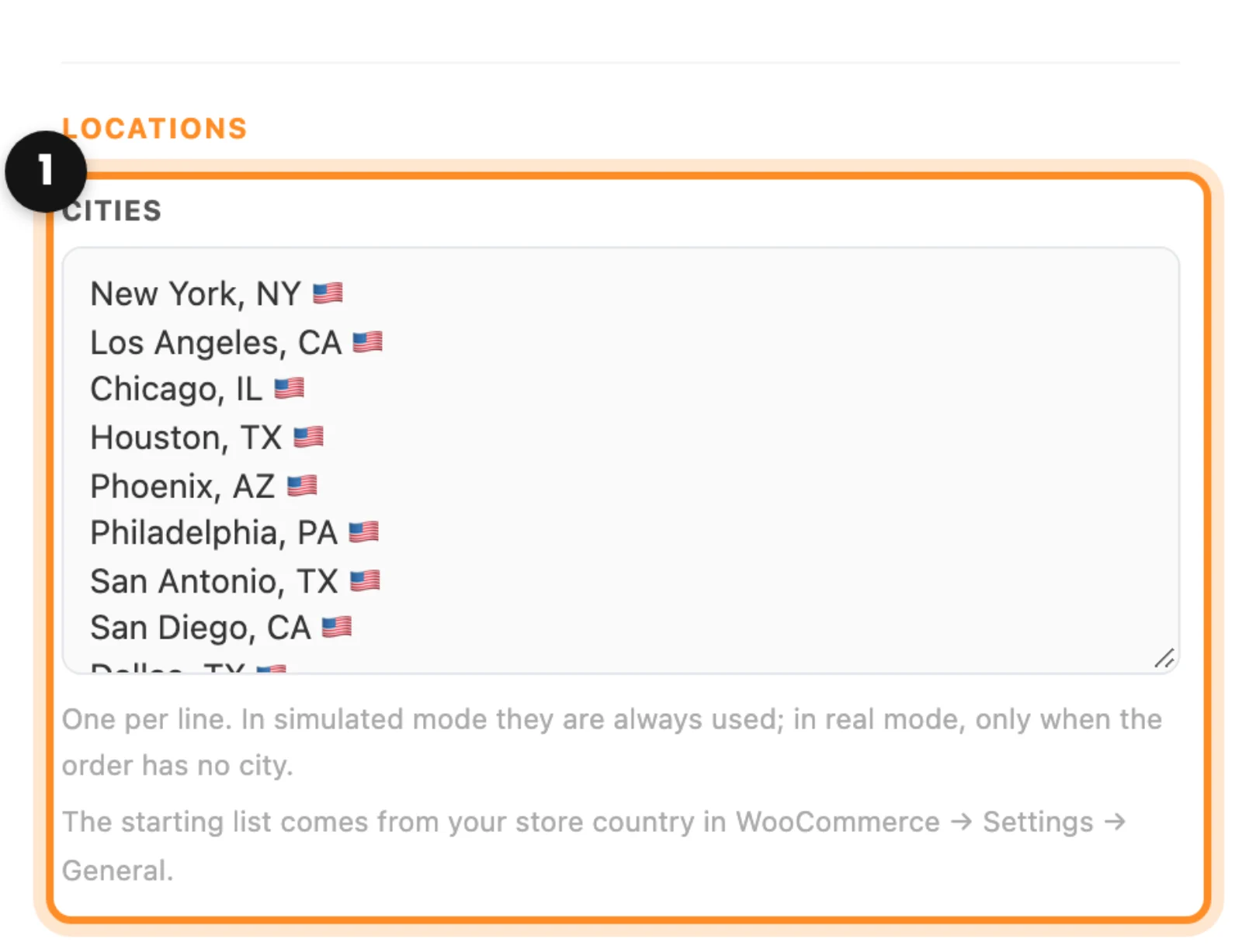
In real mode the city comes from each order, and an order without a city shows none. The Cities list (1) is only used in simulated mode, and it starts with cities of your store country (WooCommerce › Settings › General). If your country has no list yet, the box is empty: write the cities of your market, one per line.
How it looks
Open your store and wait a few seconds: the notice comes up at the bottom (1), stays a moment and goes away. The visitor can close it with the X or the Esc key.

Next: The free shipping bar