
Dox POS Pro · with Dox POS 0.48 or later
For a physical store with more than one person or more than one till: whoever serves signs in with their PIN, each till opens and closes on its own, cash put in or taken out of the drawer counts on the closing, and Reports keeps the history of closings.
Tills and PINs
With the Counter turned on, the Dox POS settings have a Counter tab:
- Tills: one per counter computer or tablet, named as you like (Front till, Fitting rooms). Each has its own shift and its own float.
- Cashiers with a PIN: turn on Ask for a PIN at the Counter and give each person a PIN of 4 to 8 digits. It is saved encrypted, like a password.
- Lock after: the minutes without use after which the device asks for the PIN again. With 0 it never locks by itself.
Serve with your PIN
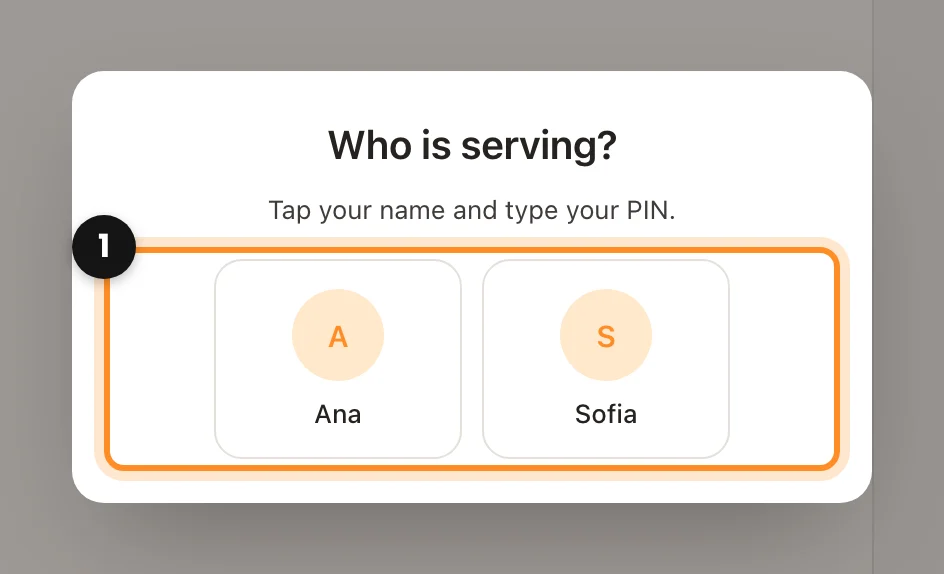
- When you charge, open or close the till or make a return, the Counter asks Who is serving?. Tap your name (1).
- Type your PIN (1) with the on-screen keypad (2) or the computer keyboard, and tap Enter.
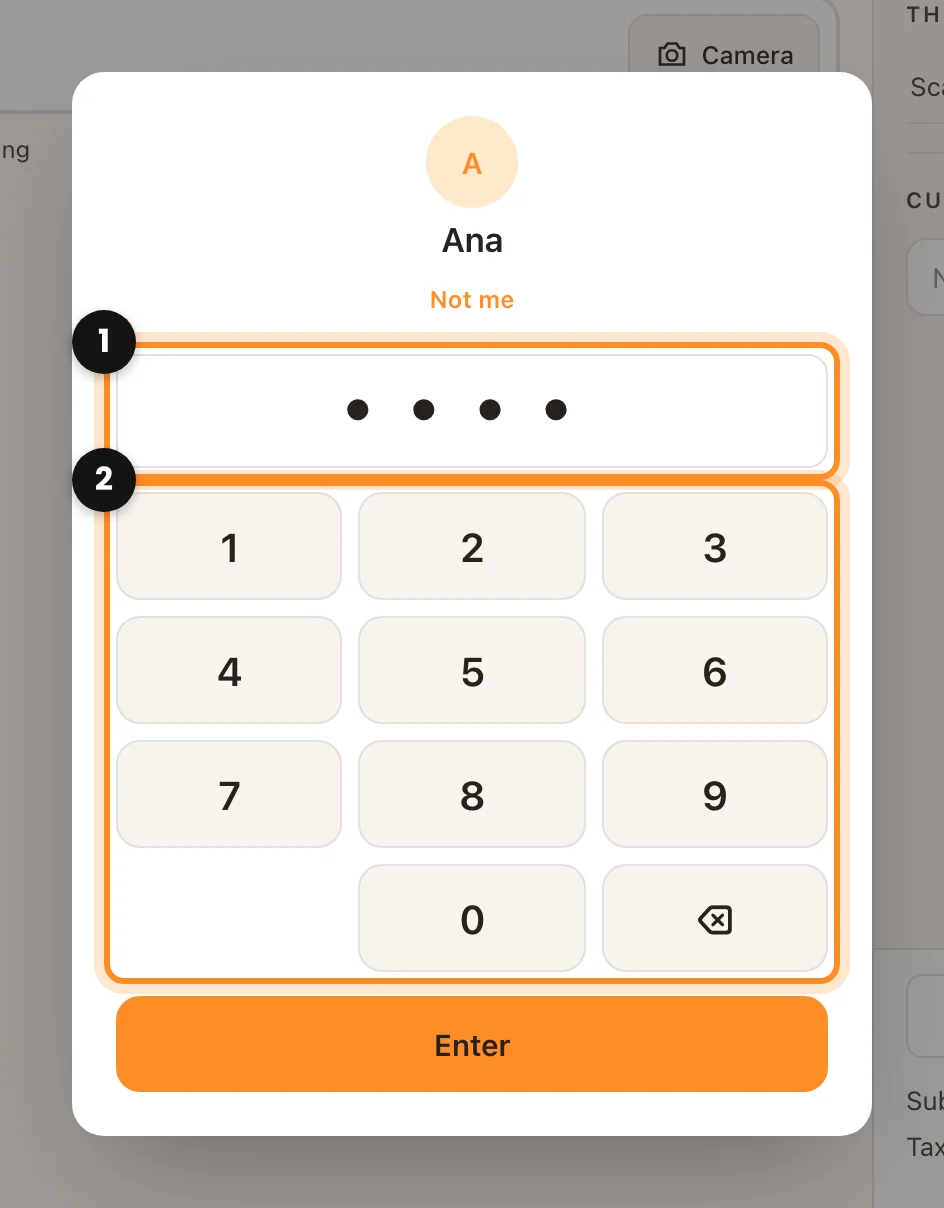
From then on the sales, the till and the returns go under your name, and the bar reads Serving: your name. When someone else takes over, tap Switch. Five wrong PINs in a row lock that person for 15 minutes.
Cash in or out of the drawer
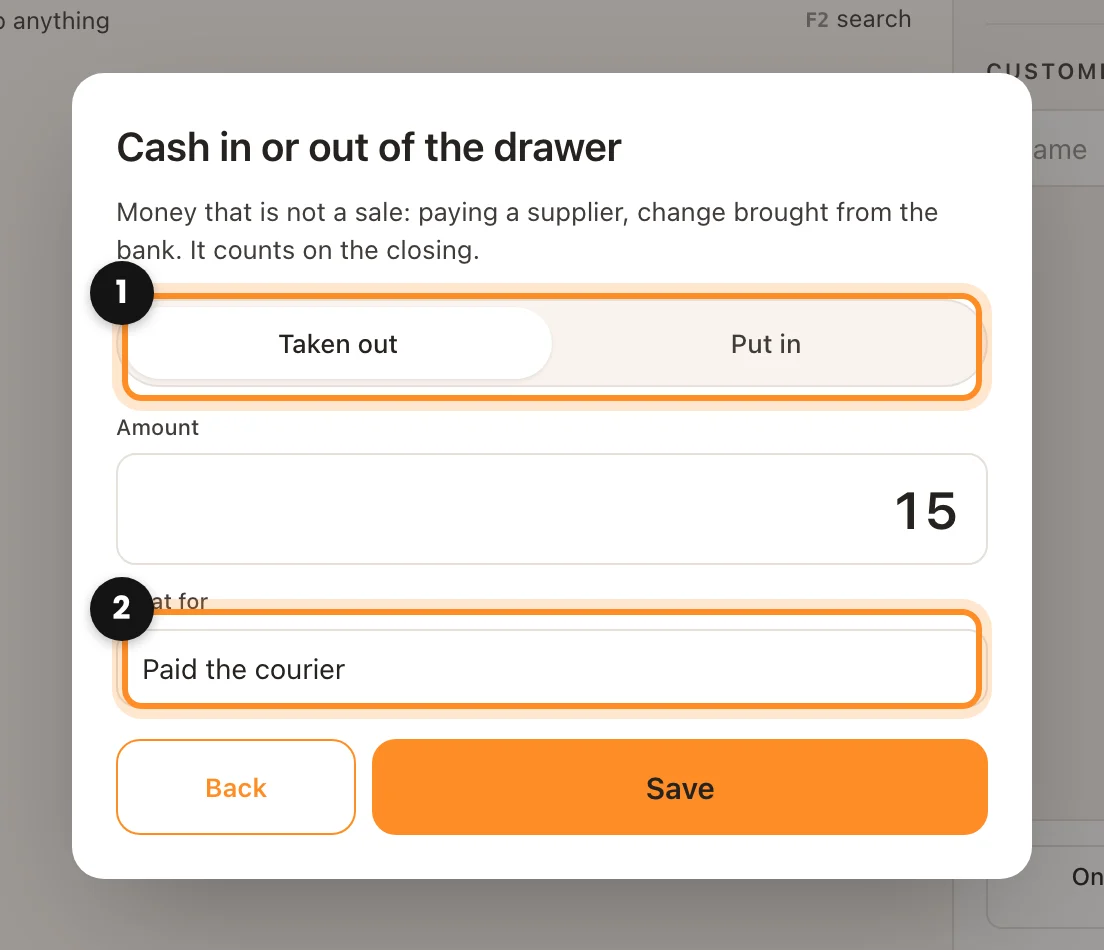
For money that is not a sale, like paying the courier or bringing change from the bank, tap Cash in / out in the top bar. Choose whether it goes out or in (1), the amount and what it is for (2). It counts in the cash that should be there at closing, and the closing lists it with its reason.
Each device’s till
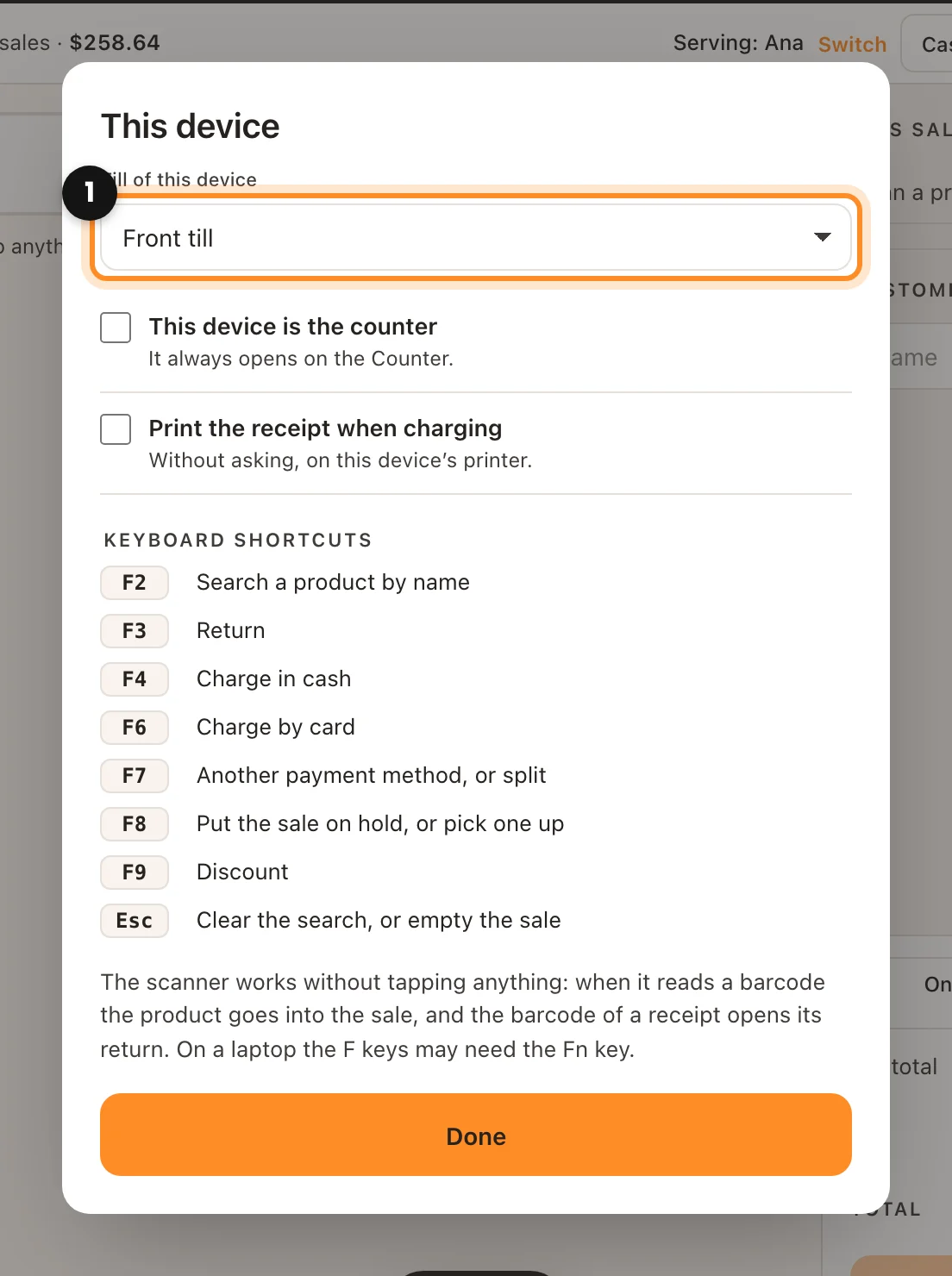
On each counter computer or tablet, open This device and choose its till (1). It stays saved on that device, and the Counter bar shows which till you are on.
Till closings
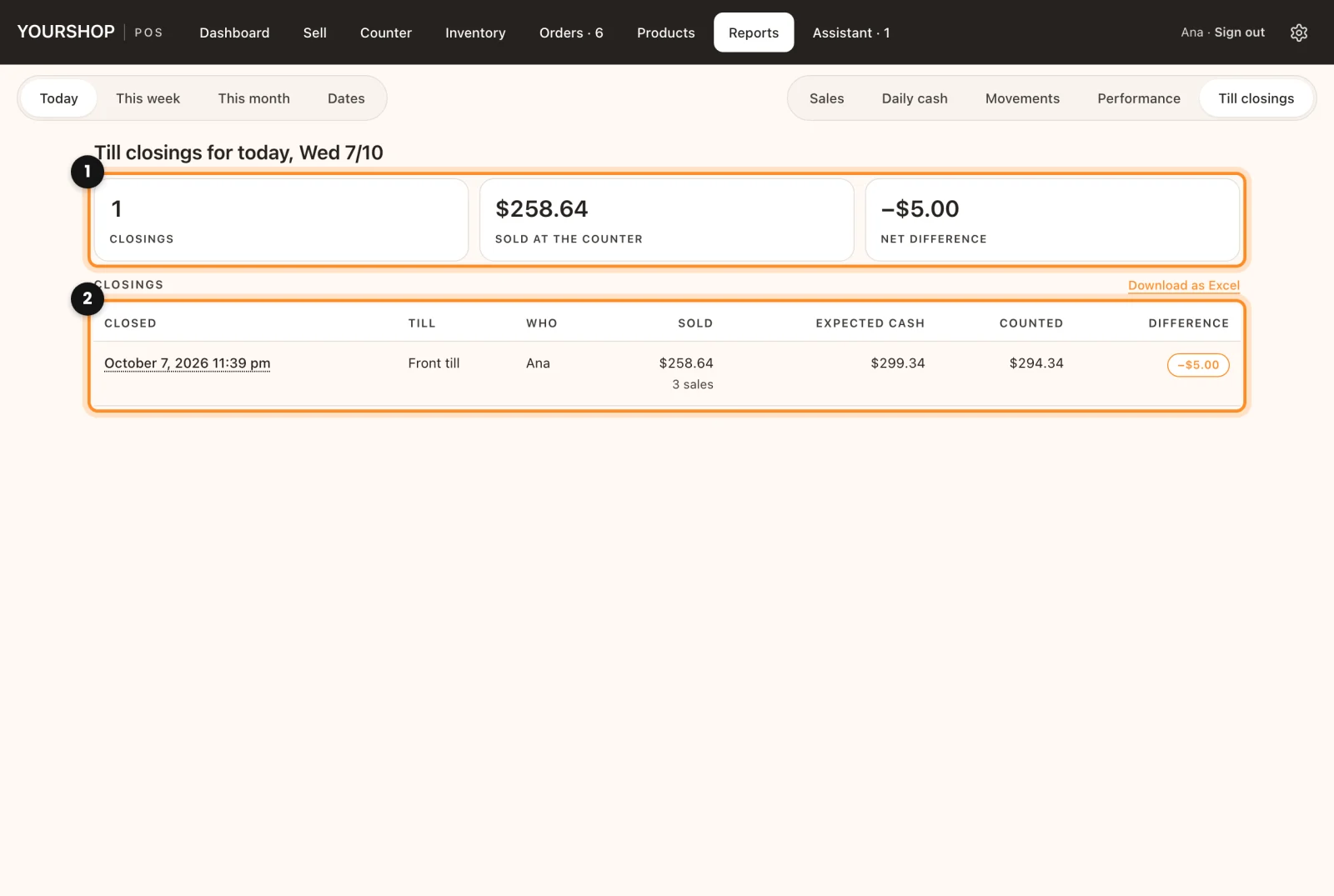
In Reports › Till closings you see the period’s closings (1): how many, what was sold at the counter and the net difference. The list (2) shows the till, who opened and closed it, the expected cash, the counted cash and the difference. Download as Excel gives you the same list.
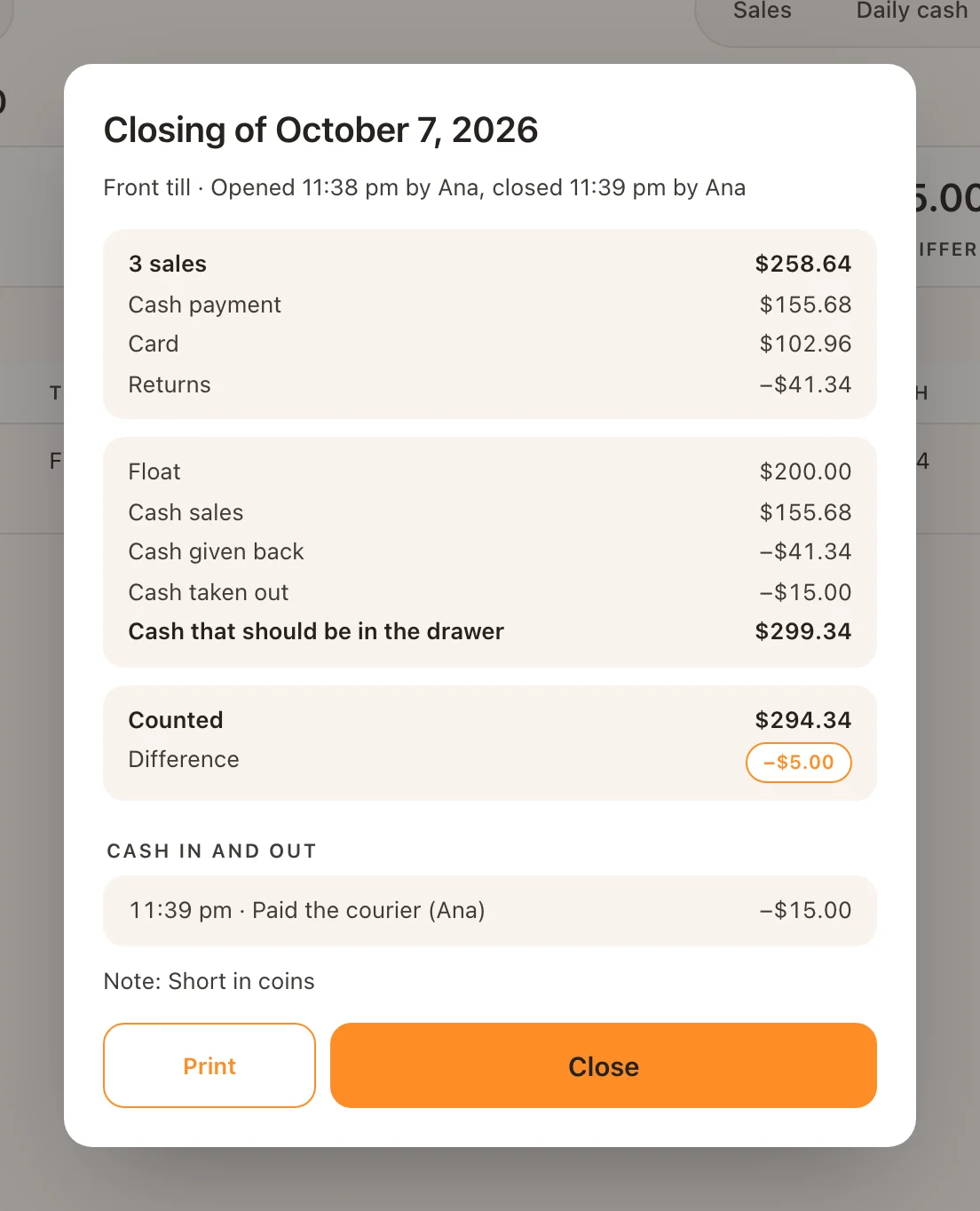
Tap a closing to see its detail: sales by payment method, how the expected cash adds up, what each cashier sold, the cash in and out and the note from whoever closed. Print prints the closing again on receipt paper.