
Free plugin · Dox POS 0.48 or later
If you have a physical store, the Counter is your cash register: scan the products with a barcode scanner, take cash and see the change, card or any other payment. Each sale is a WooCommerce order, like the ones from Sell, so the stock goes down on its own.
Turn on the Counter
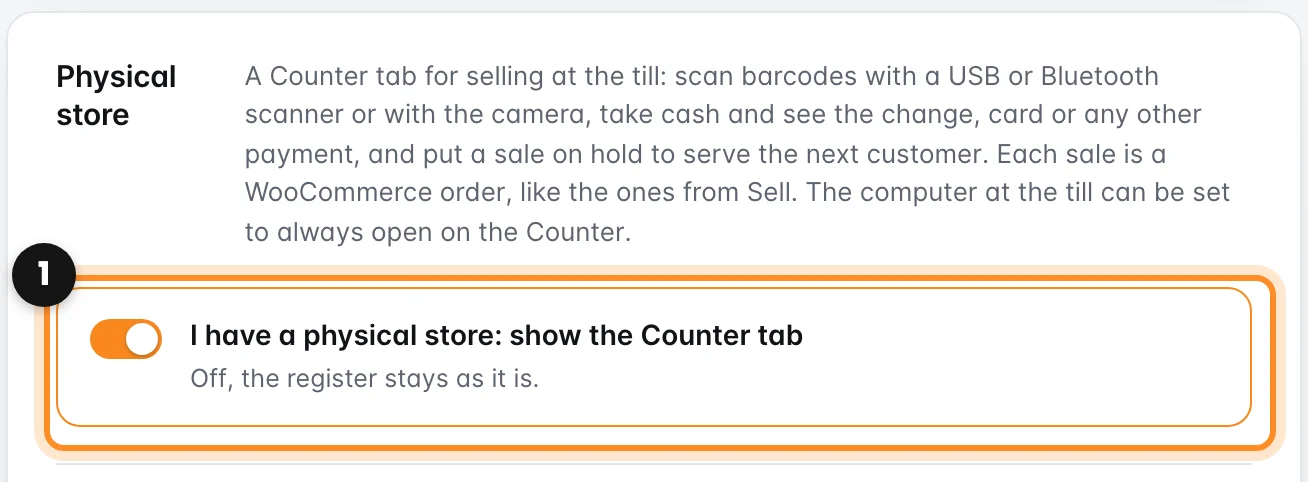
- Open WooCommerce › Dox POS and go to the Sales tab.
- In the Physical store card, turn on I have a physical store: show the Counter tab (1) and save.
The register gets a Counter tab next to Sell. If you only sell through WhatsApp or Instagram, leave it off and the register stays as it is.
Sell with the scanner
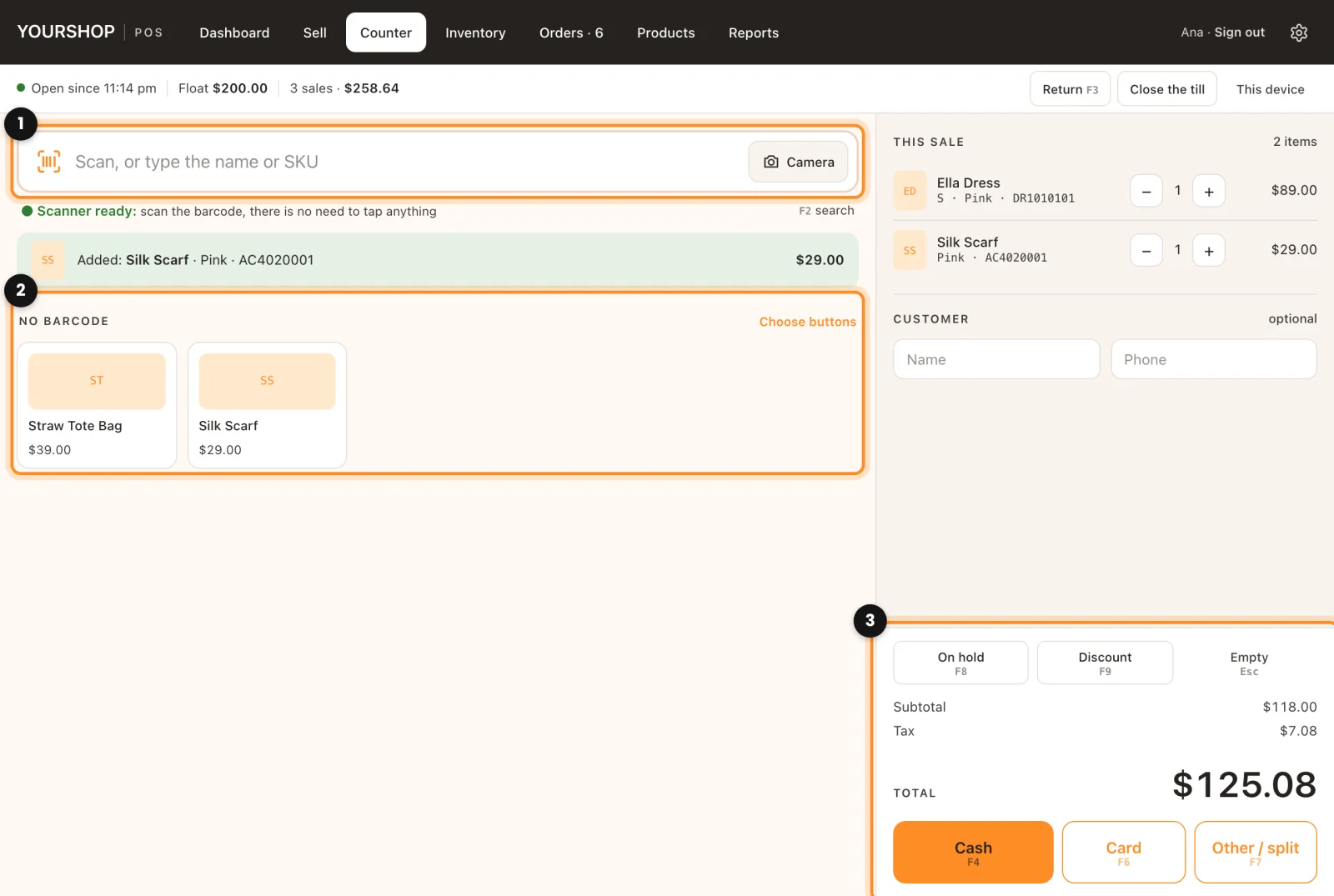
- Scan the barcode of each product (1). There is no need to tap anything first: the product goes into the sale with a beep. Scan the same one twice and the quantity goes up.
- What has no barcode (a gift bag, an alteration) goes on the buttons below (2). Whoever manages the shop picks them with Choose buttons, up to 24.
- To search by hand, type the name or the SKU in the same field and pick the product and the size.
- The total shows on the right (3), with the tax if your store adds it on top. The customer’s name and phone are optional.
The scanner reads the product’s SKU or its GTIN, EAN or UPC code (the WooCommerce field with that name). Any USB or Bluetooth scanner works, because it types like a keyboard. Without one, the Camera button reads the barcode with the phone’s camera, iPhone included.
Charge
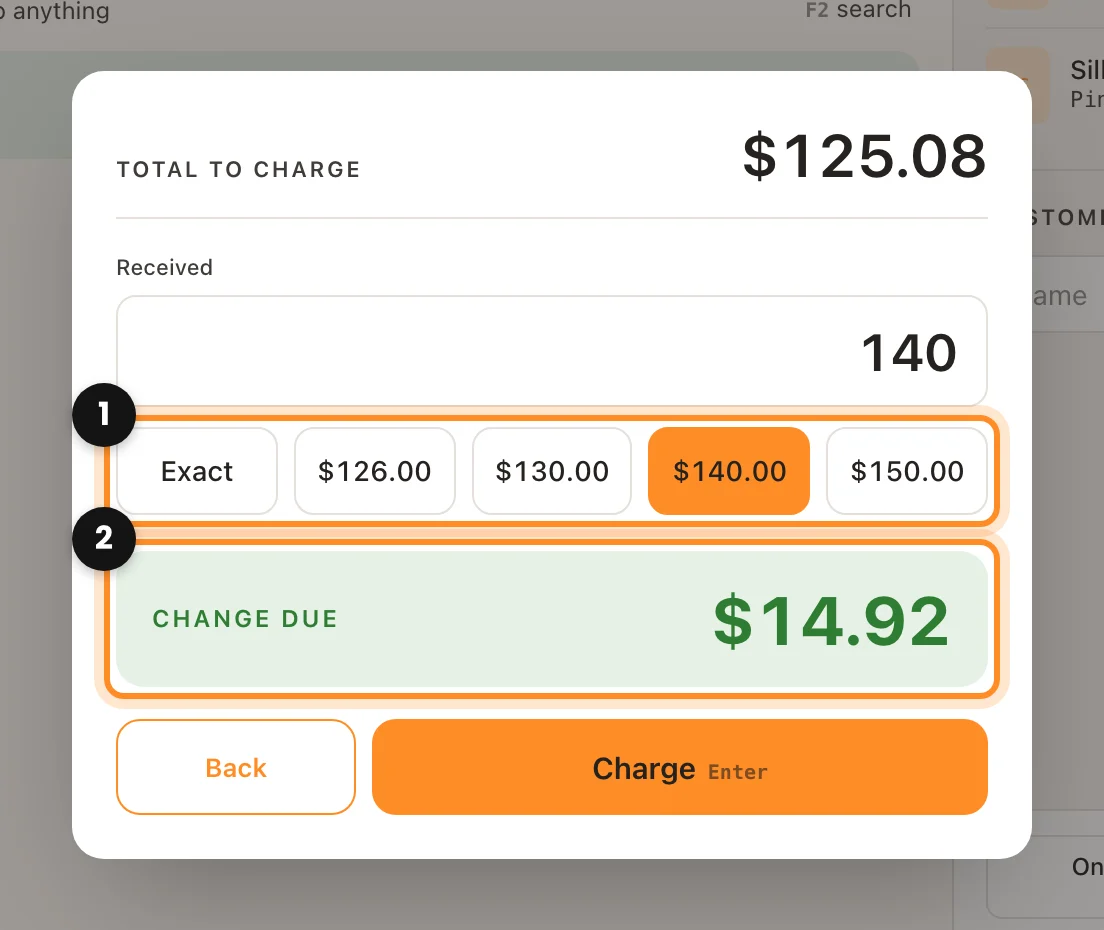
- Cash: type what the customer hands you or tap the bill (1). The change shows in large type (2). Charge records the sale and shows the change again, so you can read it calmly.
- Card: charge it on your card machine and, when the payment goes through, tap Paid: record the sale.
- Other / split: pick another of your payment methods, or split the total between several, for example part cash and the rest by card. The rest fills in what is missing.
Before the first sale of the day, the register asks you to open the till with the cash in the drawer. It is all in Open and close the till, the receipt and returns.
On hold, discount and shortcuts
- On hold: if the customer goes to grab something else, park their sale and serve the next one. Tap it with an empty sale to pick one up again. Sales on hold stay on that device and do not hold stock.
- Discount: an amount or a percentage, on the whole sale. Whoever manages the shop chooses in Settings › Sales › Discounts how much the others can give (0% turns it off).
- Keyboard shortcuts: F2 search, F3 return, F4 cash, F6 card, F7 other payment method, F8 on hold, F9 discount and Esc to empty. On a laptop the F keys may need the Fn key.
The counter device
In This device, at the top right of the Counter, tick This device is the counter on the computer at the till: from then on it always opens on the Counter, while the same person’s phone keeps opening on Sell. That is also where you choose whether the receipt prints by itself when you charge.
Someone who only takes payments? Give them the Counter cashier role in Users. They only see the Counter: no Sell, Inventory, Orders or reports. More in Give your team access.