Free plugin · Dox POS 0.47 or newer
The register’s Dashboard shows at a glance what you sold today, what is left to collect, which orders are waiting and what sells best.
The Dashboard is for whoever manages the shop: administrators and shop managers see it. Someone with the Cashier role doesn’t, always lands on Sell and has My day instead of Reports, with their own sales of today.
Open the Dashboard
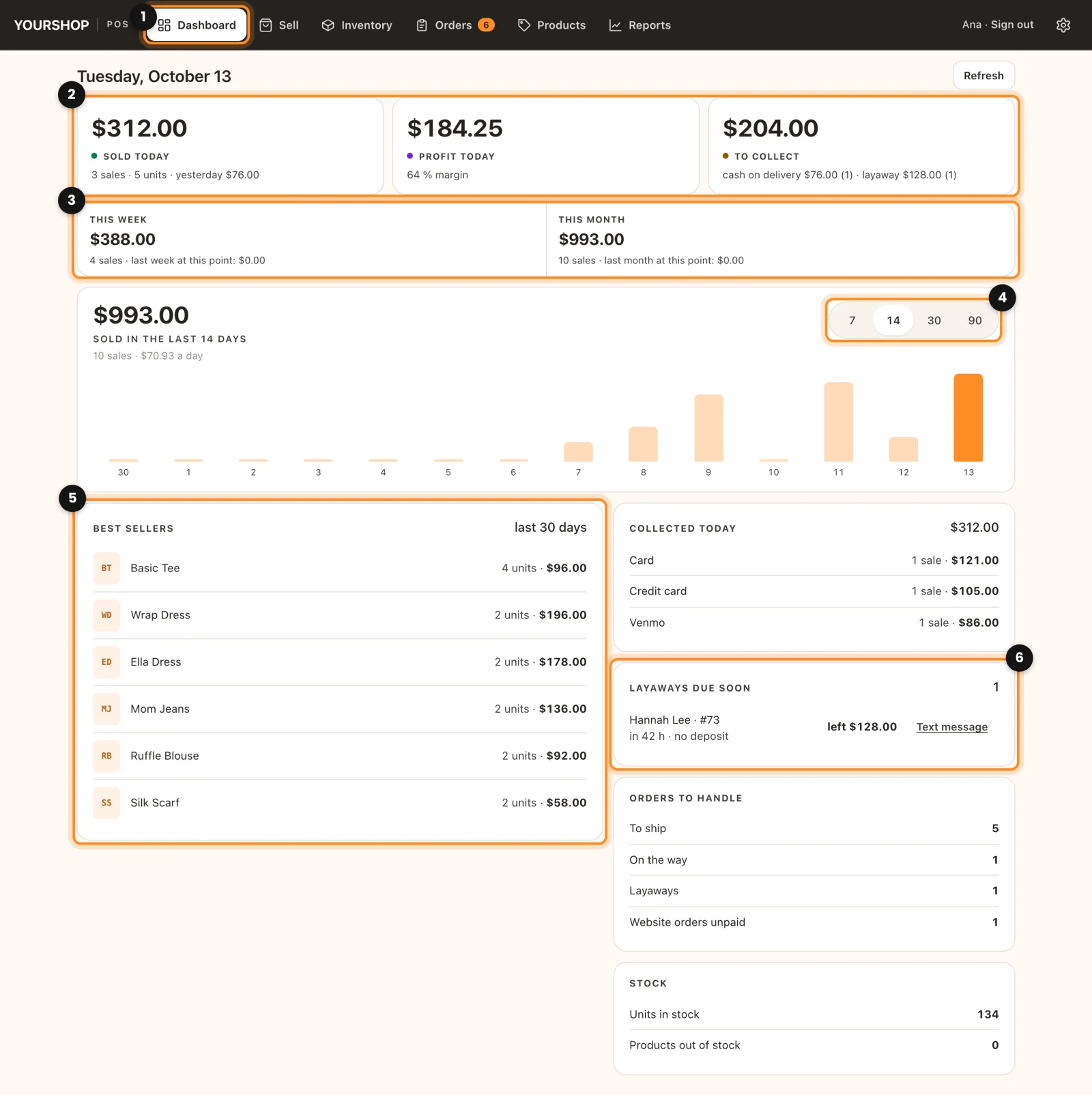
- Open the register. If you manage the shop, it opens straight on Dashboard (1). From another tab, tap Dashboard, the first one at the top.
- The figures load when you open the tab, and again if half a minute has passed or you touched an order. To see them right now, click Refresh, at the top right.
- Tap almost any figure to see the detail: Sold today, This week and This month open those sales in Reports; To collect and each line of Orders to handle open Orders; a product name opens its card, and Units in stock opens Inventory.
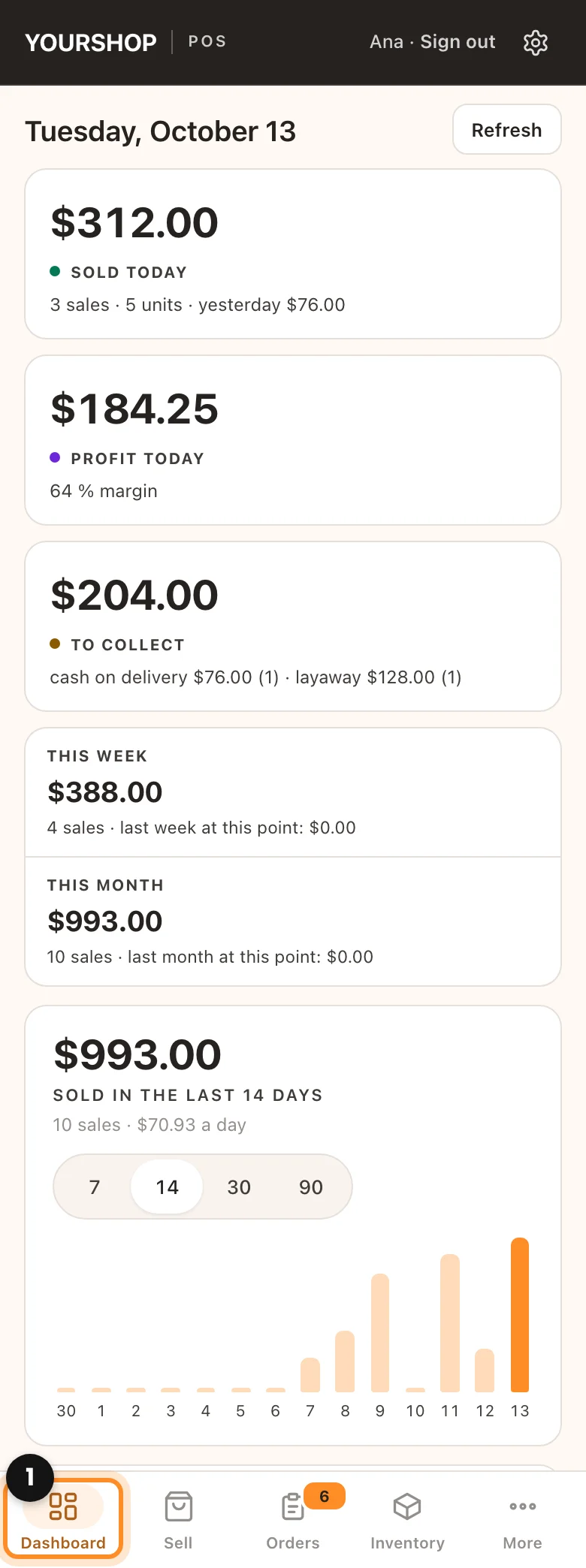
On a phone, the Dashboard comes first in the bottom bar, and the figures stack one under the other.
What each part shows
- Today (2): Sold today, with how many sales and units and what you sold yesterday next to it; Profit today, with the margin, if you have costs turned on; and To collect, what is still owed on cash on delivery and layaways, with how many orders of each.
- This week and This month (3): what you sold since Monday and since the 1st, against last week and last month up to the same day. The percentage shows in green with a + when you are ahead, and with a − when you are behind.
- The chart: sales day by day, with today in orange. Choose how many days to see with 7, 14, 30 or 90 (4); above it are the total, the number of sales and the daily average. This browser remembers your choice.
- Best sellers (5): the six products you sold most in the last 30 days, with units and total.
- Collected today: what came in today, split by payment method.
- Layaways due soon: it only shows up when one expires within the next 3 days or an expired one has deposits, with what was deposited, what is left and the button to write to the customer. See layaways.
- Orders to handle (6): how many are To ship, On the way, in Layaways, in Payments to confirm and Website orders unpaid. Only the lines with something in them show; when there is nothing, it says Nothing pending.
- Stock: the Units in stock and how many Products out of stock you have.
With Dox POS Pro, the week and month row adds This month, at the current pace, where the month would close if you keep selling the same, and, if some products aren’t moving, Not turning over in 90 days. Both open the Assistant.
Choose where the register opens
If you would rather have the register open on Sell for you too:
- Go to WooCommerce › Dox POS and open the Sales tab.
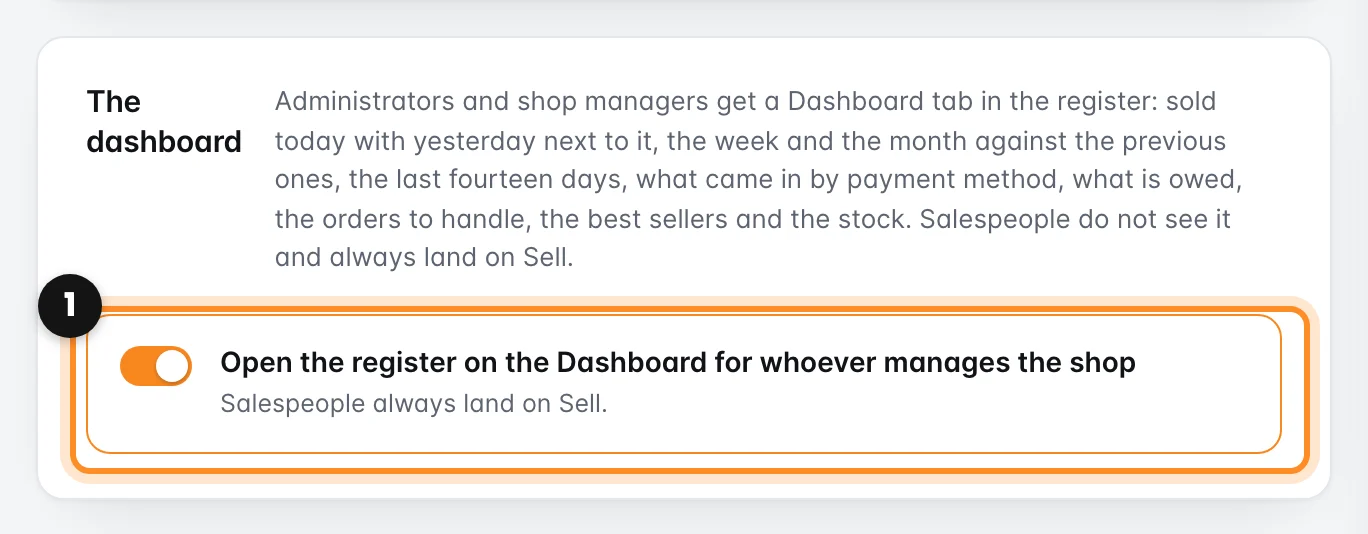
- In the The dashboard card, turn off Open the register on the Dashboard for whoever manages the shop (1).
- Click Save changes. The Dashboard keeps its tab; on a phone it moves after Inventory in the bottom bar.