
Dox POS Pro · 0.32 or newer · Needs costs turned on
With costs turned on, the Pro adds Performance to the register’s Reports: what each product, category and day leaves once its cost is paid. The assistant reads the same figures and tells you which prices leave too little.
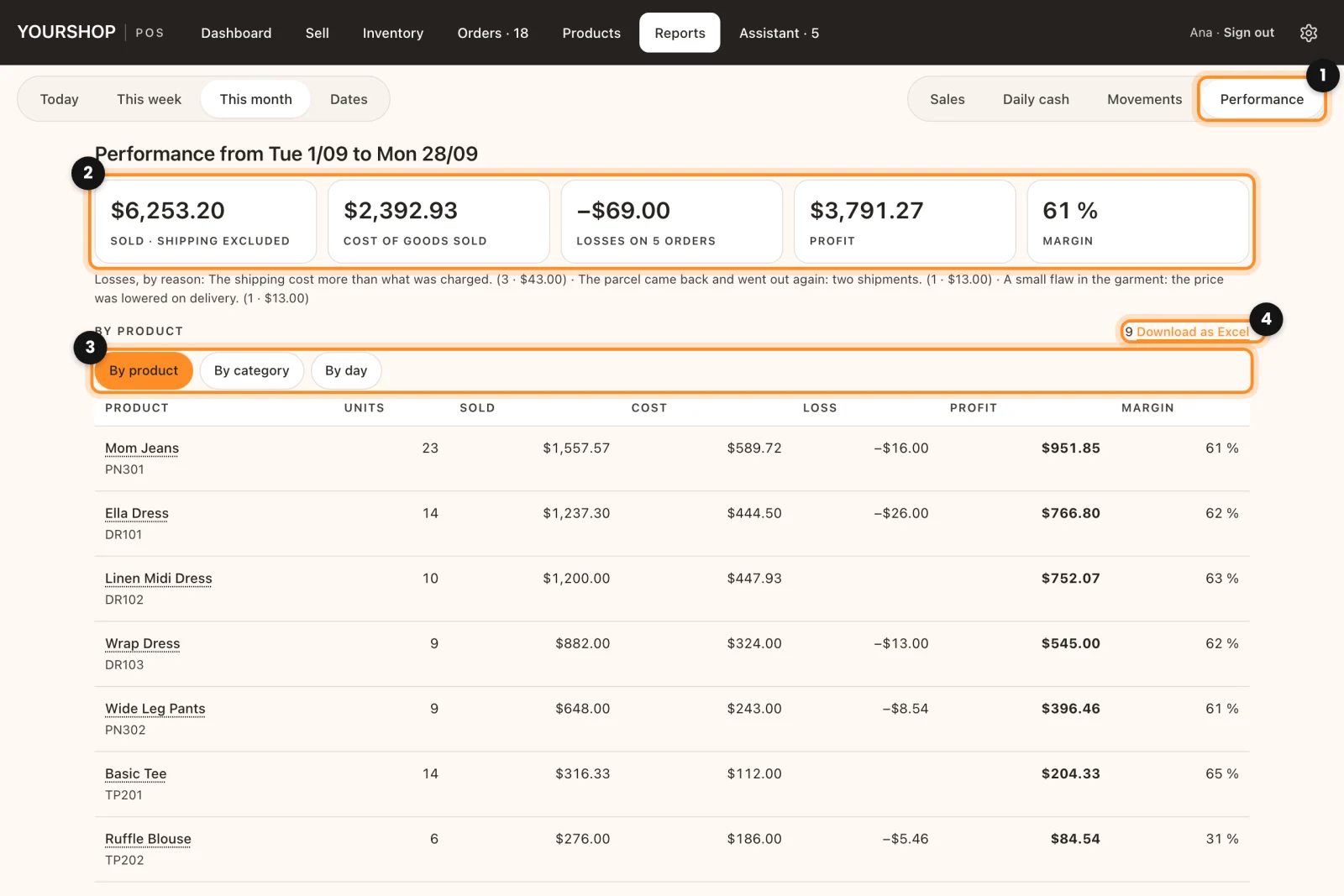
Open Performance
- In the register, open Reports, choose the period and tap Performance (1). Only administrators and shop managers see it, and only with costs turned on: Costs and profit.
- The figures at the top (2): Sold · shipping excluded, Cost of goods sold, Profit and Margin. If a loss was noted on any order, it adds the losses and a line with Losses, by reason:.
- Group the table (3) By product, By category or By day. Each row has Units, Sold, Cost, Profit and Margin, and a Total at the end.
- Download as Excel (4) takes the same period and grouping to a file with two sheets: the rows and a summary.
The profit is what the customer paid for the products (with the discount spread across them and shipping left out) minus the cost frozen on each sale. The margin is the profit over what was sold: a dress that costs $12 and sells for $30 leaves $18, a 60 % margin. A unit sold with no cost adds to sales but not to the profit, and the screen names the products missing one.
The margin tips
Under Assistant › Today, the Tips look at the last 30 days of margin and can say:
- Low margin on 2 products: what each one sells at, what it costs, what it leaves and the price it would need to reach your target margin.
- The cost went up and the price did not: the last purchase came in more than 10 % above the previous cost and the price stayed put.
- What earns most is not what sells most: the product that leaves the most profit, next to the best seller.
- Costs are missing to see the profit, the period’s margin below your warning, and the losses noted on orders with the reason that weighs most.
See on a tip opens Performance. The tips by rules need no licence; with the assistant, it writes them up.
Set your target margin
In WooCommerce › Dox POS › Assistant, card Performance:
- Target margin: 40 % to start with. The suggested price comes from it: cost divided by (1 minus the margin). A $12 cost at 40 % gives $20.
- Warn below: 20 %. A product sold with a lower margin shows up in the tips. It has to be lower than the target.
The same two figures color the profit across the register: green from the target margin, red below the warning.
A shipment cost more than you charged? Open the order in the register and tap Note a loss, or ask the chat: “note a loss of $8 on order #1234, the shipping cost more”. Performance spreads the loss across that order’s products, like the discount, and takes it off the profit.