
Dox Studio hosting · all plans
Coming from another hosting company? We move your website to Dox Studio for free. Open a ticket with a few details and we take care of the rest.
Ask for the move
- Log in to clients.doxstudio.com and open a ticket in Open Ticket.
- Choose the Migraciones y Traslados department (moves and transfers).
- Write the subject, for example “Move yourdomain.com to Dox Studio”, and the details from the next section. Submit it.
If you don’t have a client area with us yet, write to support@doxstudio.com with the same details.
What to tell us
- Your website’s address, for example yourdomain.com.
- Where it is hosted now (the company), and whether you can get into its control panel. Instead of access, a full backup file also works (see below).
- Where your domain is registered (GoDaddy, Namecheap, another company) or who manages its DNS, for example the person who built your site.
- Your email accounts, if you have any on the old hosting: the addresses (info@, sales@…) and whether you use them in Outlook, on your phone or in Gmail.
Don’t write passwords in the ticket. Tell us where things are, and we reply with a safe way to give us access.
A full backup from your old cPanel
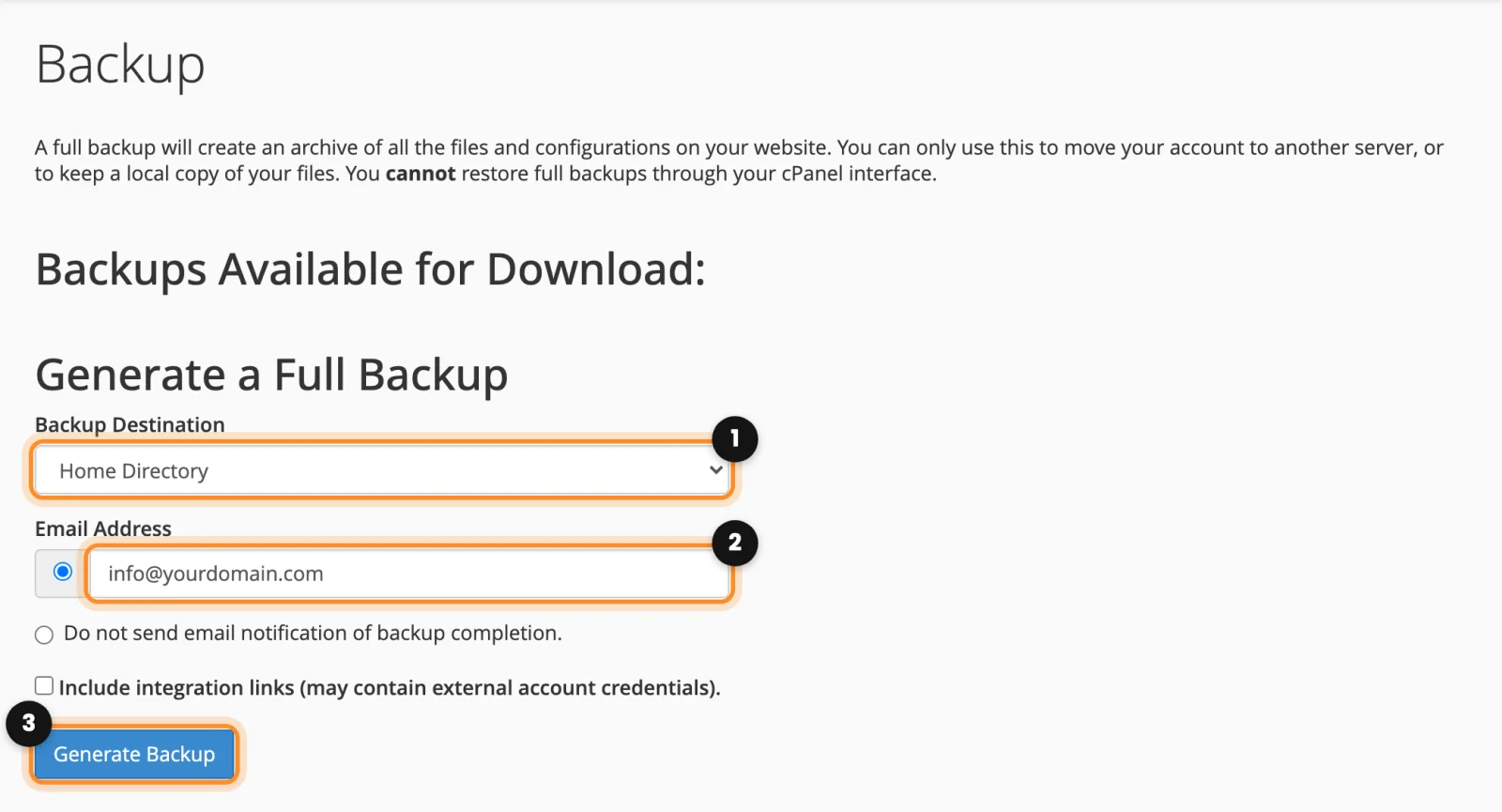
If your old hosting also uses cPanel, you can send us a full backup of the account instead of the access. There it is made like this:
- In the old cPanel, open Backup, in the Files section, and click Download a Full Account Backup (1).

- Leave Backup Destination in Home Directory (1).
- In Email Address (2), write the email where you want the notice when it is ready.
- Click Generate Backup (3). It can take a while. When the email arrives, open Download a Full Account Backup again: the file is under Backups Available for Download, ready to download.
The file is usually too big for a ticket attachment. Tell us in the ticket that you have it, and we tell you how to send it. If your old hosting doesn’t use cPanel, don’t worry: the access is enough.
What we do
- We copy your website: its files and its database.
- We set it up on our server and test it there, before touching your domain. Meanwhile, your website keeps working on the old hosting as always.
- We point your domain to Dox Studio, or tell you exactly what to change if you manage it. It’s explained in Point your domain to your Dox Studio hosting.
- You check it and confirm that everything works.
We keep you informed through the ticket at every step, and before changing the domain we tell you in the ticket what happens with your email accounts.
While we move it
- Don’t cancel the old hosting until we confirm that your website works here and you have checked it. If you cancel before, the website and the email can go down.
- Avoid big changes on the old site (new pages, plugins, design) during the move: what changes after we copy it doesn’t come over. If you can’t wait, tell us in the ticket.
- Keep your important emails safe. If there are messages you can’t lose, keep your own copy: see Keep your own copy of the email.
Doing it yourself
If your website is WordPress and you prefer to move it yourself, a migration plugin can pack the site on the old hosting and unpack it here, using the File Manager or FTP from Upload and manage your files. It’s easy to miss a step (the database, the site address, the security certificate), so we recommend letting us do it: it’s free.